
Music mode
Music mode moves your key lights with the sound your PC plays: music, videos, games, anything that comes out of your speakers or headphones. The keys can show it four ways: as bars, as a pulse on each beat, as a band of loudness or as waves.
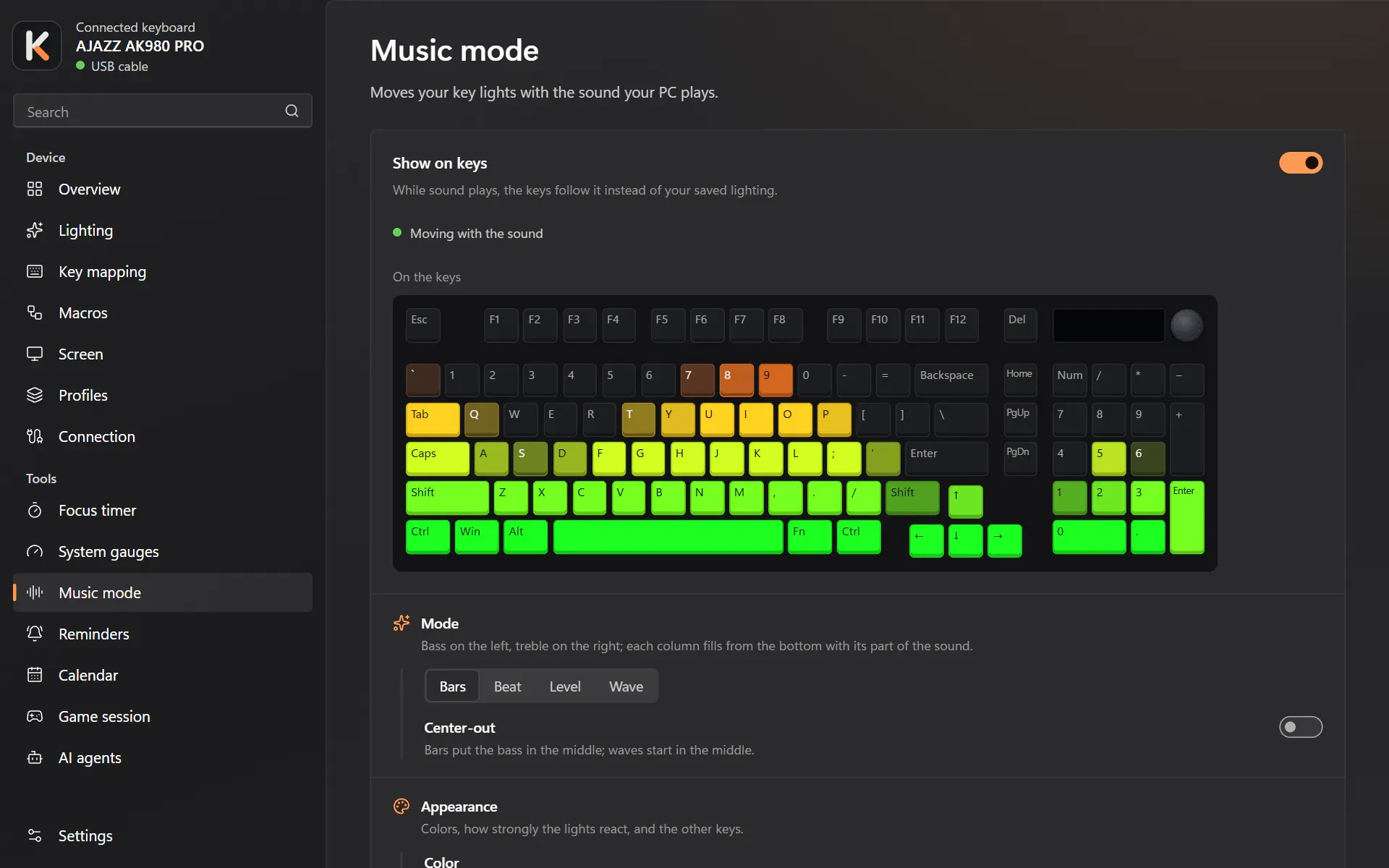
Turn music mode on
Section titled “Turn music mode on”- Open Music mode under Tools in the sidebar.
- Turn on Show on keys.
- Play something.
The line under the switch says what the keys do now, for example Moving with the sound, Lights start when sound plays. or Preview only. The keyboard drawing shows what the keys show. The drawing works even before you turn music mode on, so you can try the modes and colors first.
While sound plays, your saved lighting is hidden. When it has been quiet for a few seconds, the keys show what you chose under When it’s quiet.
When Keymotion keeps running after you close its window, the menu of its icon next to the clock can also turn Music mode on or off.
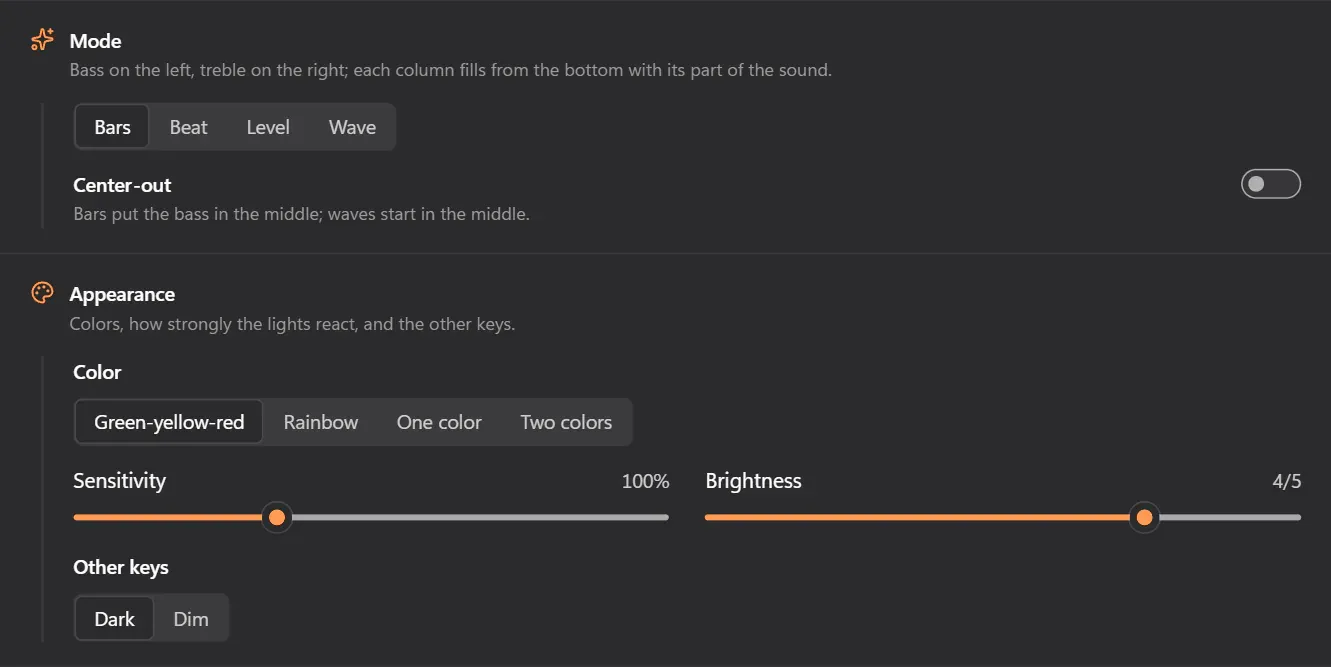
- Bars: the keys are split into columns from left to right, bass on the left and treble on the right. Each column fills from the bottom row up with its part of the sound, and a mark at the top of each column stays a moment before it falls.
- Beat: the whole keyboard is one color. It flashes on each beat and fades, a strong beat sends a ring out from the middle, and between beats the keys glow with the loudness.
- Level: how loud the sound is, as a band that opens from the middle of the keyboard to both sides, with a mark at its edge.
- Wave: each bass beat sends a wave of light across the keys.
Center-out, for Bars and Wave, puts the bass in the middle with the treble towards both ends, and starts the waves in the middle.
Appearance
Section titled “Appearance”- Color: Green-yellow-red, Rainbow, One color or Two colors, which you pick.
- Sensitivity goes from 50% to 200%. Higher makes the lights react more to quiet sound.
- Brightness goes from 1 to 5.
- Other keys, the keys the music doesn’t light, are Dark or Dim.
When it’s quiet
Section titled “When it’s quiet”A few seconds after the sound stops, the keys show:
- Keyboard’s own light: the music lights step aside and your saved lighting comes back (or the system gauges, when they’re on).
- Dim color: every key faintly lit.
- Dark: every key off.
When the sound comes back, so do the music lights.
While you play a game
Section titled “While you play a game”With Pause while playing a game on, which it is at first, the music lights wait while a game is in front during a game session and come back when you switch to another program. When a game’s own lights are on, they cover the music lights anyway.
Music mode doesn’t touch any game: it reads only the mixed sound Windows sends to your speakers, and left and right are never shown apart.
Priority order
Section titled “Priority order”Several things can light the keys at the same time. From the top:
- The preview on the Lighting page, only while you edit there.
- Reminders, and the volume and microphone keys of the system gauges, on their own keys only.
- The focus timer, on the whole keyboard.
- A game’s own lights during a game session.
- Music mode, while sound plays.
- The system gauges’ load bars.
- A profile linked to the program in front.
- Your saved lighting, when nothing above is active.
So while the focus timer runs, the music lights wait, and the gauges’ bars come back whenever the sound stops.
What it can’t hear
Section titled “What it can’t hear”- A program that keeps the sound to itself, as some music players can (often called “exclusive mode” in their settings): Windows then gives its sound to no one else, so the lights don’t react.
- Some protected films and series in streaming apps, for the same reason.
- A screen card upload: while a song card goes to the keyboard’s screen (about 3 seconds), the keys show your saved lighting, then the music lights come back. The keyboard can’t take both at once.