
Settings
Settings holds how the app looks and which language it uses, what happens when you close the window, the keyboard’s color tuning, backups, updates and the ways to get help. Open it at the bottom of the sidebar.
Appearance
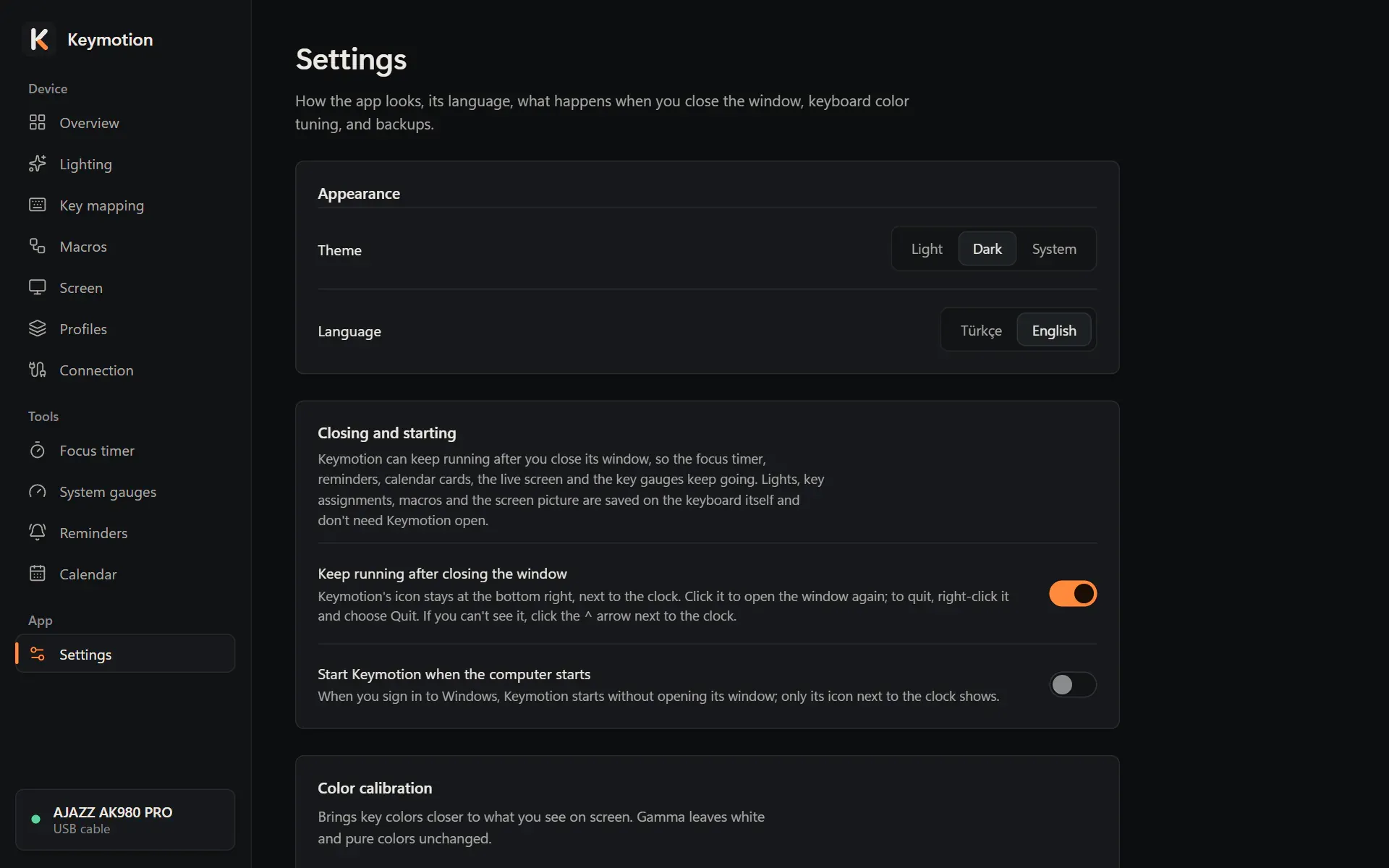
Section titled “Appearance”- Theme: Light, Dark or System. System follows Windows’ light or dark mode, and is what Keymotion starts with.
- Language: Türkçe or English. The whole app changes at once, including the menu of its icon next to the clock. Keymotion starts in Turkish when Windows is in Turkish, and in English otherwise.
Closing and starting
Section titled “Closing and starting”Lighting, key mapping, macros and the picture on the screen are saved on the keyboard itself, so they work with Keymotion closed. The focus timer, reminders, calendar cards, the live screen and the gauges on the keys need Keymotion running.
- Keep running after closing the window is on at first. Closing the window then leaves Keymotion running, with its icon at the bottom right of the screen, next to the clock. The first time you close the window after Keymotion starts, a Windows notification says it is Still running.
- To open the window again, click the icon, or open Keymotion again from the Start menu.
- To quit, right-click the icon and choose Quit.
- If you can’t see the icon, click the ^ arrow next to the clock.
- With this switch off, closing the window quits Keymotion.
- Start Keymotion when the computer starts is off at first. With it on, Keymotion starts when you sign in to Windows, without opening its window; only its icon next to the clock appears. If Keymotion is turned off in Windows’ own startup settings, this switch shows off and says so; you can turn it on again here.
The icon’s right-click menu also shows the keyboard and its battery, runs the Focus timer (start, pause, skip to the next phase, stop), shows the next reminder, turns Reminders and System gauges on the keys on or off, lists your Profiles, and has Open Keymotion. Choosing a profile there opens its load confirmation on the Profiles page; nothing is saved until you confirm.
If you quit while some changes aren’t saved to the keyboard, Keymotion asks first.
Color calibration
Section titled “Color calibration”Color calibration brings the keys’ colors closer to what you see on your screen. Your changes are kept as you make them; Restore defaults undoes them.
- Gamma sets how dark the mid tones are. Gamma per color gives red, green and blue a slider each.
- White balance sets the highest brightness of each color.
- Test pattern lights the keyboard White, in Gray steps or with the app’s Palette, so you can compare it with the drawing under Compare with your keyboard. It needs the USB cable, and your saved lighting comes back when you leave the page.
Calibration applies to previews and to the colors you save from now on. To update the colors already on the keyboard, save them again on the Lighting page.
Backup
Section titled “Backup”- Export settings, then Export, saves your settings, key mapping, macros and library in one file in your Downloads folder. Show in folder opens the folder. If you have added calendars, Include calendar addresses also puts their addresses in the file.
- Restore from a backup, then Choose file, shows what each part of the file will change before anything happens. Choose the parts and click Restore. Nothing is written to the keyboard: lighting, key mapping and macros open as unsaved changes, which you save on their own pages.
Updates
Section titled “Updates”The About section starts with the Version row: the version you have and what Keymotion found the last time it looked, for example that it is up to date. Check for updates looks on GitHub right away.
Under Updates you choose what Keymotion does by itself:
- Update automatically: Keymotion looks once a day, downloads a new version and installs it while you’re not using the computer (after 10 minutes without the mouse or the keyboard). It waits while something is being written to the keyboard, while the focus timer runs and while changes aren’t saved to the keyboard. When it’s done, a Windows notification says so, with What’s new.
- Let me know (recommended, and how Keymotion starts): Keymotion looks once a day and tells you when a new version is out. You choose when to install it.
- Off: Keymotion never looks by itself. Check for updates still looks when you click it.
When a new version is out, Keymotion tells you in several places, so you see it even while it runs next to the clock with its window closed:
- A Windows notification, once for each version, with Update now and Later. Update now installs it straight away. The notification doesn’t come while Keymotion’s window is in front, where the strip says it.
- The first line of the menu of the Keymotion icon next to the clock, Update available, and a small dot on the icon.
- A card at the bottom left of the window, and a dot next to Settings.
- A strip above every page. Later hides the strip until Keymotion starts again.
- Click Install now, on the strip or in the Version row.
- Read What’s new. If the notes aren’t available in your language, Release notes on GitHub opens them in your browser.
- Click Install and restart. Keymotion downloads the new version; Cancel stops the download.
- If something is being saved to the keyboard, Keymotion waits for it to finish. Then it closes, the installer shows its progress in a small window, and Keymotion opens again: with its window if the window was open, next to the clock if it wasn’t. A Windows notification says which version is now installed.
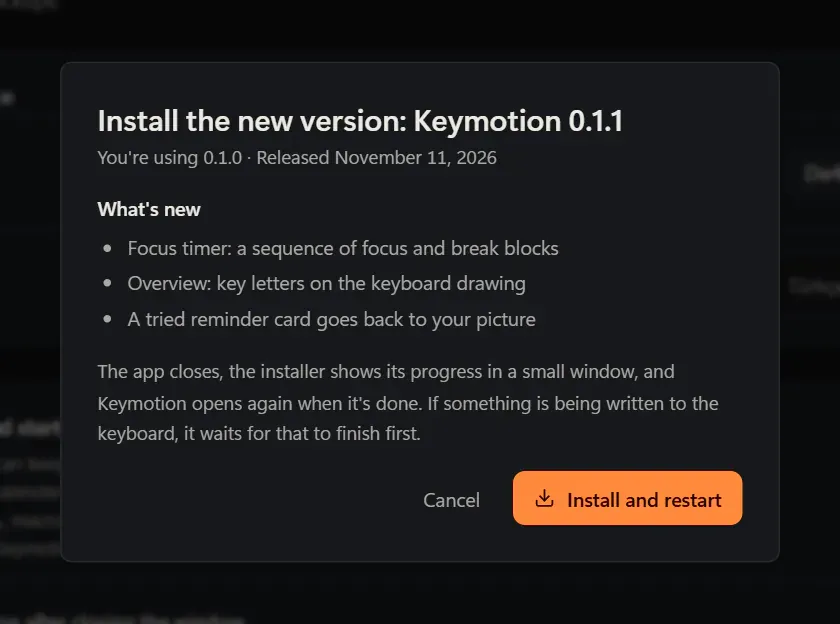
The download is checked before it is installed. If you have changes that aren’t saved to the keyboard, the window warns that installing loses them. If something goes wrong, Keymotion says what happened, such as no internet connection or a download that couldn’t be verified, and Try again looks once more.
Report a problem
Section titled “Report a problem”- In About, next to Feedback, click Report a problem.
- The Report the problem window shows What will be sent: the app and Windows versions, the keyboard and its connection, and the latest lines of Keymotion’s log. Web addresses and your Windows user name are left out.
- Click Report on GitHub. The details go to the clipboard, and the project’s problem form opens in your browser. You need a GitHub account to send it.
- Describe what happened, paste the details into the form’s details box with Ctrl+V, and send the form.
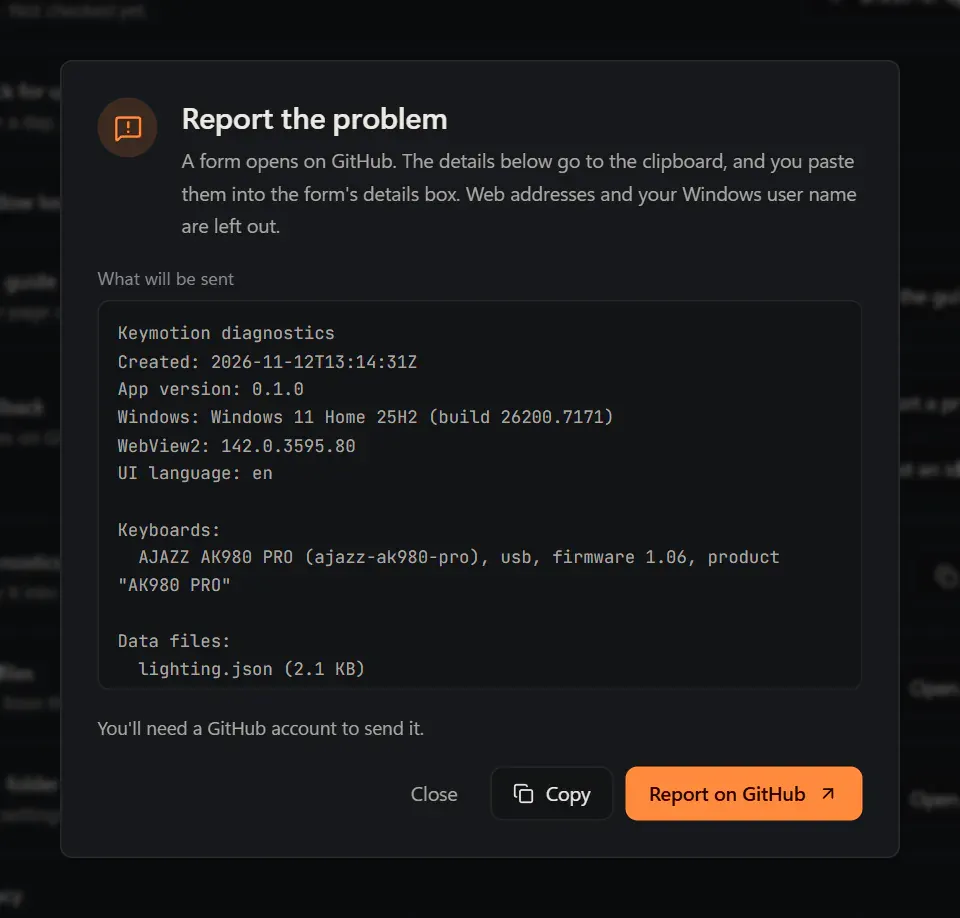
Copy puts the same text on the clipboard without opening GitHub, if you’d rather send it another way. Keymotion itself never sends anything.
Keymotion also offers this window on its own. After an unexpected error, a notice says Something unexpected went wrong, with Report the problem. After a crash, the next start shows Keymotion ran into a problem last time, with Report, once.
The rest of About
Section titled “The rest of About”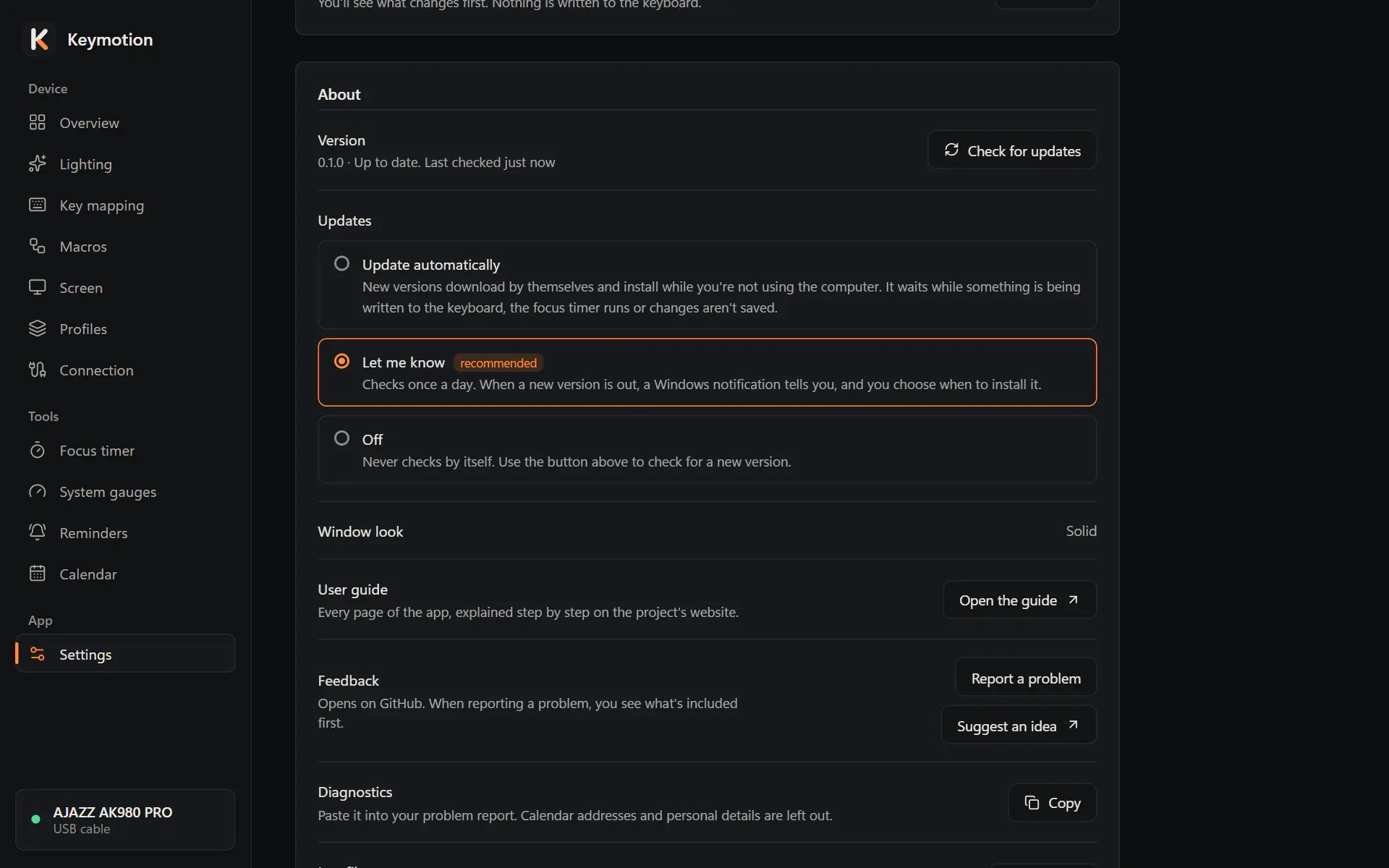
- Suggest an idea, next to Feedback, opens the project’s idea form on GitHub.
- Diagnostics, then Copy, puts the same kind of report on the clipboard, for a message of your own. Calendar addresses and personal details are left out.
- Log files and Data folder, each with Open folder, open the folder with the last seven days of logs and any crash notes, and the folder that holds your settings and library.
- Window look shows Translucent (Windows 11) or Solid. Keymotion picks it to suit your version of Windows; there is nothing to set.
- Privacy says that the app doesn’t collect or send usage data, and goes online only to read the calendars you add and to check GitHub for a new version. Privacy has the details.