
Remap keys on the AK980 PRO
On the Key mapping page you change what each key of the AJAZZ AK980 PRO does. A key can send another key or a shortcut, work as a media key or a mouse button, scroll, play a macro, or do nothing at all.
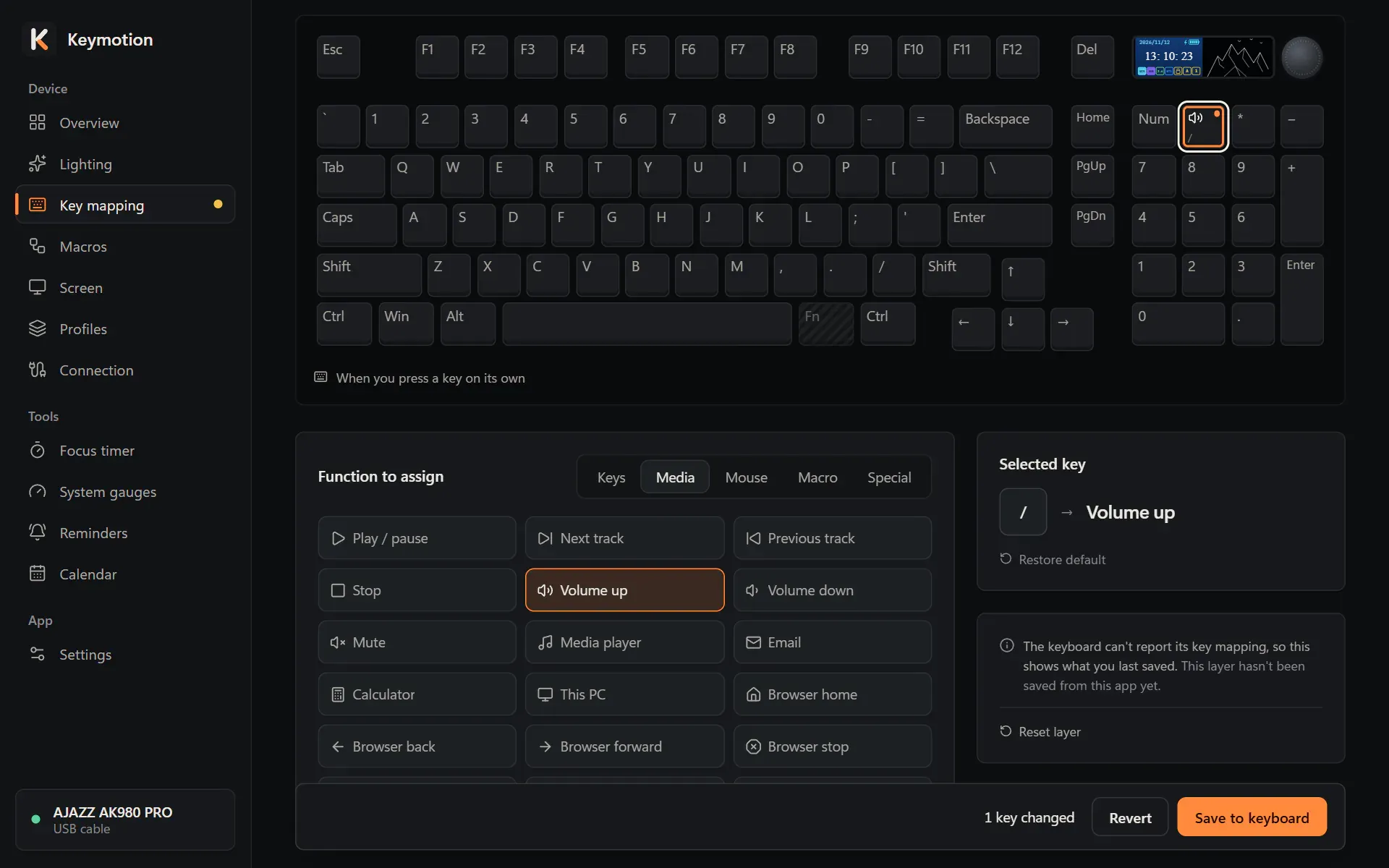
Base and Fn layers
Section titled “Base and Fn layers”The two tabs at the top right choose the layer you are editing:
- Base layer: what a key does when you press it on its own.
- Fn layer: what it does while you hold Fn. Some keys already have a built-in shortcut here, such as Fn+X for the lights.
The caption under the keyboard picture reminds you which layer is open. The Fn key itself can’t be changed, because the Fn layer and the built-in shortcuts depend on it.
Change a key
Section titled “Change a key”- Open Key mapping in the sidebar and choose Base layer or Fn layer.
- Click the key on the keyboard picture. The Selected key card shows what it does now.
- Under Function to assign, choose a category: Keys, Media, Mouse, Macro or Special.
- Click the function. The key on the picture shows its new label.
- Change more keys if you like, then click Save to keyboard in the bar at the bottom.
Changed keys get an orange outline, and disabled keys a red one. A small dot marks keys that are not saved yet.
What a key can do
Section titled “What a key can do”| Category | What you can choose |
|---|---|
| Keys | Any key, grouped as Letters, Digits, Function keys, Editing, Navigation, Symbols, Number pad and Modifier keys. For a shortcut such as Ctrl + C, first turn on Ctrl, Shift, Alt or Win under Held with, then click the key. |
| Media | Play / pause, Next track, Previous track, Stop, Volume up, Volume down and Mute; Media player, Email, Calculator and This PC; and the browser’s home, back, forward, stop, refresh, favorites and search. |
| Mouse | Left click, Right click, Middle click, Back button, Forward button and Double-click, plus Wheel up and Wheel down. |
| Macro | One of your macros, with a play mode. See Macros. |
| Special | Default is the key’s factory function, or its built-in shortcut on the Fn layer. Disabled means pressing the key does nothing. |
Undo changes and reset a layer
Section titled “Undo changes and reset a layer”- Restore default, under the selected key, sets that one key back.
- Reset layer, in the card beside the keys, sets every key on the open layer back to the factory layout.
- Revert, in the bottom bar, drops every change that is not saved yet.
To put a whole layer back to the factory layout:
- Choose the layer’s tab.
- Click Reset layer. If every key on the layer is already at its default, the button is dimmed.
- Click Save to keyboard.
Save and test
Section titled “Save and test”The bottom bar counts your changes, for example 3 keys changed. Save to keyboard writes each changed layer to the keyboard, in less than a second per layer, and then shows Saved to the keyboard. Changes you haven’t saved stay in the app when you open another page, and a dot next to Key mapping in the sidebar shows them.
To check the result, click the box in the Key test card at the bottom of the page and press keys. It shows what reaches Windows: keys, shortcuts, media keys, mouse buttons and the wheel.