
Game session
When a game starts, Keymotion notices it. It can put a card on the keyboard’s screen, a summary when the game ends, light the keys the game uses, and keep your play time on this computer. In League of Legends, the keys can also show your health, mana and the match’s events.
Keymotion never reaches into a game: it doesn’t read the game’s memory, doesn’t send it keys, and doesn’t draw anything over it. That is also why it gets along with anti-cheat software (see Anti-cheat software).
Turn it on
Section titled “Turn it on”- Open Game session under Tools in the sidebar.
- Turn on Notice games.
The line under the switch says what Keymotion does now, for example Waiting for a game or Playing League of Legends. Under it, Now, Today and Last 7 days show your play time. While you play, a line below them says where the start card is (on the keyboard’s screen, waiting for its turn, or replaced by another card) and the graphics card’s and processor’s load so far.
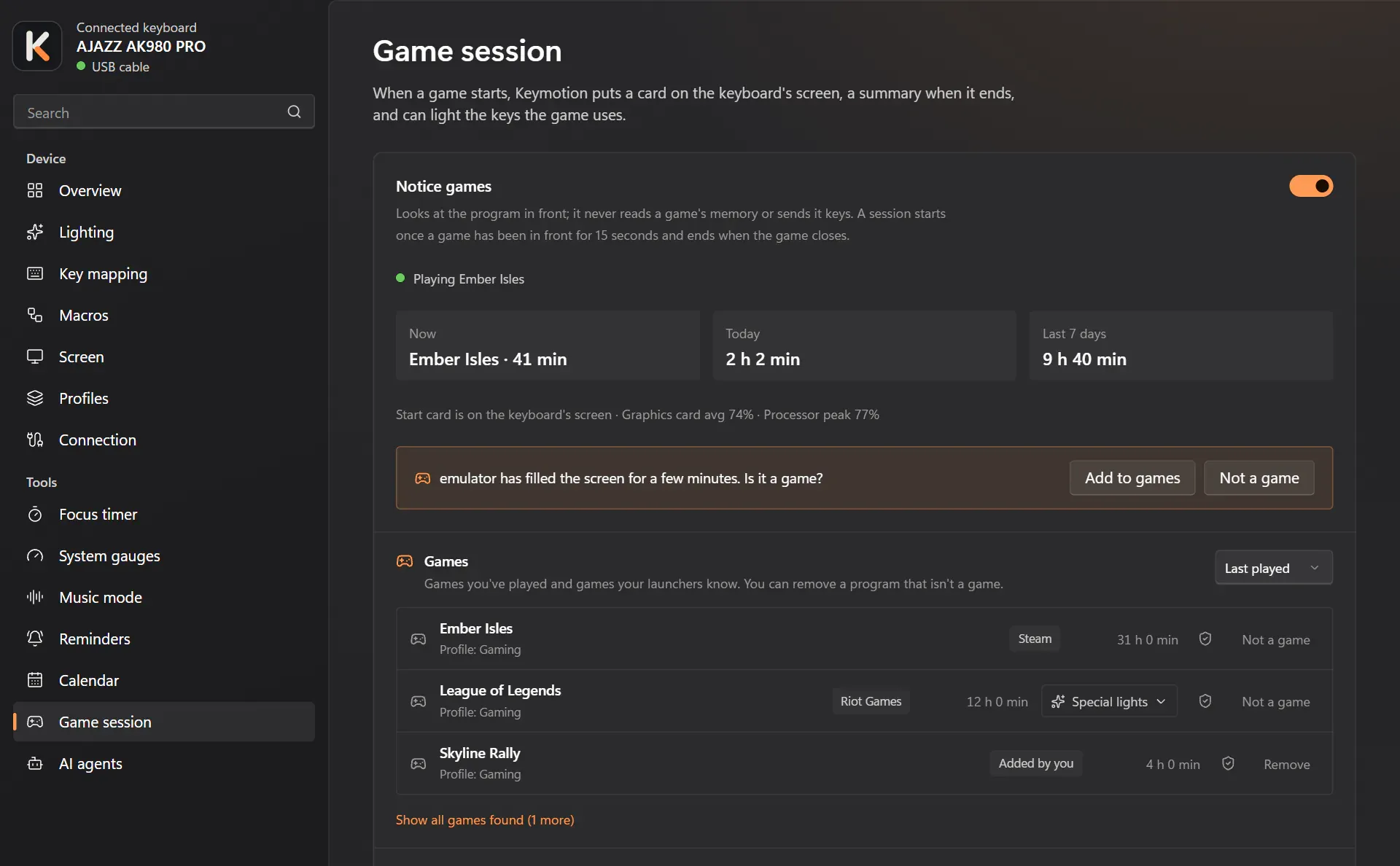
When Keymotion keeps running after you close its window, the menu of its icon next to the clock shows the game and how long you’ve played.
How Keymotion knows a game
Section titled “How Keymotion knows a game”- Your launchers’ lists. Steam, Epic Games, GOG, Xbox, Riot Games and Xbox Game Bar know which programs are games, and Keymotion reads their lists on this computer. A launcher itself, such as Steam or the League of Legends client, is not a game; only the game you play is. You can turn off Launchers’ game lists; then only the programs you said are games count.
- Your word. In the Games list, Not a game removes a program that was taken for a game, and Remove forgets one you added. If it’s running at that moment, its session ends and isn’t kept in the history. Add a game adds one of the programs that were in front lately; a program that isn’t listed shows up once you bring it to the front. Undo, under Marked as not a game, takes back a Not a game.
- “Is it a game?” When a program you haven’t marked has filled the screen for a few minutes with the graphics card busy, the page asks. Keymotion never decides that by itself. Browsers and video players are never asked about.
The Games list shows the games you’ve played with their icons and total time, sorted by Last played or Most played. Show all games found lists the rest your launchers know. Under a game’s name you see the profile it gets from profiles by app, and the shield button next to it turns on quiet mode for that game alone (see Anti-cheat software).
A session
Section titled “A session”- A session starts once a game has been in front for 15 seconds, so a splash screen or a game that closes right away doesn’t count.
- It lasts as long as the game runs. Switching to another window with Alt+Tab or minimizing the game doesn’t end it.
- It ends when the game has been closed for 10 seconds. A game that restarts itself keeps its session. When the computer sleeps, the session ends where it stopped.
- While a session runs, Update automatically doesn’t install a new version (see Updates).
The keyboard’s screen
Section titled “The keyboard’s screen”With the live screen on:
- Start card: the game’s name and its picture from Steam (or its program’s icon and name on a background in the icon’s color), and how long you’ve played today. It stays the same for the whole session: nothing new comes up while you play.
- Summary card: after a session of 5 minutes or more, how long you played, the graphics card’s average and peak load, its highest temperature, the processor’s average and peak load and today’s total. A reading your computer doesn’t give is left out. The summary stays until the next card.
While a session runs, song cards wait. Meeting and reminder cards and the focus timer still come first. A meeting’s or reminder’s card that came up during the game goes away a minute after the game ends, and your own picture comes back. Each card counts toward the live screen’s daily upload limit.
Lights while playing
Section titled “Lights while playing”The keyboard’s own light changes nothing (in a League of Legends match its own lights come instead, see below). Light the game’s keys lights the keys you choose in one color and makes the others dim or dark. Ready-made sets are WASD, MOBA (QWER DF B) and 1–6; click keys on the drawing to add or remove them. Try on the keyboard shows the lights for a few seconds. A profile’s lighting shows the key-by-key lighting design of a profile you choose; built-in effects, such as rainbow, can’t show this way.
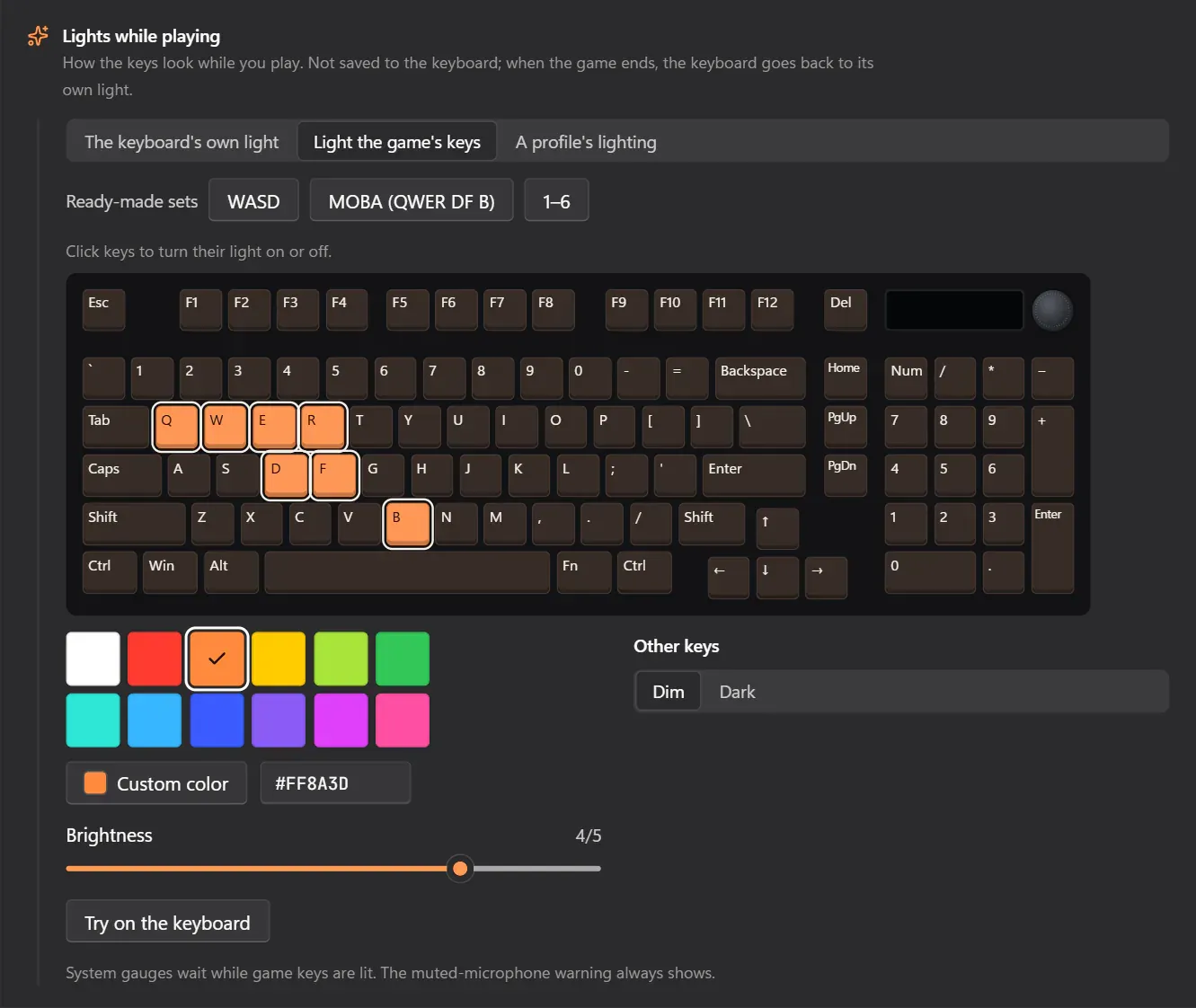
These lights aren’t saved to the keyboard; when the game ends, the keyboard goes back to its own light. They follow the window in front: when you switch to another program with Alt+Tab, they wait until the game is in front again, and the session goes on. If you start the focus timer during a game, its light stays above the game’s lights. While the game keys are lit, system gauges and music mode wait, and the muted-microphone warning always shows. Music mode also waits while the game is in front when its Pause while playing a game is on. The lights need the USB cable.
League of Legends
Section titled “League of Legends”During a match, League of Legends offers its data to tools on your computer. Keymotion reads only what the game shows you, and turns it into light. These lights are set up under League of Legends in the Games list: click Special lights next to it. While Launchers’ game lists is on, League of Legends is listed as soon as it’s installed, before you play it.
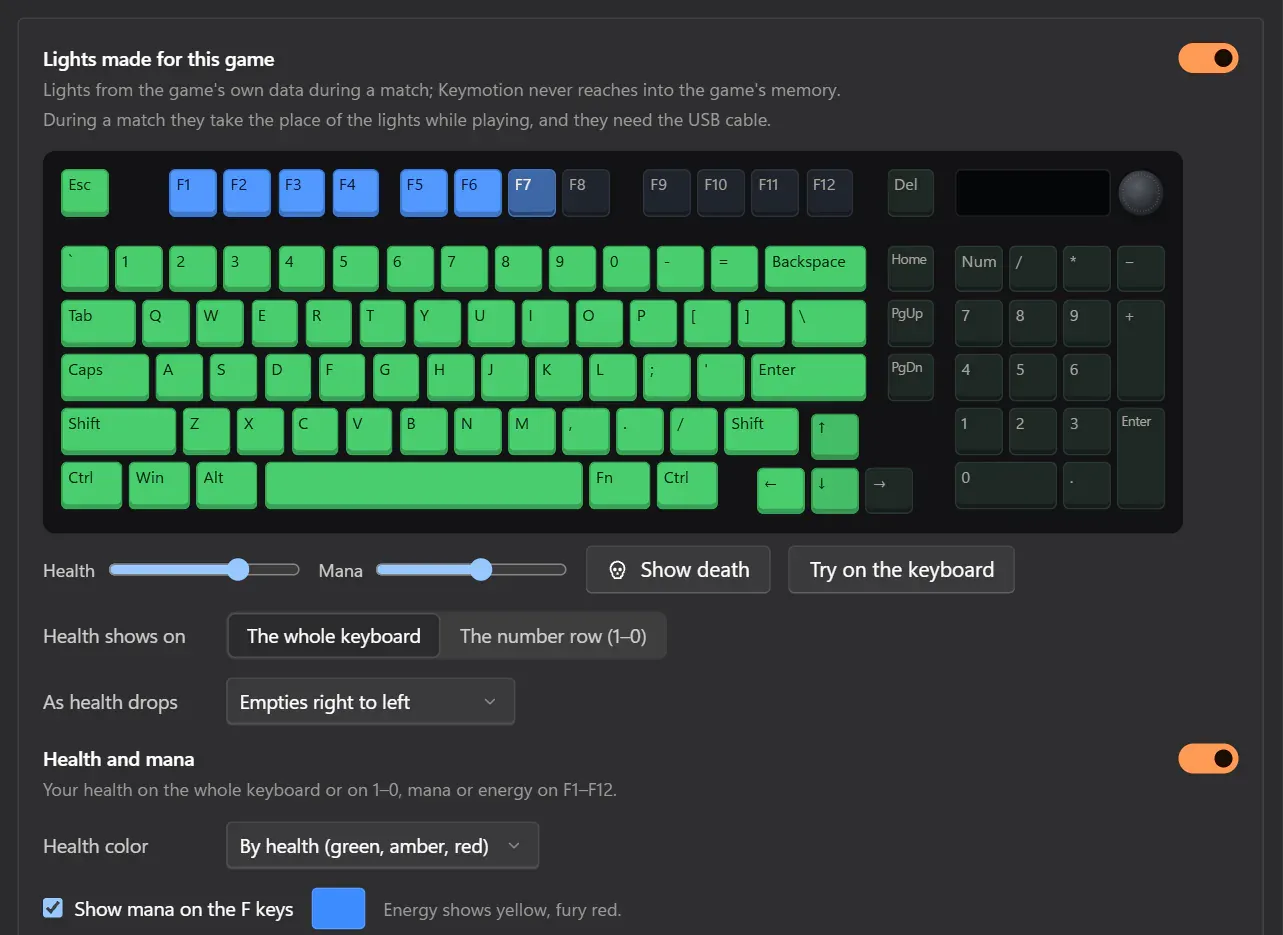
- Health and mana: your health on The whole keyboard (the default) or on The number row (1–0), as you choose under Health shows on. On the whole keyboard the light recedes as your health drops, the way you choose, as with the focus timer: right to left, left to right, top to bottom, toward the center, or fading slowly. Its color goes from green to amber to red, or stays one color you pick. Mana or energy shows on F1–F12; you can turn it off and pick mana’s color.
- When you die: the keys turn dark red. On the whole keyboard the light comes back as your respawn nears, the way you chose for health; on the number row, 1–0 count down the time left. Health shows on decides this even with Health and mana off.
- Short animations, in the order a match brings them: Yours (level ups, kills), Map and team (an ace, dragons, Herald, Baron) and End of the match (victory, defeat). Each gets an animation: Wave, Flash, Pulse, Sparkle, Ring from the center or Fades from the top, in a color you pick. Victory sparkles green and defeat fades red from the top unless you change them; a dragon takes its own color unless you turn that off. During the match an animation plays over health and mana; the end of the match takes the whole keyboard in their place. A kill streak plays the animation once per kill. Dragons, Herald and Baron light up only when your team takes them, unless you turn off Only when your team takes them; to tell, Keymotion reads which players are on your team, as the scoreboard shows them.
Each can be turned off, and so can the whole section. The drawing at the top of the section shows them with the same code the match uses: move the Health and Mana sliders, click Show death, or Play next to an event in the list. Try on the keyboard plays it on the keyboard for a moment, without saving anything. During a match these lights take the place of Lights while playing; with Light the game’s keys and the number row for health, the chosen keys stay lit under them. They need the USB cable. The summary card of a match shows victory or defeat, your K/D/A, your CS and your champion.
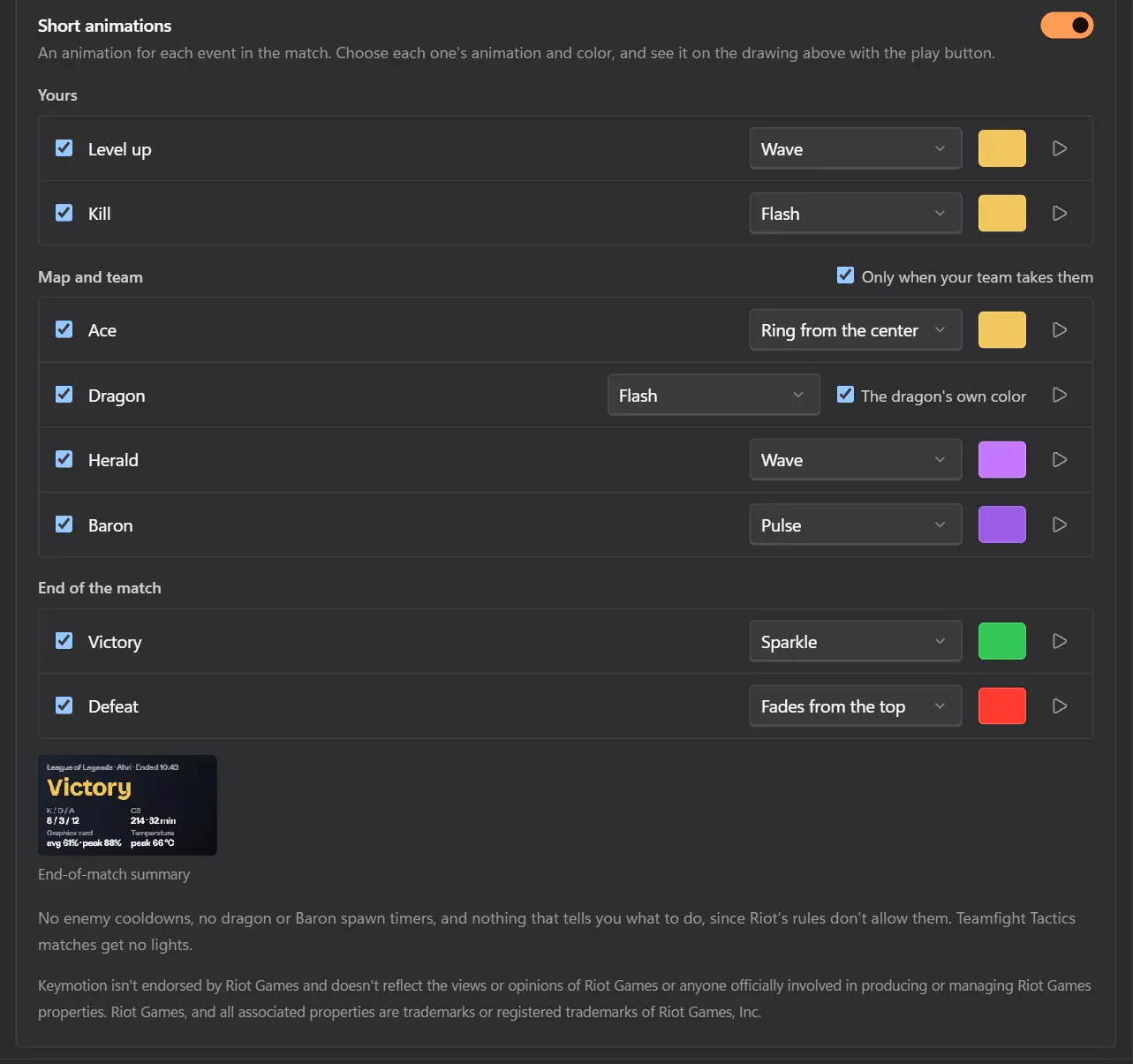
Keymotion never shows enemy cooldowns, dragon or Baron spawn timers, or anything that tells you what to do: Riot’s rules don’t allow them. Teamfight Tactics matches get no lights.
Anti-cheat software
Section titled “Anti-cheat software”Anti-cheat software, such as Riot Vanguard, Easy Anti-Cheat or BattlEye, blocks programs that read a game’s memory, send it keys or load drivers with known security holes. Keymotion does none of these:
- It sees which program is in front the way Windows’ own accessibility tools do, and learns the program’s path without opening the program.
- It installs no driver and talks to the keyboard through Windows, like any USB device.
- It reads League of Legends’ data only from the service the game itself offers on your computer.
If a game’s anti-cheat software still gives you trouble, turn on Send nothing to the keyboard while playing. During a game Keymotion then sends no lights, cards or profiles to the keyboard, and the keyboard keeps its own light; what you do yourself in the app, such as saving a profile or Try on the keyboard, still goes. With Still show meeting and reminder alerts, on by default, an upcoming meeting and your reminders still light up the keyboard and show on its screen: Windows often silences notifications while you play, so the keyboard is how you won’t miss them. To use quiet mode for one game only, click the shield button next to it in the Games list; Still show meeting and reminder alerts applies there too. Please also report it.
Macros can break a game’s rules in competitive games such as League of Legends, VALORANT and CS2, and at FACEIT and tournaments, even the keyboard’s own macros. Keymotion never turns macros on for a game by itself (see Profiles by app).
History and privacy
Section titled “History and privacy”History lists your latest sessions. Delete history deletes them all; it can’t be undone.
Everything stays on this computer: Keymotion doesn’t read window titles and sends nothing off your computer. FPS and the processor’s temperature aren’t shown, because Windows doesn’t give them without administrator rights or an extra driver. See Privacy.