
Connect the AK980 PRO: USB, 2.4 GHz and Bluetooth
The AJAZZ AK980 PRO connects to your computer in three ways. You can type over all three, but Keymotion changes the keyboard’s settings only over the USB cable.
The switch on the back
Section titled “The switch on the back”You choose the connection with a small switch on the back of the keyboard. Its three positions, from left to right:
| 2.4G | USB | BT |
|---|---|---|
| The 2.4 GHz receiver | The USB cable | Bluetooth |
USB is the middle position. Keymotion can’t move the switch for you: the switch drawings in the app only show where it is, or where it should be.
Connect with the USB cable
Section titled “Connect with the USB cable”- Plug the USB-C cable into the keyboard and into your computer.
- Set the switch on the back of the keyboard to the middle, the USB position.
- Wait a moment. Keymotion looks for the keyboard every two seconds and finds it by itself. The box at the bottom of the sidebar then shows AJAZZ AK980 PRO and USB cable.
Keymotion notices when you plug the keyboard in, unplug it or move the switch, so you don’t need to restart the app.
What works over each connection
Section titled “What works over each connection”| USB cable | 2.4 GHz receiver | Bluetooth | |
|---|---|---|---|
| Typing, media keys, and the knob | Available | Available | Available |
| Lighting effects and per-key color | Available | — | — |
| Key mapping and macros | Available | — | — |
| Images and GIFs on the screen | Available | — | — |
| Clock sync | Available | — | — |
| Live lighting and cards | Available | — | — |
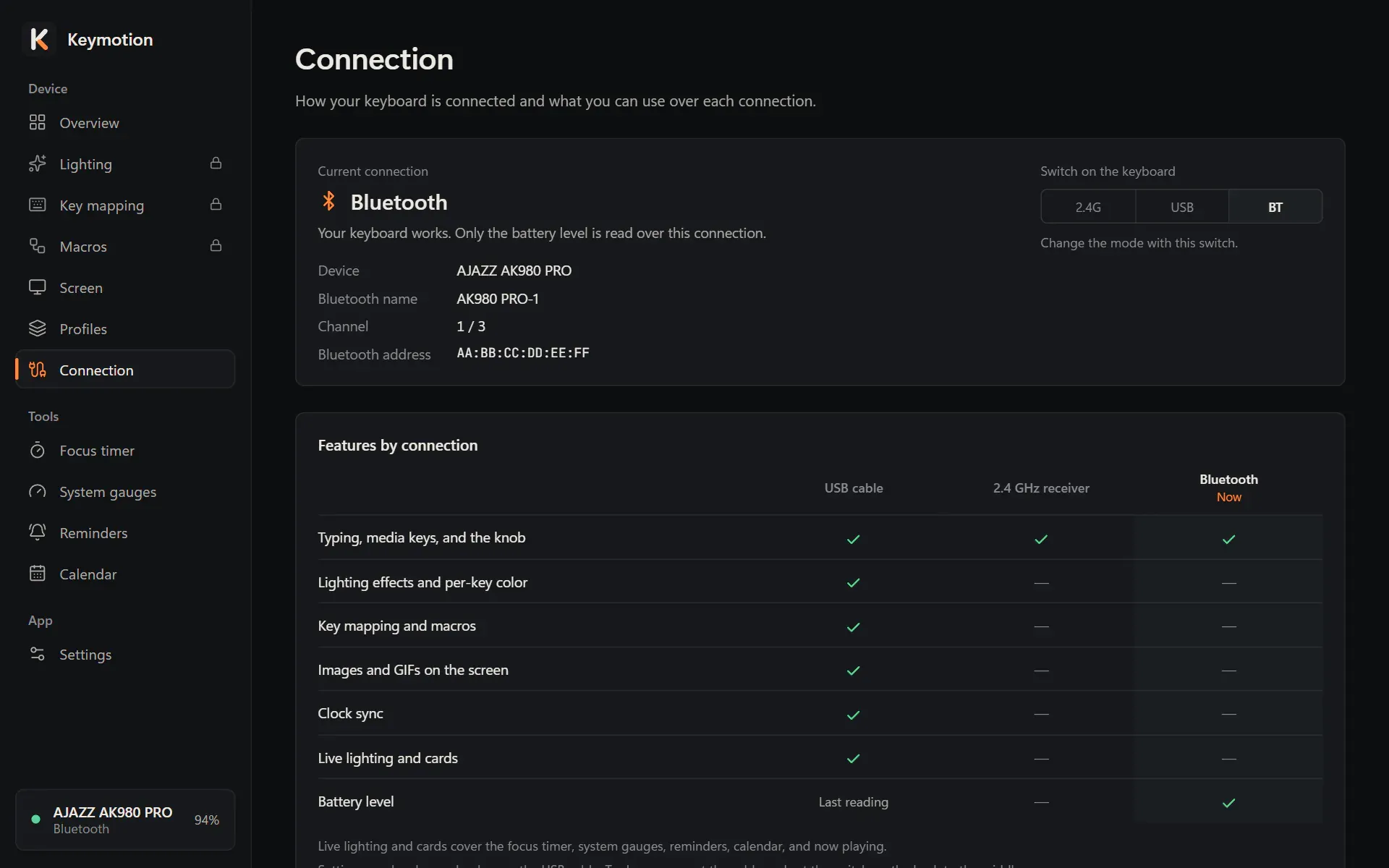
| Battery level | Last reading | — | Available |
- Live lighting and cards means the focus timer, the system gauges, reminders, the calendar and the song that is playing, shown on the keys and the screen.
- Battery level. Keymotion reads the battery level over Bluetooth. Over the cable the keyboard doesn’t report it, so Keymotion shows the last Bluetooth reading instead, and the Overview shows whether the keyboard is charging.
- 2.4 GHz receiver. You can type, but Keymotion can’t change the keyboard’s settings over the receiver yet.
The tools inside the app work over every connection, and without the keyboard: the focus timer counts down in the app, reminders show Windows notifications, and you can prepare pictures in the screen library. Only what they show on the keyboard needs the cable.
The Connection page shows the same table for your keyboard, with the current connection marked Now.
When another program is using the keyboard
Section titled “When another program is using the keyboard”Keymotion doesn’t save to the keyboard while another program that talks to it is open: AJAZZ’s own driver software, SignalRGB or OpenRGB. Two programs sending commands at the same time could mix them up. When you try to save, Keymotion names the program it found, for example:
The AJAZZ driver is running. Close it before saving to the keyboard.
Close that program, also from the icons next to the clock if it keeps running there, then save again. Keymotion checks again each time you save.
In the same way, if more than one keyboard of this model is plugged in by USB, Keymotion doesn’t save and says More than one keyboard is connected by USB. Leave only one connected to save.