
Install Keymotion
Keymotion comes two ways: from the Microsoft Store, or as an installer from GitHub. It is the same app, with the same version number and the same release notes. Either way it installs for your Windows account only, needs no administrator rights and takes a few seconds.


Microsoft Store or GitHub
Section titled “Microsoft Store or GitHub”| Microsoft Store | GitHub | |
|---|---|---|
| Signed | Yes, by Microsoft: Windows installs it without a warning | Not yet: Windows may warn before it runs |
| Updates | The Microsoft Store keeps it up to date | Keymotion checks GitHub once a day and asks before installing |
| Test versions | No | Yes |
| Works without the Microsoft Store | No | Yes |
We suggest the Microsoft Store. Choose GitHub if your computer has no Microsoft Store (Windows LTSC, or a work computer where it is turned off), or to try test versions. Install only one of them: they share your settings, and only one Keymotion runs at a time.
What you need
Section titled “What you need”- Windows 10 or Windows 11, 64-bit.
- WebView2, the part of Windows that draws the app’s window. Windows 11 and an up-to-date Windows 10 already have it. If your computer doesn’t, the GitHub installer downloads and installs it, so stay online while you install.
- To change the keyboard’s settings: an AJAZZ AK980 PRO and its USB-C cable. Keymotion also opens without the keyboard.
Install from the Microsoft Store
Section titled “Install from the Microsoft Store”- Open Keymotion in the Microsoft Store. The Microsoft Store app opens on Keymotion’s page; if your browser asks whether to open it, allow it.
- Select Get. The Store downloads and installs Keymotion.
- Open Keymotion from the Start menu.
The Store copy is signed by Microsoft, so no warning appears. The Store also updates it, and you remove it like any other app, as below. The rest of this page, up to Start menu and desktop, is about the GitHub installer.
Download the installer
Section titled “Download the installer”- Open Keymotion’s Releases page on GitHub.
- Under the newest version, find the Assets list.
- Download the file whose name ends in
x64-setup.exe, for exampleKeymotion_1.0.0_x64-setup.exe.
The release notes on that page also give the file’s SHA-256 checksum, if you want to check your download.
If Windows says it protected your PC
Section titled “If Windows says it protected your PC”The GitHub installer is not code-signed yet, so Windows can’t tell who published it. When you open it, Windows may show a blue window titled Windows protected your PC.
- Select More info.
- Check that the file name shown is the installer you downloaded.
- Select Run anyway.
Run the installer
Section titled “Run the installer”The installer is in Turkish when Windows is in Turkish, and in English otherwise.
- On Welcome to the Keymotion setup, click Next.
- Keep the suggested folder or choose another one, then continue. The suggested folder,
%LOCALAPPDATA%\Keymotion, is inside your own user folder. - Wait while Keymotion is installed. On a computer without WebView2, that is downloaded first. When the progress bar is full, click Next.
- On the last page, leave Put a shortcut on the desktop ticked if you want a desktop shortcut. The other box opens Keymotion right away. Click Finish.
If Keymotion is open, the installer offers to close it first. If a version is already installed, the installer shows Already installed and asks what you want to do: choose an option and click Next.
Start menu and desktop
Section titled “Start menu and desktop”The installer always adds Keymotion to the Start menu, and to the desktop if you left that box ticked. Keymotion also appears in Windows’ list of installed apps, which is where you uninstall it.
Only one copy of Keymotion runs at a time. While it runs in the background, with its icon next to the clock, opening it again from the Start menu brings its window back. First launch shows what you see when it opens.
Update Keymotion
Section titled “Update Keymotion”The Microsoft Store updates its copy by itself; Settings › About opens the Store’s updates page. The rest of this section is about the copy from GitHub.
A short while after it opens, Keymotion checks GitHub for a newer version, once a day. When it finds one, a strip appears above the page.
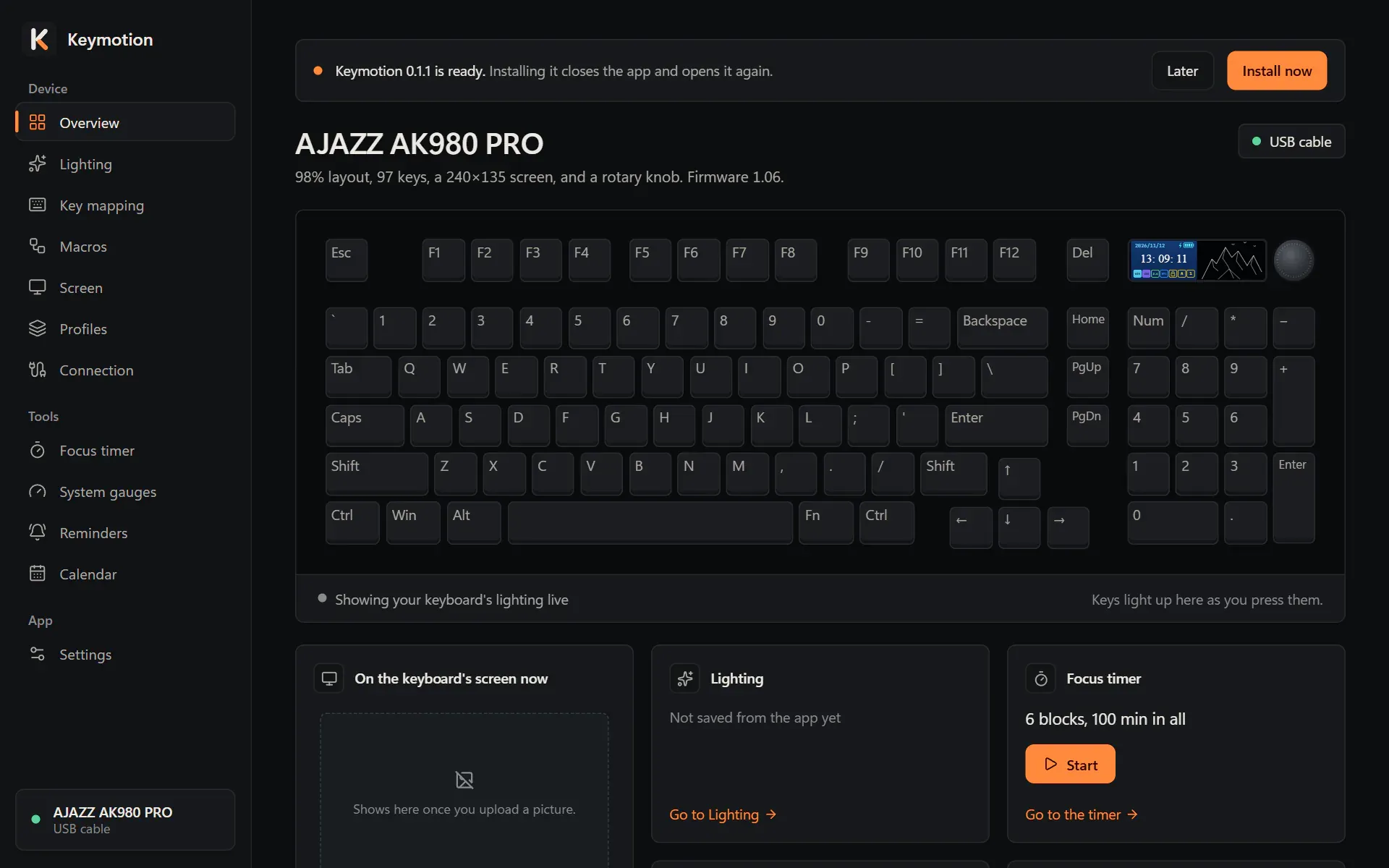
Click Install now, read What’s new, then click Install and restart. Keymotion downloads the new version, closes, installs it in a small window and opens again. Your settings and your library stay as they are. Nothing is installed until you click. Settings explains how to check by hand or turn off the daily check.
Uninstall Keymotion
Section titled “Uninstall Keymotion”- Open Windows Settings, then Apps, then Installed apps. On Windows 10, the list is called Apps & features.
- Find Keymotion. On Windows 11, open the ⋯ menu next to it. Choose Uninstall and confirm.
- Keymotion’s uninstaller opens. Tick Also delete my settings and saved data only if you want those removed too, then confirm.
The uninstaller removes the app, its shortcuts, its entry in the list of installed apps, its start-with-Windows entry and the name Windows shows on Keymotion’s notifications. Unless you tick the box, your settings, records and picture library stay on the computer, so a later install carries on where you left off. If Keymotion is open, the uninstaller offers to close it.