
Connection
The Connection page shows how your keyboard is connected, what Keymotion can do over each connection, and the clock on the keyboard’s screen.
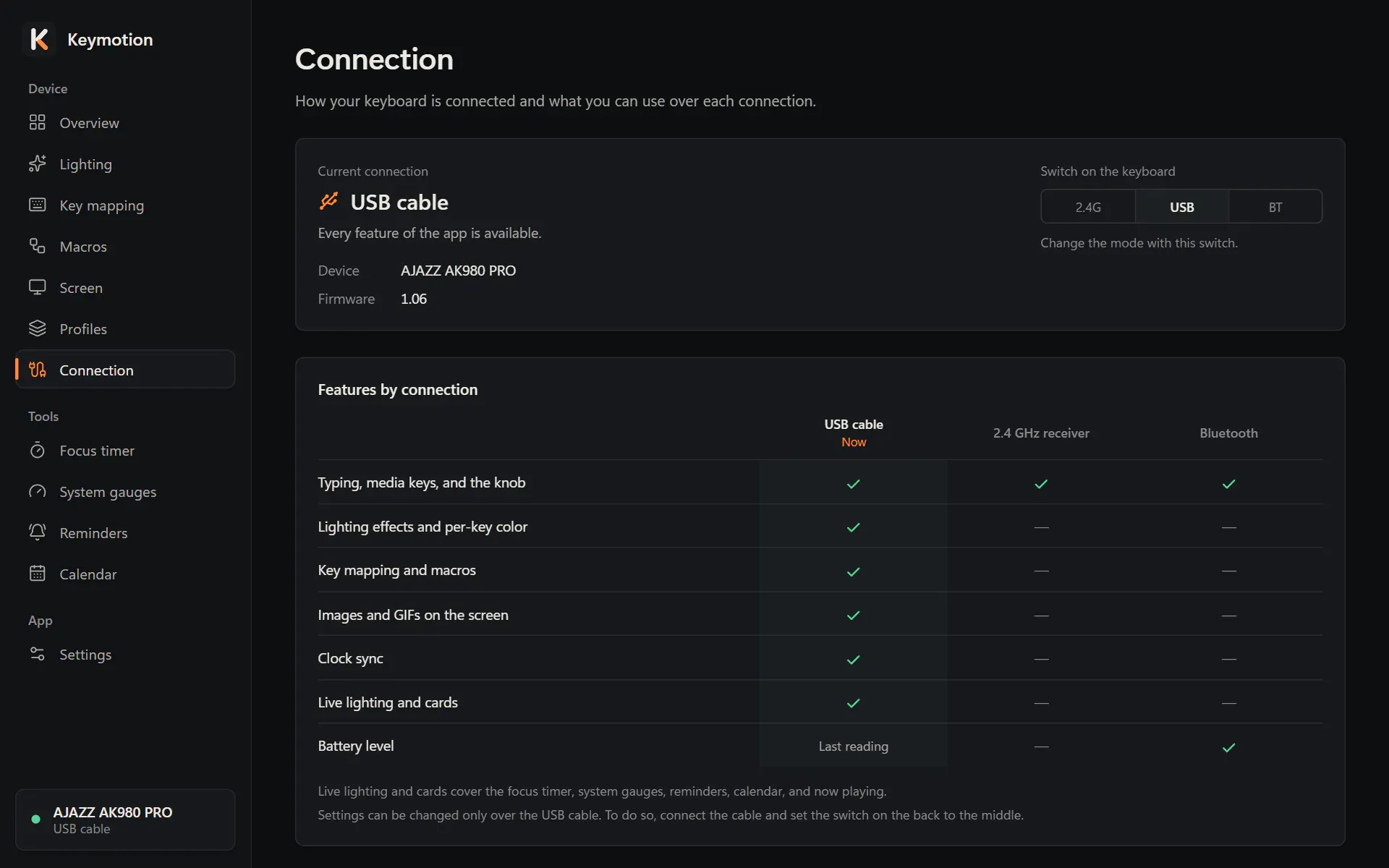
Current connection
Section titled “Current connection”The first card names the connection, USB cable, 2.4 GHz receiver or Bluetooth, and says in one sentence what it allows:
| Connection | What the page says |
|---|---|
| USB cable | Every feature of the app is available. |
| 2.4 GHz receiver | Your keyboard works, but settings aren’t available over this connection yet. |
| Bluetooth | Your keyboard works. Only the battery level is read over this connection. |
Under it are the keyboard’s details: Device, the model, and over the cable the Firmware version. Over Bluetooth you see the Bluetooth name, the Channel the keyboard is on (out of its three Bluetooth channels) and the Bluetooth address.
On the right, Switch on the keyboard draws the switch on the back of the keyboard at its current position. It is only a picture, not a control: Change the mode with this switch. Connecting the keyboard explains the three positions.
Features by connection
Section titled “Features by connection”The table lists what Keymotion can do over the USB cable, the 2.4 GHz receiver and Bluetooth. The column of your current connection is marked Now.
- A check mark means Available, a dash means Not available.
- Last reading in the battery row means that, over the cable, Keymotion shows the last battery level it read over Bluetooth.
Under the table, two notes say that live lighting and cards cover the focus timer, system gauges, reminders, the calendar and now playing, and that settings can be changed only over the USB cable, with the switch on the back in the middle.
Keyboard clock
Section titled “Keyboard clock”The keyboard’s screen has a clock page. The Keyboard clock card keeps it right.
- The card says how long ago the clock was synced, or Not synced yet. Point at it to see the exact date and time.
- Sync now sets the keyboard’s clock to your computer’s time. Syncing also switches the keyboard’s screen to its clock page.
- Sync on connect syncs by itself when the keyboard connects over USB, at most once a day. It is on at first.
Over the 2.4 GHz receiver or Bluetooth, the card says To sync, connect the cable and set the switch on the back to the middle. and Sync now can’t be clicked.