
First launch
The first time Keymotion opens, it looks for your keyboard and takes its language and theme from Windows. You can use part of the app before the keyboard is connected.
Opening Keymotion
Section titled “Opening Keymotion”Open Keymotion from the Start menu or the desktop shortcut. As the window opens, a short animation draws the Keymotion logo and moves it to the top of the sidebar. It lasts about a second while the app gets ready; click or press a key to end it sooner. With Windows’ animation effects turned off, the window simply fades in.
Language and theme
Section titled “Language and theme”- Language. Keymotion opens in Turkish when Windows’ display language is Turkish, and in English otherwise. To change it, open Settings and choose Türkçe or English next to Language.
- Theme. Keymotion follows Windows’ light or dark mode. To keep one of them, open Settings and choose Light or Dark next to Theme. System follows Windows again.
When the window is narrow, the sidebar shows only icons. Point at an icon to see its name.
The welcome page
Section titled “The welcome page”Until a keyboard is found, the Overview and Connection pages show the welcome page.
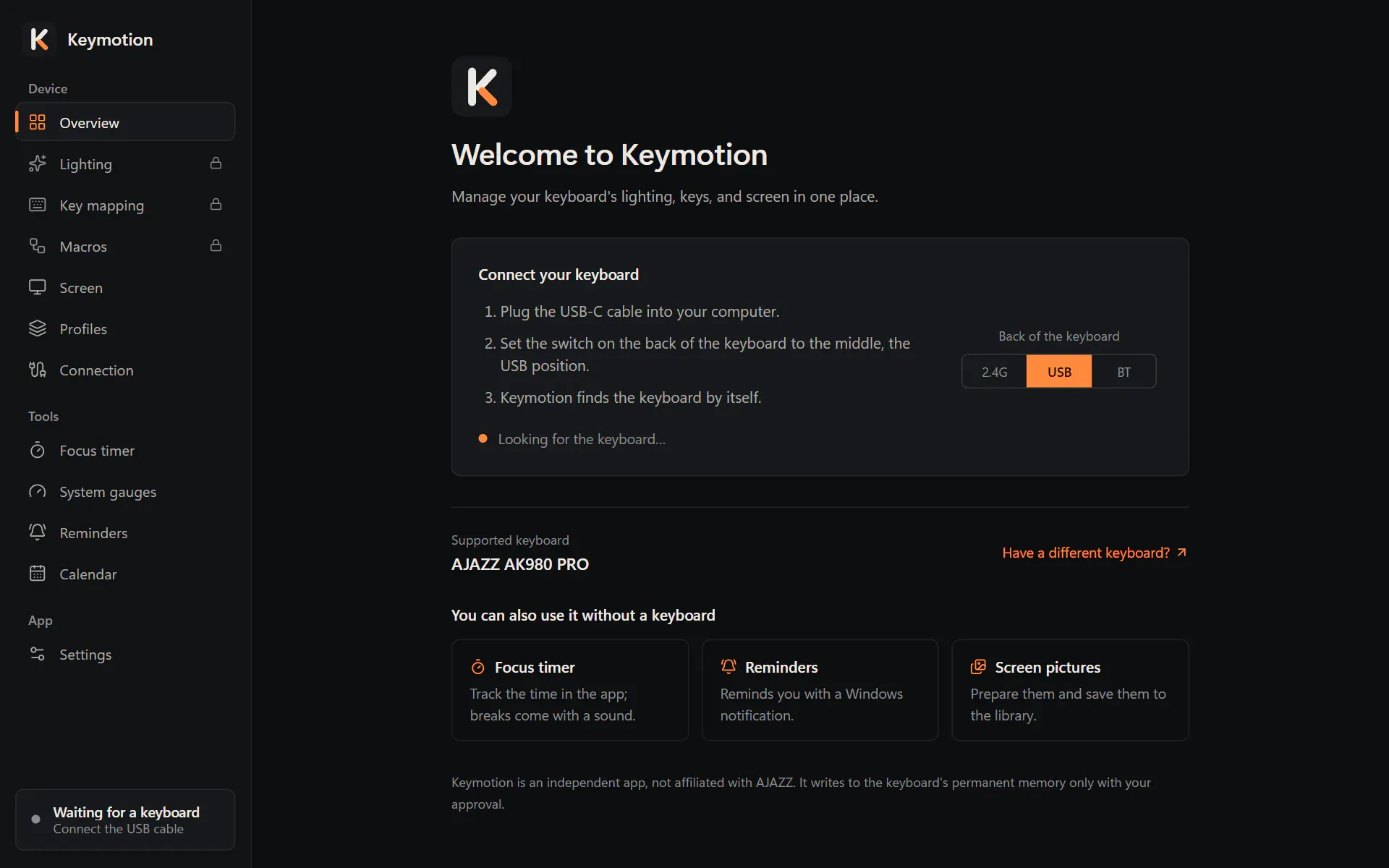
- Connect your keyboard lists three steps: plug in the USB-C cable, set the switch on the back of the keyboard to the middle (USB) position, and wait. Under the steps, Looking for the keyboard… shows that Keymotion is searching; it looks every two seconds. The drawing next to the steps shows where the switch should be. Connecting the keyboard explains the switch.
- Supported keyboard names the AJAZZ AK980 PRO. Have a different keyboard? opens the list of keyboards on GitHub; Supported keyboards has the same list.
- You can also use it without a keyboard links to the Focus timer, Reminders and Screen pictures, where you can prepare pictures and save them to the library.
As soon as the keyboard is found, the Overview takes the welcome page’s place. You don’t need to restart anything.
A keyboard that isn’t supported yet
Section titled “A keyboard that isn’t supported yet”If you plug in a SONiX or AJAZZ keyboard that Keymotion doesn’t support yet, a card with its name appears at the top: This keyboard isn’t supported yet. Request support opens a window with the keyboard’s details, which you can send to the project on GitHub. Nothing is written to the keyboard.
Without the keyboard
Section titled “Without the keyboard”- Overview and Connection show the welcome page.
- Lighting, Key mapping and Macros have a lock in the sidebar and say Your keyboard isn’t connected. How to connect takes you to the welcome page.
- Screen, Profiles, Focus timer, System gauges, Reminders, Calendar and Settings open as usual. What they show on the keyboard, such as lights, screen cards and uploads, needs the cable; the rest works in the app.
- The box at the bottom of the sidebar says Waiting for a keyboard and Connect the USB cable.
With the keyboard
Section titled “With the keyboard”When the keyboard is connected with the USB cable and its switch is in the middle, Keymotion opens the Overview. The box at the bottom of the sidebar shows AJAZZ AK980 PRO and USB cable, with a green dot.
Over the 2.4 GHz receiver or Bluetooth, the keyboard is found too, but the pages that change its settings stay locked, and the Overview shows Unlock every feature with the USB cable. Connecting the keyboard shows what works over each connection.
When the keyboard connects over USB, Keymotion also sets the clock on the keyboard’s screen, at most once a day. You can turn this off on the Connection page.