
Put GIFs and pictures on the AK980 PRO screen
The AK980 PRO has a small 240×135 screen. On the Screen page you make a picture for it, keep your pictures in a library, and turn on the live screen, which shows cards for your meetings, reminders, focus timer and music by itself.
To put a GIF on the AK980 PRO screen: connect the USB cable and set the switch on the back of the keyboard to the middle, open Screen, choose Image or video, pick the file, then click Preview and Upload to keyboard. The steps are under Put a GIF, picture or video on the screen.
| The screen at a glance | |
|---|---|
| Size | 240×135 pixels, in color |
| Frames | Up to 140 |
| Files | PNG, JPEG, GIF, WebP, APNG, MP4 and WebM |
| Upload time | A still picture: a few seconds. 140 frames: about five and a half minutes |
| Connection | The USB cable |
| Clock or your picture | Fn+Home on the keyboard switches between them |
The page has two tabs: Images for your own pictures and Live screen for the cards. Above both, you see what the keyboard’s screen shows now.
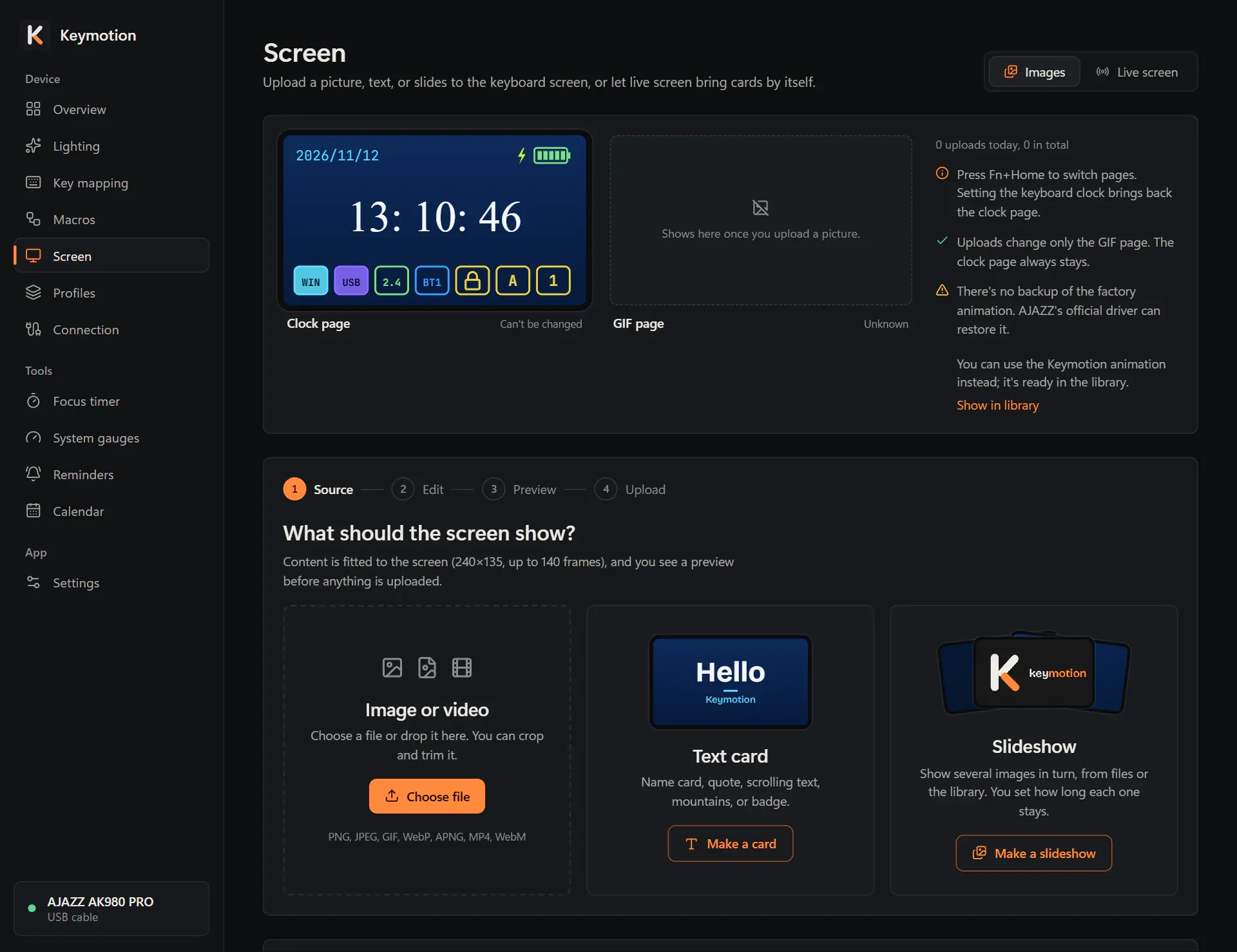
The keyboard’s two pages
Section titled “The keyboard’s two pages”The screen has two pages:
- Clock page: the time and date, drawn by the keyboard itself. It can’t be changed and always stays.
- GIF page: the picture you upload. It holds one picture at a time, so each upload replaces the one before.
Press Fn+Home on the keyboard to switch between the two. When Keymotion sets the keyboard clock, the screen goes back to the clock page.
At the top of the Screen page, the two pages are drawn side by side, with how many uploads you made today and in total.
Put a GIF, picture or video on the screen
Section titled “Put a GIF, picture or video on the screen”Making a picture takes four steps, shown at the top of the studio: Source, Edit, Preview and Upload. Until the upload starts, Cancel at the top right takes you back to the start and nothing is sent to the keyboard.
- Open Screen in the sidebar and stay on the Images tab.
- Under What should the screen show?, choose a source: Image or video, Text card or Slideshow.
- Edit it (see below), then click Preview.
- Check the preview. Keyboard view plays exactly what the keyboard will get. Type a Name for it.
- Click Upload to keyboard. To keep it for later instead, click Save to library. To change something, click Back to editing.
- The Upload to the keyboard? window shows the number of frames, how long the upload takes and which upload of the day this is. Click Upload.
While it uploads, a bar shows how far it is and the time left. The keyboard’s screen shows LOADING %. When it is done, the studio goes back to the first step and says what was uploaded and how long it took. Every picture you upload is also saved to the library.
A still picture uploads in a few seconds. A long animation takes longer: the screen holds up to 140 frames, and a full 140-frame animation takes about five and a half minutes. Each editor shows the upload time before you start.
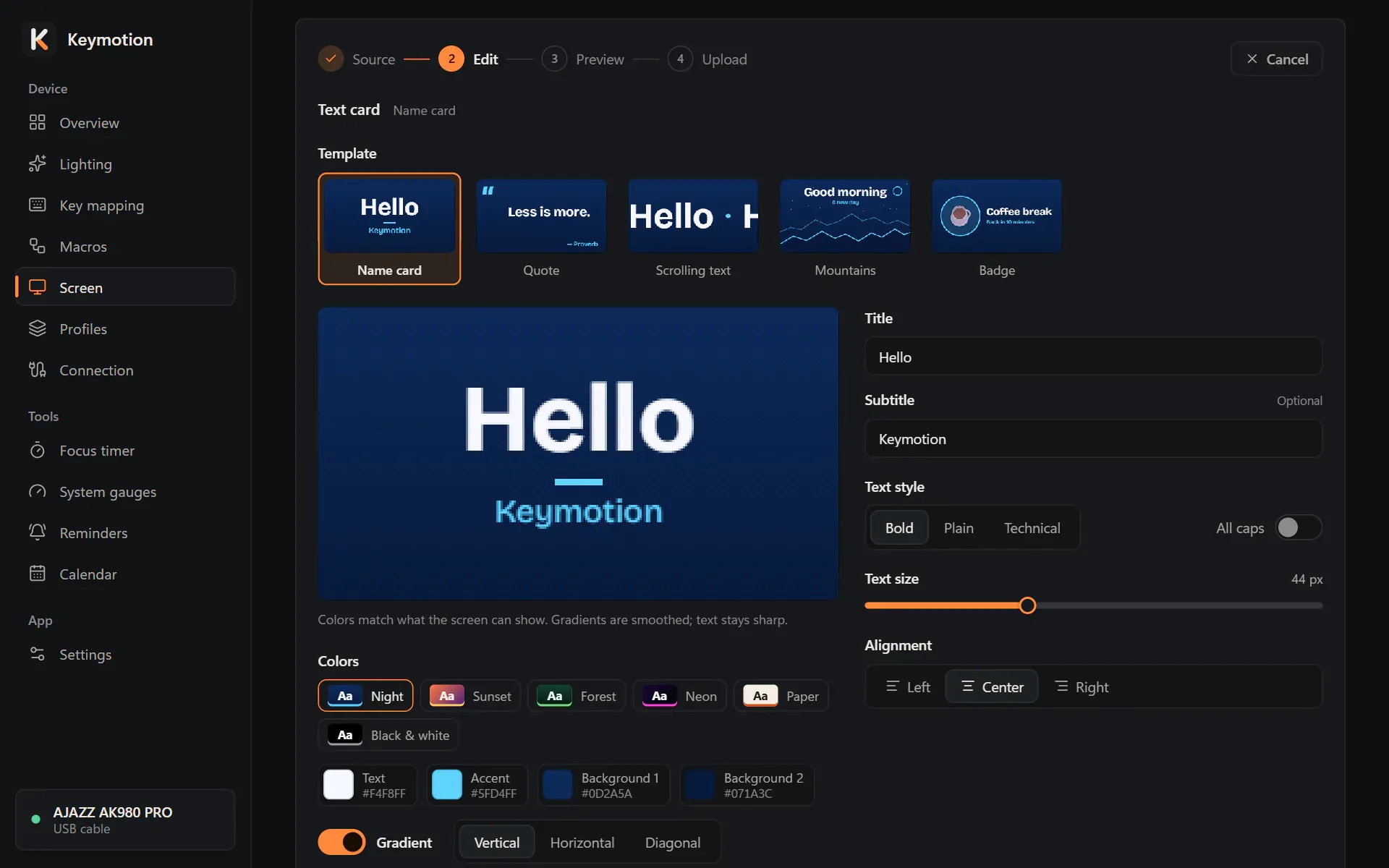
Image or video
Section titled “Image or video”Click Choose file, or drag a file onto the tile. You can use PNG, JPEG, GIF, WebP, APNG, MP4 and WebM files. Images and GIFs can be up to 64 MB, videos up to 1 GB. A picture can be up to 8192×8192 pixels and a file up to 3,000 frames.
- Drag the picture to place it, and scroll to zoom. Placement offers Fill, Fit and Stretch. Center puts it back in the middle.
- For animations and videos, Start and End pick the part you want, and Preview position shows any moment of it.
- Frame rate sets how many frames a second are kept. For an animated image, Original keeps the file’s own timing. Videos and very long animations start at 10 frames a second, so 14 seconds fit in 140 frames. If your selection is longer, the rest is cut and a note says so. Shorten the selection or lower the frame rate.
- Smooth gradients reduces color bands in photos and videos.
The colors in the editor are the colors the screen can show.
Text card
Section titled “Text card”Click Make a card, then pick a Template: Name card, Quote, Scrolling text, Mountains or Badge.
- Type your text in the fields beside the preview.
- Text style offers Bold, Plain and Technical. You can also set All caps, Text size and Alignment.
- Under Colors, pick a color theme or set the text, accent and background colors yourself. Gradient blends two background colors.
- Scrolling text also has Speed and Frame rate.
If the text color is too close to the background, a note warns you that it may be hard to read.
Slideshow
Section titled “Slideshow”Click Make a slideshow. Add pictures with Add files, by dragging them onto the preview, or with Add from library. A slideshow needs at least two pictures and can have up to 24.
- Each slide has a Duration from 1 to 20 seconds. A slide from a file can Fill or Fit the screen.
- Move slides with Move up and Move down, and remove one with Remove slide.
- Transition is Cut or Fade. A fade takes 0.3 seconds.
- Frames used shows how much of the 140 frames the slideshow takes. Every half second of a slide uses one frame. If it goes over 140, shorten the durations, remove a slide or choose Cut.
The library
Section titled “The library”Under the studio, the Library keeps every picture you uploaded or saved. It is the only copy: the keyboard can’t give a picture back.
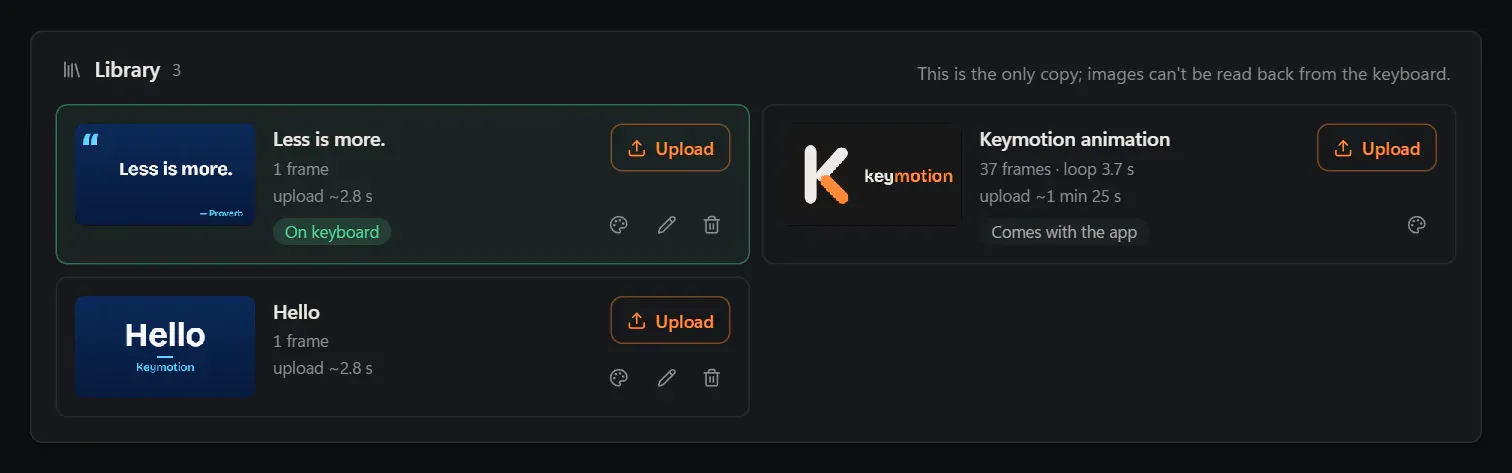
The picture on the keyboard comes first, marked On keyboard. Each picture shows its frames, its loop length and its upload time, and has these buttons:
- Upload puts it on the GIF page. It asks first, like any upload.
- Match lights (the palette) designs key colors from it. See below.
- Rename (the pencil) changes its name.
- Delete (the bin) removes it. Click a second time to confirm.
With more than six pictures, you can show All, Still or Animated ones. With more than twelve, Search library finds a picture by name.
Export settings in Settings saves the library in your backup file too.
Match lights
Section titled “Match lights”Match lights builds a key color design from a picture. It appears after an upload or a save, and as the palette button on each picture in the library.
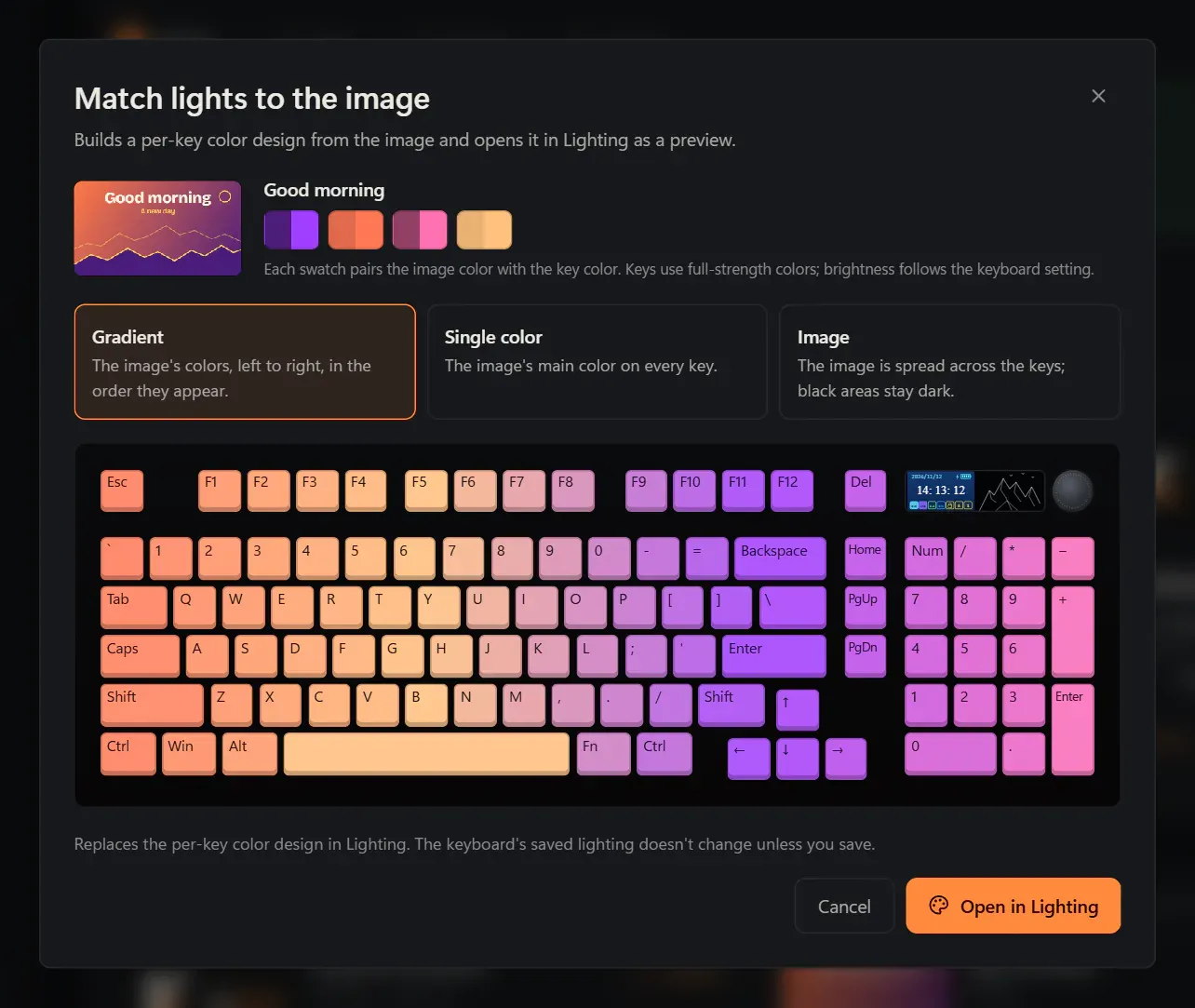
- Click Match lights. The window shows the picture and its colors under Image colors.
- Choose how the colors go on the keys:
- Gradient: the picture’s colors from left to right, in the order they appear.
- Single color: the picture’s main color on every key.
- Image: the picture spread across the keys. Black areas stay dark.
- Click Open in Lighting.
The design opens on the Lighting page as a per-key color design, and the keys show it. It replaces the per-key design there. The keyboard’s saved lighting doesn’t change until you save it.
The factory animation and Keymotion’s animation
Section titled “The factory animation and Keymotion’s animation”A new keyboard shows an AJAZZ animation on its GIF page. Your first upload replaces it, and the keyboard can’t give it back. Keymotion doesn’t include AJAZZ’s file.
- If AJAZZ’s official driver is installed on this PC, Keymotion can copy the animation from it. Click Back up from the official driver on the Screen page or in the upload window. The library then holds the AJAZZ factory animation, marked Factory. Its Restore button puts it back on the GIF page, which takes about 5 minutes.
- Without a backup, the Screen page says so. Only AJAZZ’s official driver can bring the animation back; see If something goes wrong.
Keymotion also has an animation of its own, ready in the library and marked Comes with the app. The “K” of Keymotion’s logo is drawn stroke by stroke, then the name appears. It has 37 frames and takes about a minute and a half to upload. When there is no factory backup, the Screen page offers it, and Show in library takes you to it. Upload it like any other picture.
The factory backup and Keymotion’s animation can’t be renamed or deleted.
The live screen
Section titled “The live screen”With the live screen on, Keymotion updates the GIF page by itself: a card before a meeting, a reminder, the focus timer’s phases, or the song that is playing. Each card is an upload.
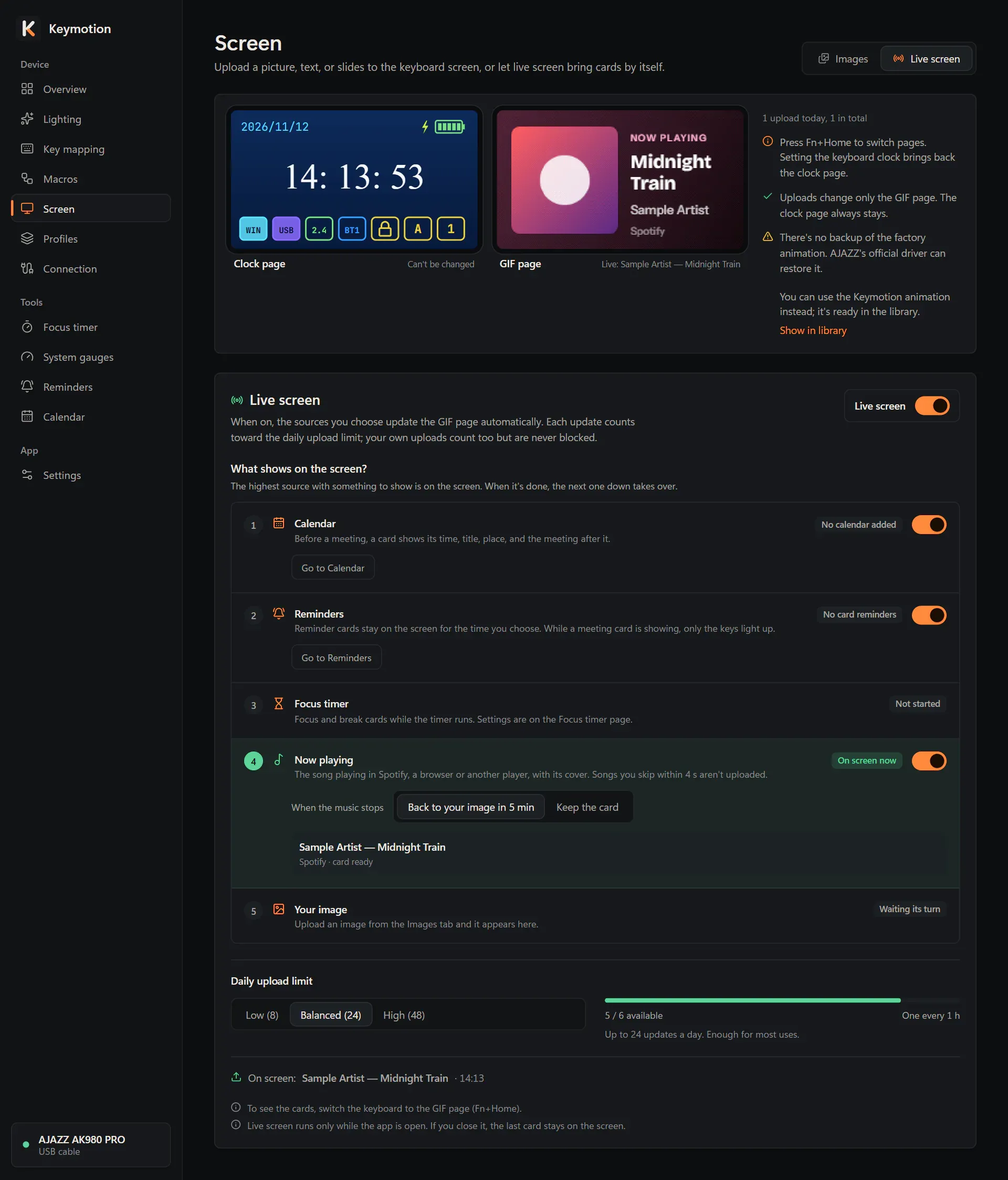
- Open Screen and click the Live screen tab.
- Turn on Live screen.
- Switch the keyboard to the GIF page with Fn+Home to see the cards.
If the keyboard may still have its factory animation and there is no backup, Keymotion asks once before the first card: Turn on live screen? The first card erases the animation for good. Click Turn on live screen to go on, or Cancel.
The live screen runs while Keymotion runs, also when you close its window and it keeps running next to the clock (see Settings). If you quit Keymotion, the last card stays on the screen.
What shows on the screen
Section titled “What shows on the screen”The What shows on the screen? list puts the sources in order. The highest source with something to show is on the screen. When it is done, the next one down takes over.
- Calendar: a card before a meeting. Set it up on the Calendar page.
- Reminders: a reminder’s card, for the time you choose on the Reminders page.
- Focus timer: focus and break cards while the timer runs. Set it up on the Focus timer page.
- Now playing: the song playing in Spotify, a browser or another player, with its cover. Songs you skip within 4 seconds aren’t uploaded.
- Your image: the last picture you uploaded from the Images tab.
Each source shows what it is doing now, for example On screen now, Waiting or Not playing. The source on the screen is highlighted. The calendar, reminder and song sources each have a switch, so you can leave one out.
While the live screen is off, the screen changes only when you upload.
Back to your own picture
Section titled “Back to your own picture”After a card, your own picture comes back by itself:
- A meeting’s card stays until the meeting starts, until 5 minutes after the start, or until the meeting ends, as you choose on the Calendar page.
- A reminder’s card stays for 1, 2 or 5 minutes, as you choose on the Reminders page.
- The focus timer puts your picture back 15 seconds after a series ends, or shows a summary card, as you choose on the Focus timer page.
- The song’s card: under When the music stops, choose Back to your image in 5 min or Keep the card.
If a source lower in the list still has something to show, it comes first. For example, the song’s card comes back after a meeting’s card.
The Your image row shows your picture and when it comes back. Click Go back now to put it back at once. Going back is an upload too.
When you turn off the live screen while a card is on the screen, Keymotion asks Turn off live screen? Choose Restore previous image or Keep the card. If you keep it, the tab offers Restore previous image again later.
The daily upload limit
Section titled “The daily upload limit”Every upload writes to the screen’s memory, and that memory wears with use. Its exact lifespan isn’t known. Memory like it usually lasts about 100,000 writes, so a few uploads a day are fine for years. To keep it that way, the live screen has a Daily upload limit:
| Choice | Live uploads |
|---|---|
| Low (8) | up to 8 a day, the easiest on the screen memory |
| Balanced (24) | up to 24 a day, enough for most uses |
| High (48) | up to 48 a day; wears the memory twice as fast as Balanced |
The bar under the choice shows how many uploads are available now and when the next one comes. Used uploads come back one by one through the day.
Your own uploads count toward the limit too, but they are never blocked.
When the limit is reached, a card waits. The Screen page says which card is waiting and that it isn’t on the keyboard yet. On the Live screen tab, the waiting card has two buttons:
- Send now uploads it anyway. It still counts toward the limit.
- Don’t send drops it. The keyboard keeps its current picture.
The focus timer and the song never take the last available upload; it is kept for a reminder or a meeting. A reminder’s card never waits: if no upload is available, only the keys light up.
If an upload stops partway
Section titled “If an upload stops partway”Keep the cable plugged in until an upload finishes. Other changes to the keyboard wait until then.
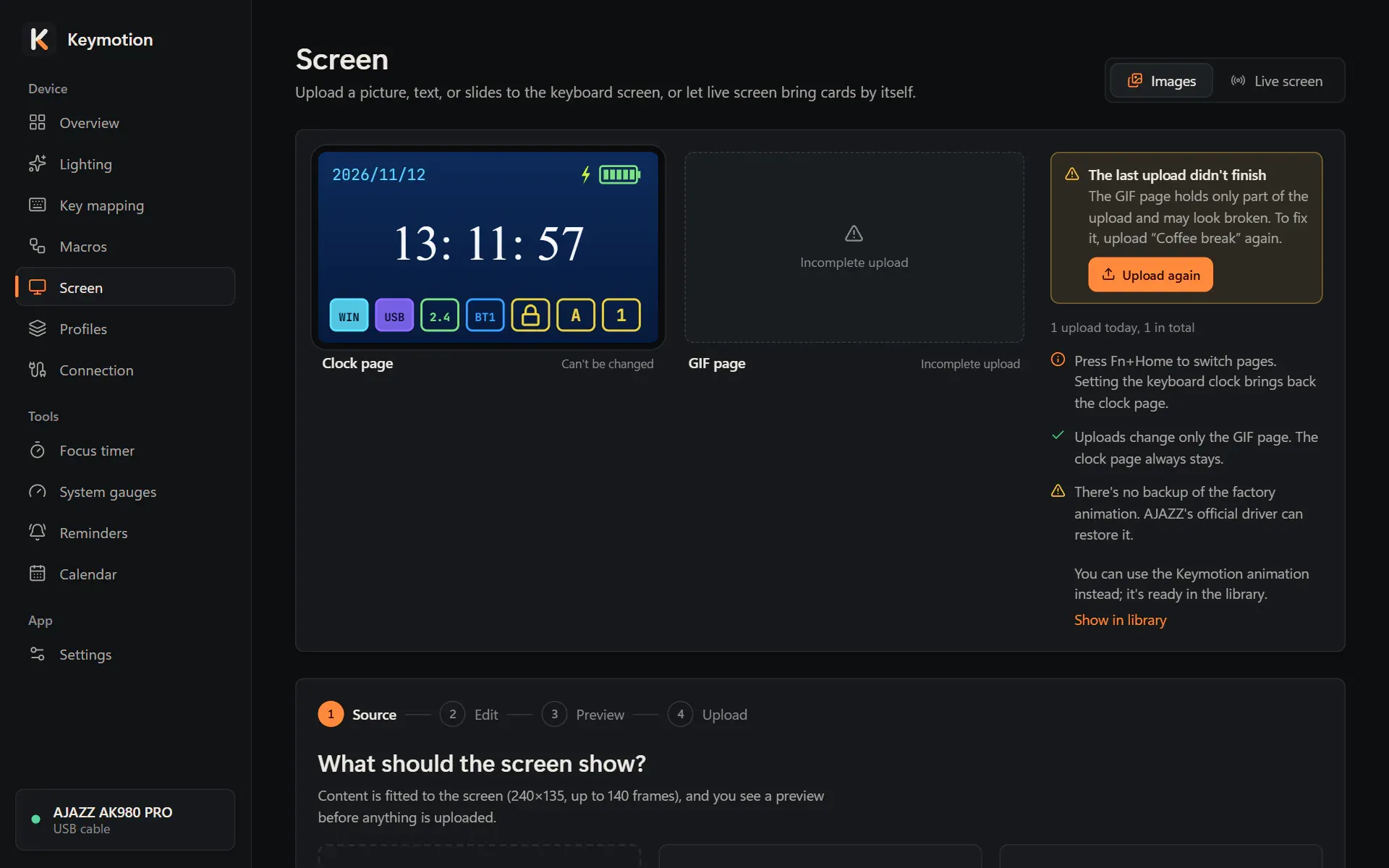
If the cable comes out, Keymotion quits or the computer shuts down during an upload, the GIF page holds only part of the picture and may look broken. Keymotion remembers this:
- The Screen page shows The last upload didn’t finish, with an Upload again button. It uploads the same picture again from the start.
- In the library, that picture is marked Incomplete and its button reads Upload again.
- The next time Keymotion starts, a notice at the bottom right offers Upload again and Go to Screen.
If the picture is no longer in the library, upload any picture from the library to fix the page. See also If something goes wrong.
If you quit Keymotion while an upload runs, it shows Saving to the keyboard and closes by itself when the upload finishes. Cancel keeps Keymotion open. Quit now closes it at once and leaves the GIF page incomplete.