
Calendar
Keymotion can read your calendars and let you know before a meeting: a card on the keyboard’s screen, and the Esc key blinking a minute before it starts. It works with Google Calendar, Outlook, Apple iCloud and any calendar with an iCal (.ics) sharing address. It only reads your calendars and never changes them.
Open Calendar under Tools in the sidebar.
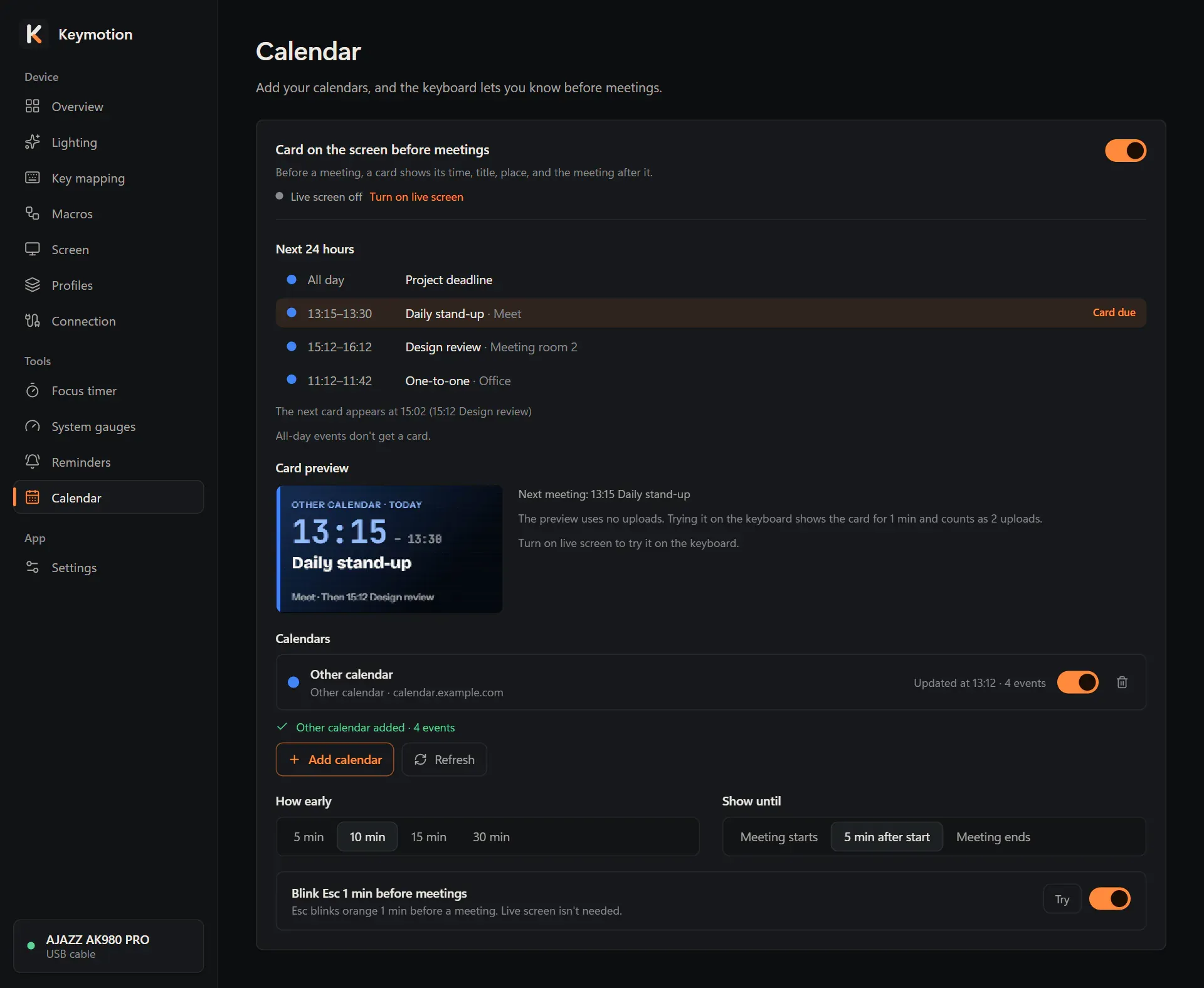
Add a calendar
Section titled “Add a calendar”Adding a calendar takes three steps: Calendar, Address and Check. Cancel leaves at any step.
- Click Add calendar.
- Choose Google Calendar, Outlook, Apple iCloud or Other calendar.
- The page shows how to find the calendar’s address (see below). Copy it and paste it into Sharing address.
- If you like, change Name on card. This name shows on the screen card.
- Click Add.
Keymotion reads the calendar, then says it was added and how many events it found. If it can’t read it, the page says why. Click Edit address to paste the address again, or Add anyway to keep it; Keymotion tries again every few minutes.
The address must start with https:// or webcal://. If you paste a link that can’t work, such as a link to a single event, the page tells you which address to copy instead. You can add up to 8 calendars.
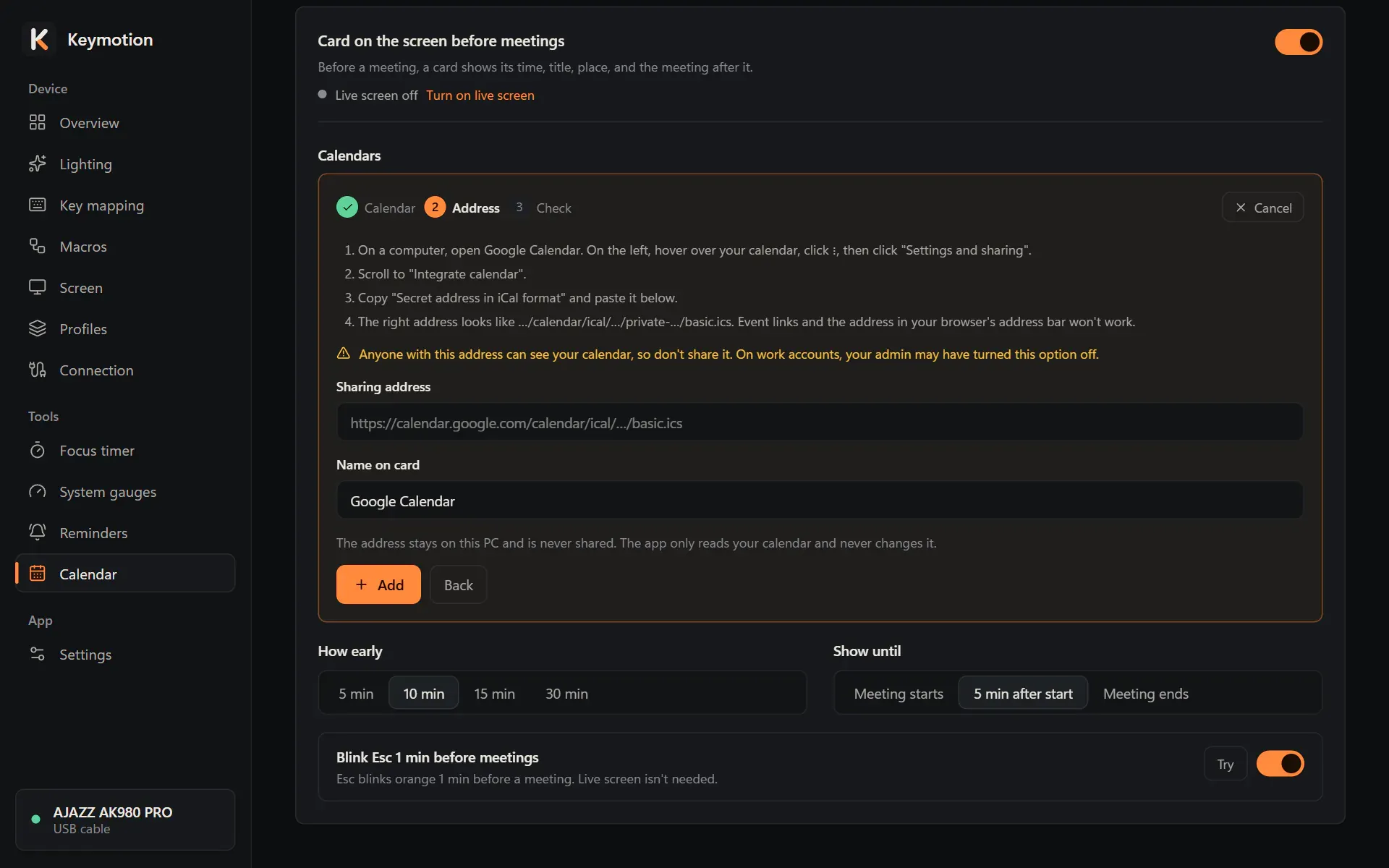
Find the address in Google Calendar
Section titled “Find the address in Google Calendar”- On a computer, open Google Calendar. On the left, hover over your calendar, click ⋮, then click Settings and sharing.
- Scroll to Integrate calendar.
- Copy Secret address in iCal format.
The right address looks like …/calendar/ical/…/private-…/basic.ics. The public address just above it works only if your calendar is public. On work accounts, your administrator may have turned this option off.
Find the address in Outlook
Section titled “Find the address in Outlook”- Open Outlook on the web (outlook.com or Microsoft 365) and go to Settings, Calendar, Shared calendars.
- Under Publish a calendar, choose your calendar and Can view all details, then click Publish.
- Copy the ICS link that appears. The HTML link above it won’t work.
Apple iCloud and other calendars
Section titled “Apple iCloud and other calendars”- Apple iCloud: make the calendar public and copy its link. On an iPhone: Calendar, Calendars, ⓘ next to your calendar, Public Calendar. On a Mac: right-click the calendar, Sharing Settings, Public Calendar. Paste the link that starts with
webcal://unchanged. Anyone with the link can see a public calendar. - Other calendar: paste your calendar’s sharing address.
The address stays on this PC
Section titled “The address stays on this PC”- The address is kept only on this computer. It is encrypted for your Windows user account, so another user or computer can’t read it. If a calendar says its address can’t be opened on this computer, remove it and add its address again.
- Keymotion reads each calendar every 15 minutes and when you click Refresh. It sends nothing else to the calendar server.
- The address and your meeting names are never written to Keymotion’s logs.
- Removing a calendar deletes its saved address too.
- Export settings in Settings leaves the addresses out of the backup file unless you turn on Include calendar addresses. The addresses are then in plain text in the file, so keep it private.
More in the Privacy policy.
Your calendars
Section titled “Your calendars”Calendars lists the calendars you added, when each was last read and how many events it has. A switch leaves a calendar out for a while; Remove (the bin) removes it after you confirm. Refresh reads all calendars now. If one can’t be read, its row shows Couldn’t load and the reason.
Before a meeting
Section titled “Before a meeting”The keyboard can tell you about a meeting in two ways: a card on the screen, and the Esc key.
A card on the screen
Section titled “A card on the screen”The switch Card on the screen before meetings, at the top of the page, is on at first. The card shows the meeting’s time, title and place, and the meeting after it. It goes to the screen through the live screen, which has to be on. If it is off, the page offers Turn on live screen.
- How early: the card comes 5, 10, 15 or 30 minutes before the meeting. The default is 10.
- Show until: the card stays until the Meeting starts, until 5 min after start (the default), or until the Meeting ends.
- All-day events don’t get a card.
Next 24 hours lists your next meetings, and the one whose card is due is marked Card due. A line below says when the next card comes.
Card preview shows the card for your next meeting, or a sample when there is none. It uses no uploads. With the live screen on, Try on keyboard sends it to the keyboard for 1 minute; that counts as 2 uploads toward the daily upload limit.
A meeting’s card comes first on the screen, before reminders, the focus timer and the song. While it shows, reminders only light up the keys.
Esc blinks before a meeting
Section titled “Esc blinks before a meeting”The switch Blink Esc 1 min before meetings is on at first. One minute before a meeting starts, Esc blinks orange. This doesn’t need the live screen. Click Try to see it.