
AI agents
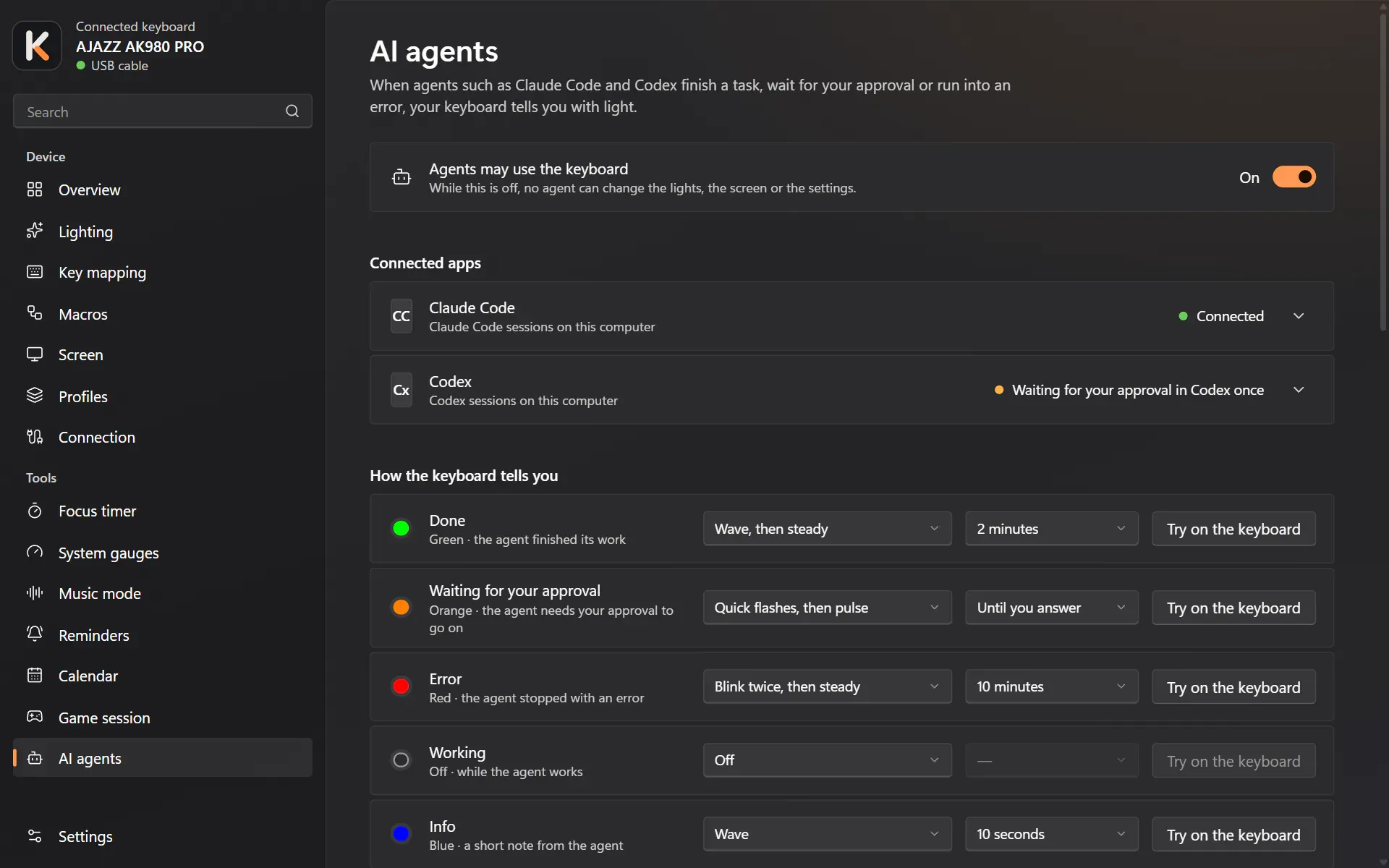
When a coding agent such as Claude Code or Codex finishes a task, waits for your approval or runs into an error, your keyboard can tell you with light. The agent may also light keys in its own way: a word spelled on the letter keys, a number, a progress bar on the F row. You only turn access on once; everything else has a ready-made look you can change.
Turn it on
Section titled “Turn it on”- Open AI agents under Tools in the sidebar.
- Turn on Agents may use the keyboard.
- Under Things to connect, Keymotion says what each coding app on this computer gets: Claude Code and Codex will tell Keymotion when a task is done, when the agent waits for your approval and when it fails, and get a short note (a skill) that tells the agent how to use the keyboard; Codex also lets the agent run its keyboard commands outside its sandbox. With Keymotion from GitHub, terminals also find
keymotion-cliby its name. Details shows the files, how many hooks each one gets, and where a copy of each changed file is kept. - Click Connect and turn on. To stop here, click Cancel: nothing is written and access stays off.
- Done says what was connected. Click OK.
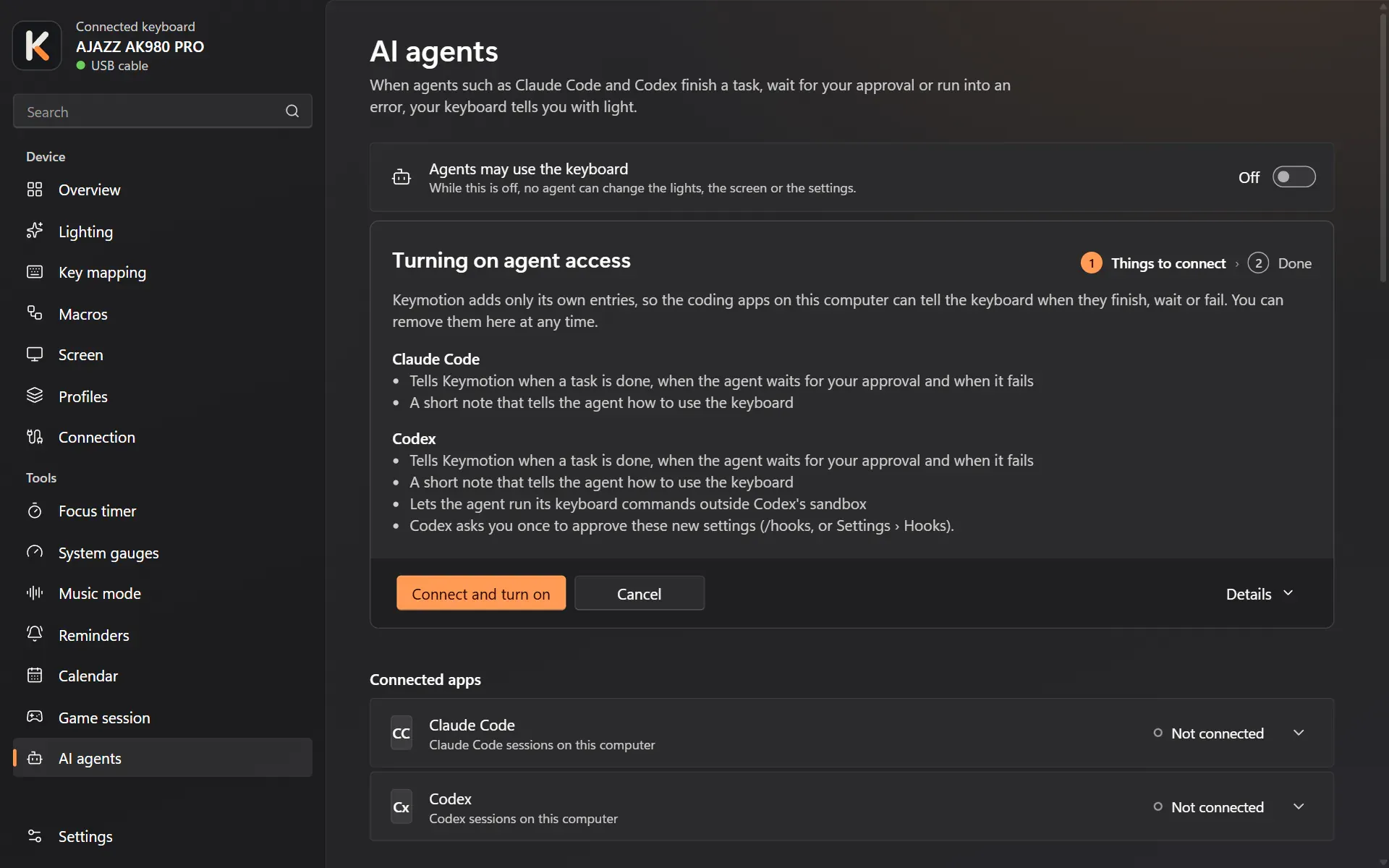
Codex asks you once to approve these new settings (type /hooks, or open Settings › Hooks in Codex). Until then Connected apps says Waiting for your approval in Codex once.
If a coding app writes its settings while the steps are open, Keymotion shows what would change now and asks again.
Turning Agents may use the keyboard off stops every agent at once; the connections stay, so turning it on again needs no steps.
Connected apps
Section titled “Connected apps”Each app shows how it stands: Connected, Waiting for your approval in Codex once, Not connected, Not on this computer, or Too old when Claude Code is older than version 2.1.139 and needs claude update. The arrow on the right shows its folder and files, and Remove connection, which takes away only what Keymotion added.
Keymotion from GitHub removes its connections itself when you uninstall it. Before you uninstall the Microsoft Store copy, click Remove connection for each connected app: Windows removes Store apps without letting them clean up, and Claude Code calls Keymotion’s command-line tool directly, so once Keymotion is gone it reports a hook error on every event until the connection is removed. Codex checks first and stays quiet.
How the keyboard tells you
Section titled “How the keyboard tells you”| Signal | Looks at first | How long |
|---|---|---|
| Done | Green, a wave, then steady | 2 minutes |
| Waiting for your approval | Orange, quick flashes, then a slow pulse | Until you answer (at most 30 minutes) |
| Error | Red, blinks twice, then steady | 10 minutes |
| Working | Off | – |
| Info | Blue wave | 10 seconds |
Click the dot to change a signal’s color; the lists change the effect and how long it stays. Try on the keyboard shows it for a few seconds. Lights never flash more than three times a second.
Waiting for your approval goes off when you answer the agent. It also goes off at your first touch of the keyboard or mouse after it has shown, because you’ve seen it. With two or more sessions, the waiting session’s number key stays lit until you answer.
It lights only when the agent asks you. When Claude Code decides by itself (auto mode, or a mode that never asks), nothing lights; if it asks you after all, the light comes a few seconds later. Codex’s Approve for me can’t be told apart from a question to you: there the light stays until the reviewed step ends.
When Keymotion isn’t running
Section titled “When Keymotion isn’t running”If an agent finishes or needs you while Keymotion isn’t running, Keymotion starts by itself, without its window and with only its icon next to the clock, and shows the light.
If you closed it, it stays closed: after you quit Keymotion (right-click its icon next to the clock and choose Quit) or turn Agents may use the keyboard off, agents’ events don’t start it until you open it yourself, Windows restarts or you sign in again. A command an agent runs on purpose can still start it.
What else agents may do
Section titled “What else agents may do”These are off at first: Send text and pictures to the screen (each one is written to the keyboard’s memory; at most four an hour for all agents together, a number you can change from 1 to 20 in the list beside its switch), Use the focus timer and Save a profile’s lighting (key mapping and macros are never touched). Hide agent lights while playing is on: during a game session the lights wait.

More signals
Section titled “More signals”Each row opens its settings with the arrow on the right:
- Usage limit reached: told apart from an error, in its own color and effect.
- Which session is waiting: with two or more sessions, the waiting one’s number lights on the number row. Session numbers lists which number is which project folder.
- While you were away: what finished or started waiting while you were away flashes once when you’re back.
- If nobody answers: a question nobody answered flashes again, every few minutes for a while.
- Progress bar: the keys an agent’s progress bar uses, the F row or the number row, and its color.
- Long task finished: a card on the screen when a long task ends (needs the screen permission).
- Night quiet: dims or turns off the agents’ lights at night.
- Helper agent finished: a short wave on the F row when one of Claude Code’s helper agents finishes.

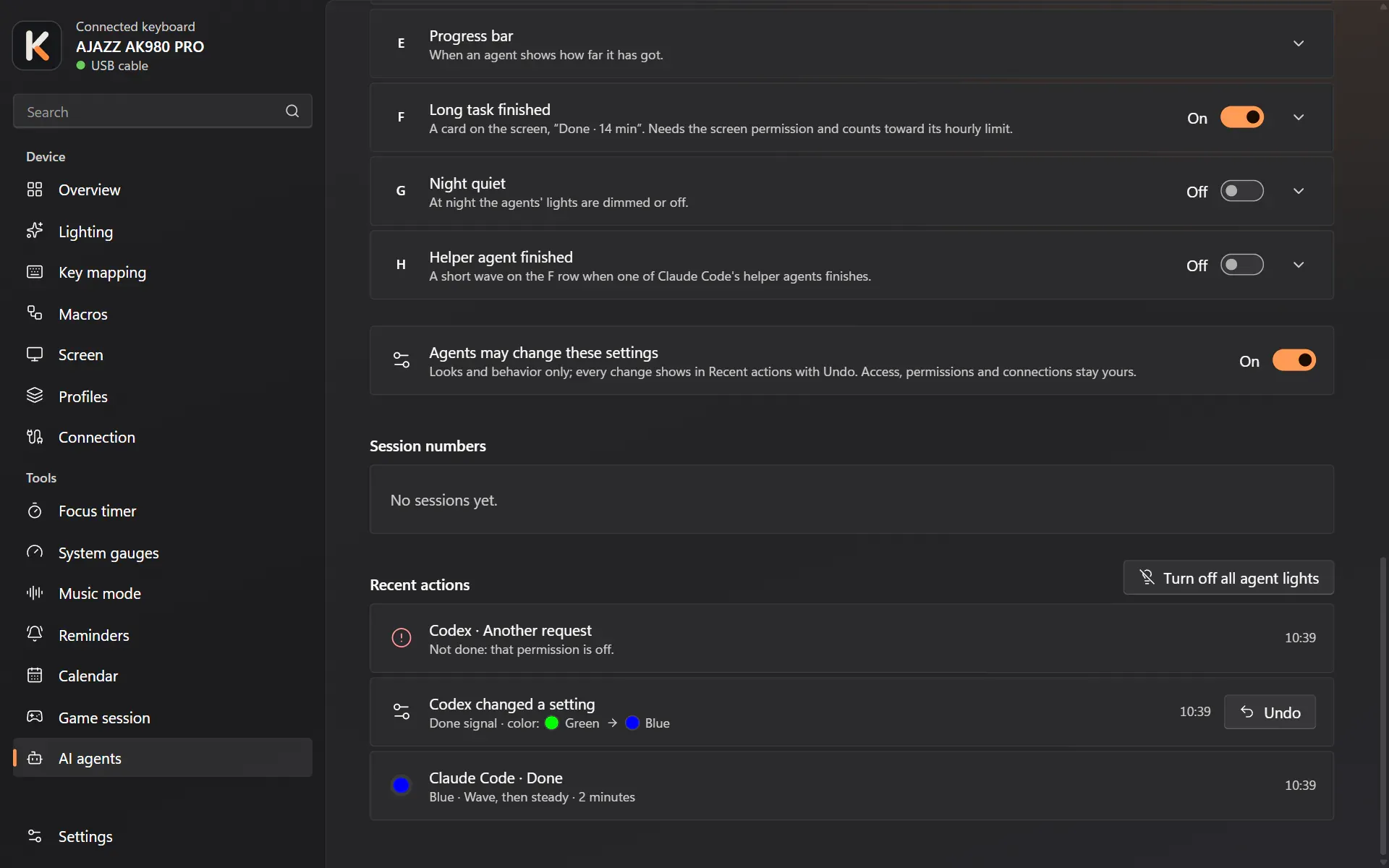
Agents may change these settings (on at first) lets an agent change looks and behavior. Access, the permissions and the connections are always yours.
Recent actions
Section titled “Recent actions”The last things agents did are listed with their time. A settings change has Undo. Turn off all agent lights turns every agent light off at once. A request that wasn’t carried out says why, for example that the keyboard wasn’t on the USB cable.
Agents use Keymotion through keymotion-cli, a small command-line tool. Its commands, which scripts can use too, are on the Agent command line page.