
AK980 PRO lighting: effects and per-key colors
The Lighting page sets how the keys of the AJAZZ AK980 PRO light up. It has two tabs at the top right: Effects for the keyboard’s own animations, and Per-key color for a design of your own.
Choose an effect
Section titled “Choose an effect”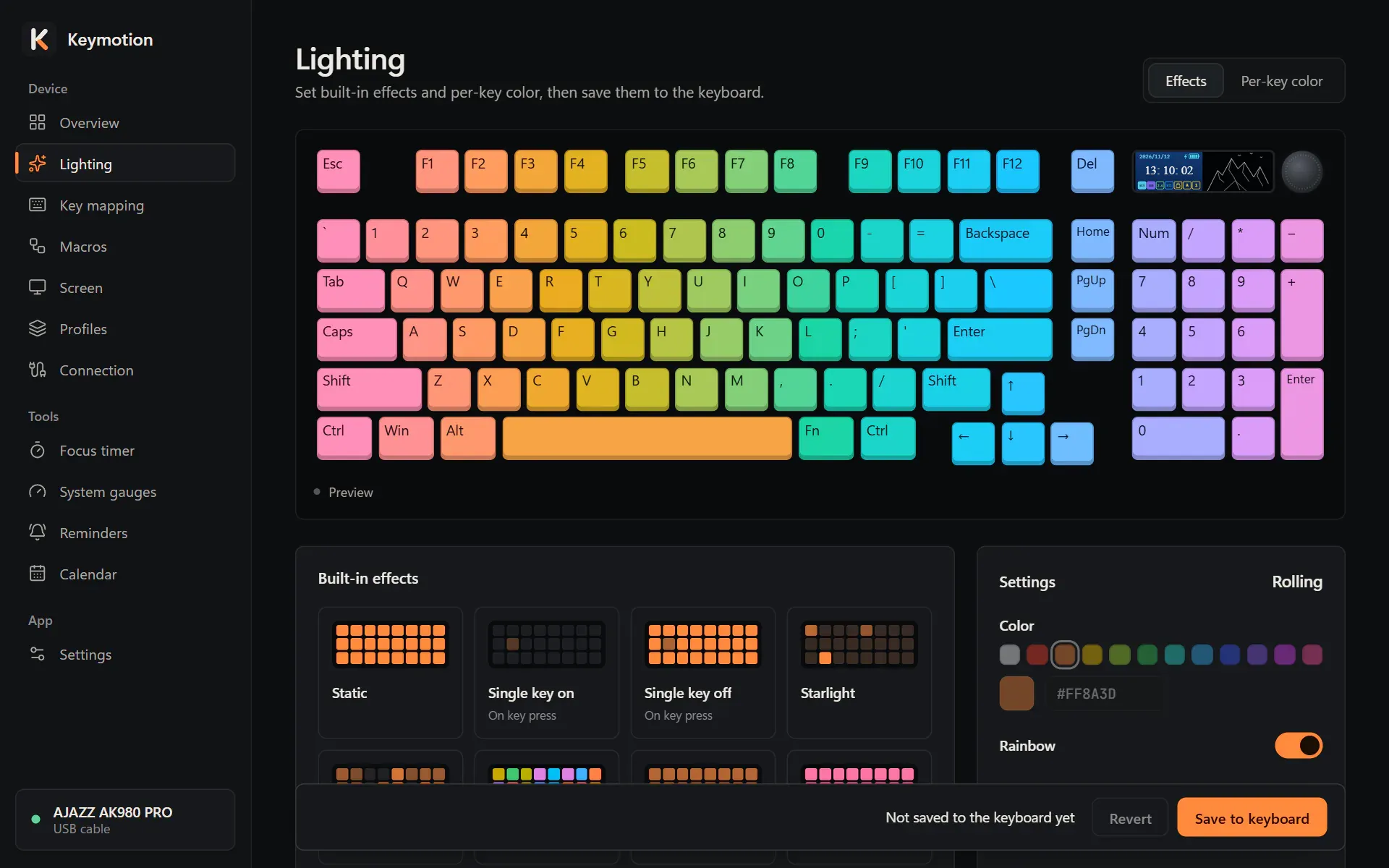
- Open Lighting in the sidebar and choose the Effects tab.
- Under Built-in effects, click an effect. Its controls appear in the Settings panel.
- Adjust the settings.
- Click Save to keyboard in the bar at the bottom of the page. The keyboard switches to the effect.
There are 19 built-in effects, plus Off. The label On key press marks the effects that light up as you type instead of moving on their own. Default marks Rolling, the keyboard’s factory effect, and a small green dot marks the effect saved on the keyboard now.
| Effects | Settings |
|---|---|
| Static | Color, brightness |
| Single key on, Single key off, Starlight, Fluttering, Breathing, Outward wave, Explosion, Launch, Ripples, Pulse, Shuttle | Color, brightness, speed |
| Scrolling, Rolling, Rotating, Flow, Slanted rain | Color, brightness, speed, direction |
| Colorful, Spectrum | Brightness, speed (they bring their own colors) |
| Off | None |
- Color: click a swatch, click the colored square to pick any color, or type a color code such as #FF8A3D. Picking a color turns Rainbow off.
- Rainbow: the effect uses rainbow colors instead of the one you picked. Every effect with a color has it.
- Brightness and Speed: six steps from 0 to 5. Higher is brighter or faster.
- Direction: two choices named after the movement. ↓ Down and ↑ Up for Scrolling, → Right and ← Left for Rolling, ↺ Counterclockwise and ↻ Clockwise for Rotating, → Forward and ← Backward for Flow, ↗ Up right and ↙ Down left for Slanted rain.
Restore default effect, under the settings, picks Rolling with its factory settings: rainbow, brightness 5, speed 3. Save to apply it.
Watch the keys live
Section titled “Watch the keys live”On the Effects tab, the keyboard picture at the top shows the colors your keyboard is showing right now. Keymotion reads them from the keyboard about four times a second, and the caption under the picture says Live from your keyboard with a green dot. When there is no reading, it says Preview. The reading runs only while the Keymotion window is open, not while the app runs in the background next to the clock.
Color each key
Section titled “Color each key”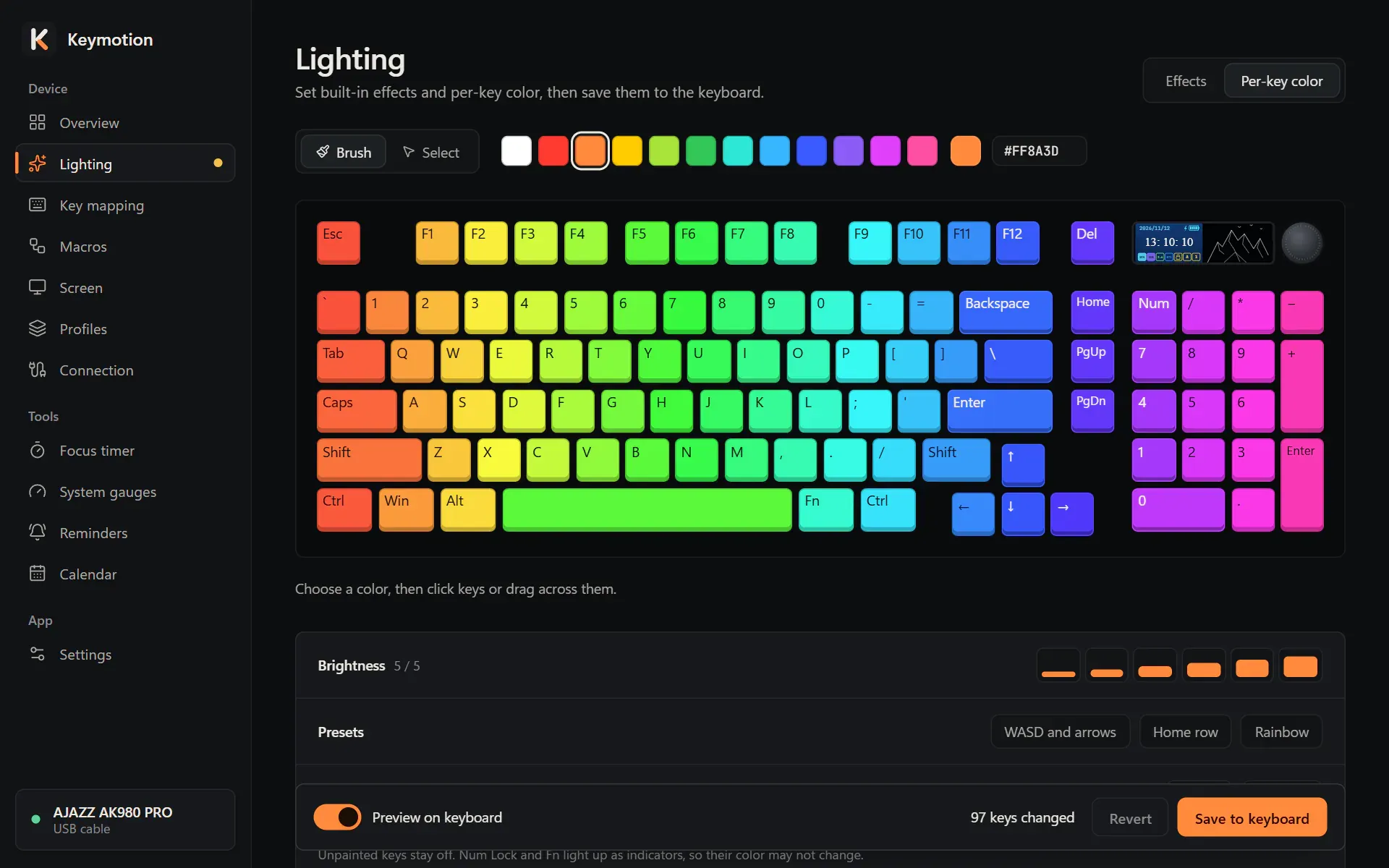
- Choose the Per-key color tab.
- Pick a color in Brush color.
- With the Brush tool, click keys or drag across them.
- Click Save to keyboard.
Two tools sit above the keys:
- Brush paints every key you click or drag across.
- Select keeps keys selected. Click or drag to select, and hold Ctrl or Shift to add or remove keys. Each color you pick then applies to all selected keys at once. Select all, Turn off selected and Clear selection appear next to the hint. As shortcuts, Esc clears the selection, Delete turns the selected keys off and Ctrl+A selects all.
Below the keys:
- Brightness: 0 to 5, for the whole design.
- Presets: WASD and arrows and Home row (the eight keys under your fingers) light those keys in the brush color. Rainbow spreads colors from left to right. A preset replaces your current design.
- All keys: Fill paints every key in the brush color, and Clear turns every key off.
Keys you don’t paint stay off. Num Lock and Fn light up as indicators, so their color may not change.
Preview on keyboard, the switch in the bottom bar, shows your design on the keyboard while you paint, without saving it. It is on at first. When you leave the tab, the keyboard goes back to its saved lighting.
Save or revert
Section titled “Save or revert”The bar at the bottom says what is not on the keyboard yet, such as 12 keys changed, Brightness changed, Effect settings changed or Not saved to the keyboard yet. Save to keyboard stores the setting in the keyboard, which takes less than a second. Revert goes back to what the keyboard has.
Changes you haven’t saved stay in the app when you open another page, and a dot next to Lighting in the sidebar shows them. If you close the window with changes not saved, Keymotion asks whether to save them.
When the system gauges are on, the keyboard shows them instead of your saved lighting. The page says so and offers Go to gauges.
Calibrate the colors
Section titled “Calibrate the colors”Keys and screens show color differently: mixed colors such as violet can look paler on the keys than in the app. Color calibration, on the Settings page, brings the key colors closer to what you see on screen.
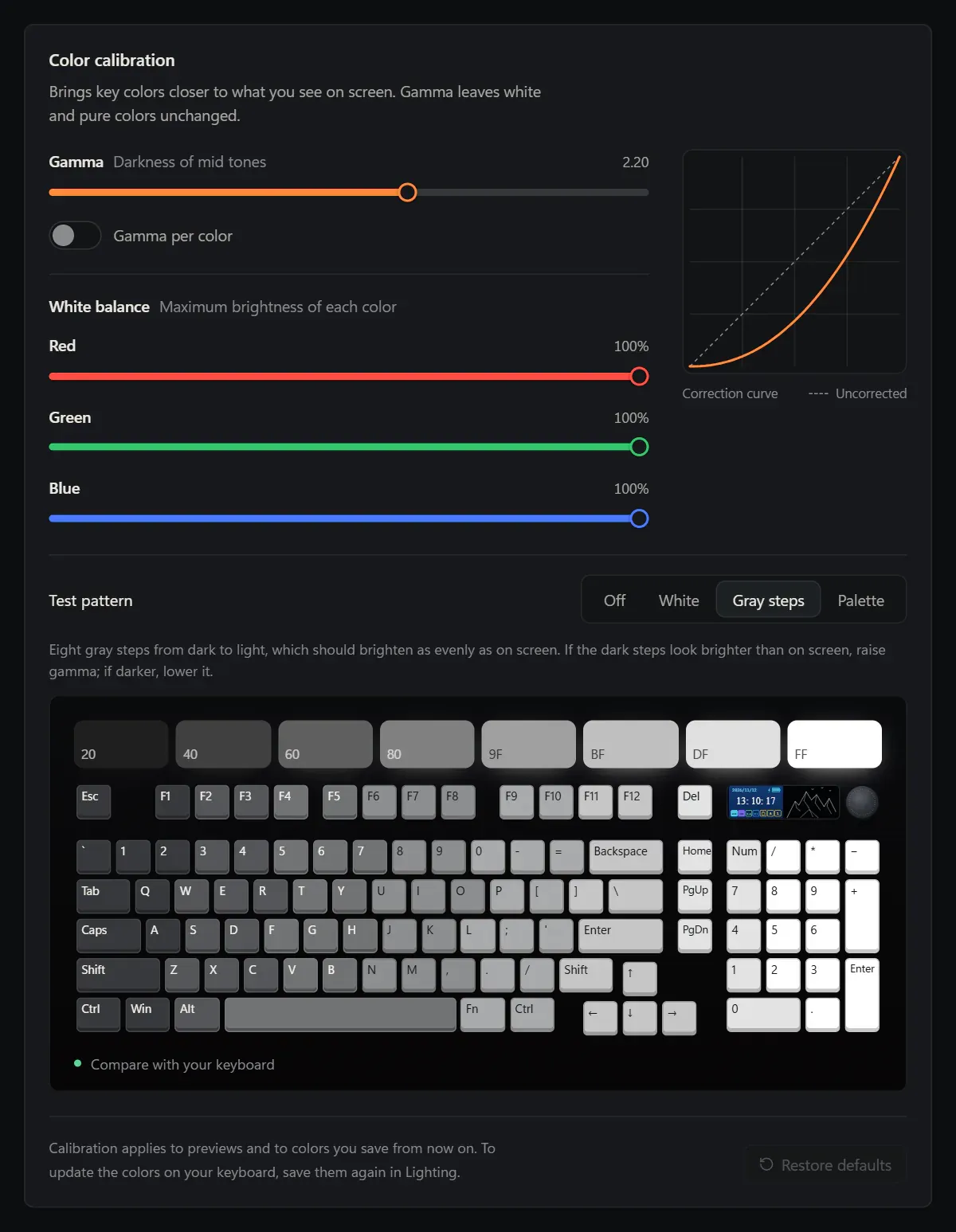
- Gamma (1.00 to 3.00, 2.20 at first) sets how dark the mid tones are. It leaves white and pure colors unchanged. Turn on Gamma per color for separate red, green and blue sliders.
- White balance sets the maximum brightness of Red, Green and Blue, from 0 to 100%.
- Correction curve shows the result against the dashed Uncorrected line.
Changes are saved by themselves, and Saved appears for a moment. Restore defaults sets everything back.
- Open Settings and find Color calibration.
- Under Test pattern, choose White. All keys light white, and the same pattern appears on screen, marked Compare with your keyboard. If white looks pink or bluish, lower the white balance of the color that stands out.
- Choose Gray steps: eight grays from dark to light, which should brighten as evenly as on screen. If the dark steps look brighter on the keys than on screen, raise Gamma; if darker, lower it.
- Choose Palette and check that mixed colors such as orange and violet match the screen.
- Choose Off. Your saved lighting comes back, as it also does when you leave the page.
- Open Lighting and save your effect or design again. Calibration applies to previews and to colors you save from now on.
The sliders work without the cable; the test patterns need it.