
System gauges
The system gauges turn your keys into small meters. Processor, graphics and memory load fill rows of keys like bars, the F row shows the volume when you change it, and a key of your choice turns red while the microphone is muted.
Turn the gauges on
Section titled “Turn the gauges on”- Open System gauges under Tools in the sidebar.
- Turn on Show on keys.
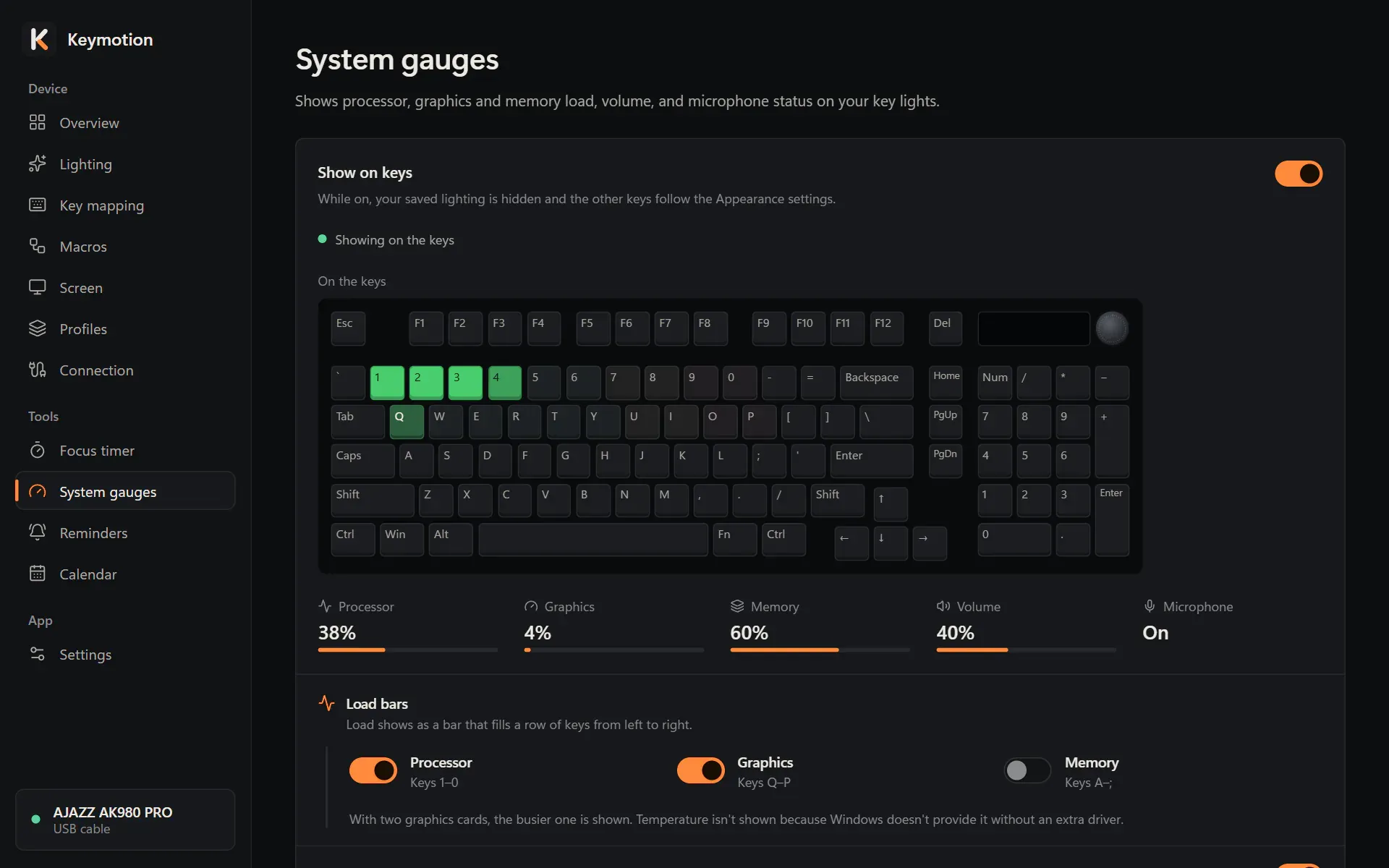
The line under the switch says what the keys do now, for example Showing on the keys or Preview only. The keyboard drawing shows what the keys show, and below it you see the current readings: Processor, Graphics, Memory, Volume and Microphone. The drawing and the readings work even before you turn the gauges on.
While the gauges are on, your saved lighting is hidden. The keys that don’t show a gauge follow the Appearance settings.
When Keymotion keeps running after you close its window, the menu of its icon next to the clock can also turn System gauges on the keys on or off.
Load bars
Section titled “Load bars”Each load shows as a bar that fills a row of keys from left to right. Turn each one on or off:
| Gauge | Keys |
|---|---|
| Processor | 1 to 0 |
| Graphics | Q to P |
| Memory | A to ; |
Processor and graphics are on at first; memory is off.
With two graphics cards, the busier one is shown. Temperature isn’t shown, because Windows doesn’t provide it without an extra driver.
Volume
Section titled “Volume”When the volume changes, for example when you turn the knob, F1 to F12 show the level for 1.5 seconds. When the sound is muted, the F row turns red.
Muted microphone
Section titled “Muted microphone”When the microphone is muted in Windows, the key you choose turns red. To pick the key, click Change, then click a key on the drawing. Cancel keeps the current key.
Mute buttons inside call apps aren’t detected; only the mute in Windows is.
Appearance
Section titled “Appearance”- Bar color: By load turns from green to yellow to red as the load rises. By gauge gives each gauge its own color: processor blue, graphics violet, memory teal.
- Show empty part faintly shows the full length of each bar.
- Brightness goes from 1 to 5.
- Other keys are Off, or a Faint color you pick.
Priority order
Section titled “Priority order”Several things can light the keys at the same time. The Priority order list shows which one wins. Each item covers the ones below it; when it is idle, the next one shows. Showing marks the one on the keys now.
- Preview on the Lighting page, only while you edit there.
- Volume and microphone, on their own keys only.
- Focus timer, on the whole keyboard.
- Load bars, which return when the timer ends.
- Saved lighting, when nothing above is active.
So while the focus timer runs, the load bars wait, but the volume and the microphone key still show.