Overview
The Overview is the first page while your keyboard is connected. It shows how the keyboard is lit right now, what is on its screen and where each tool stands. Every tile leads to its own page.
The top of the page
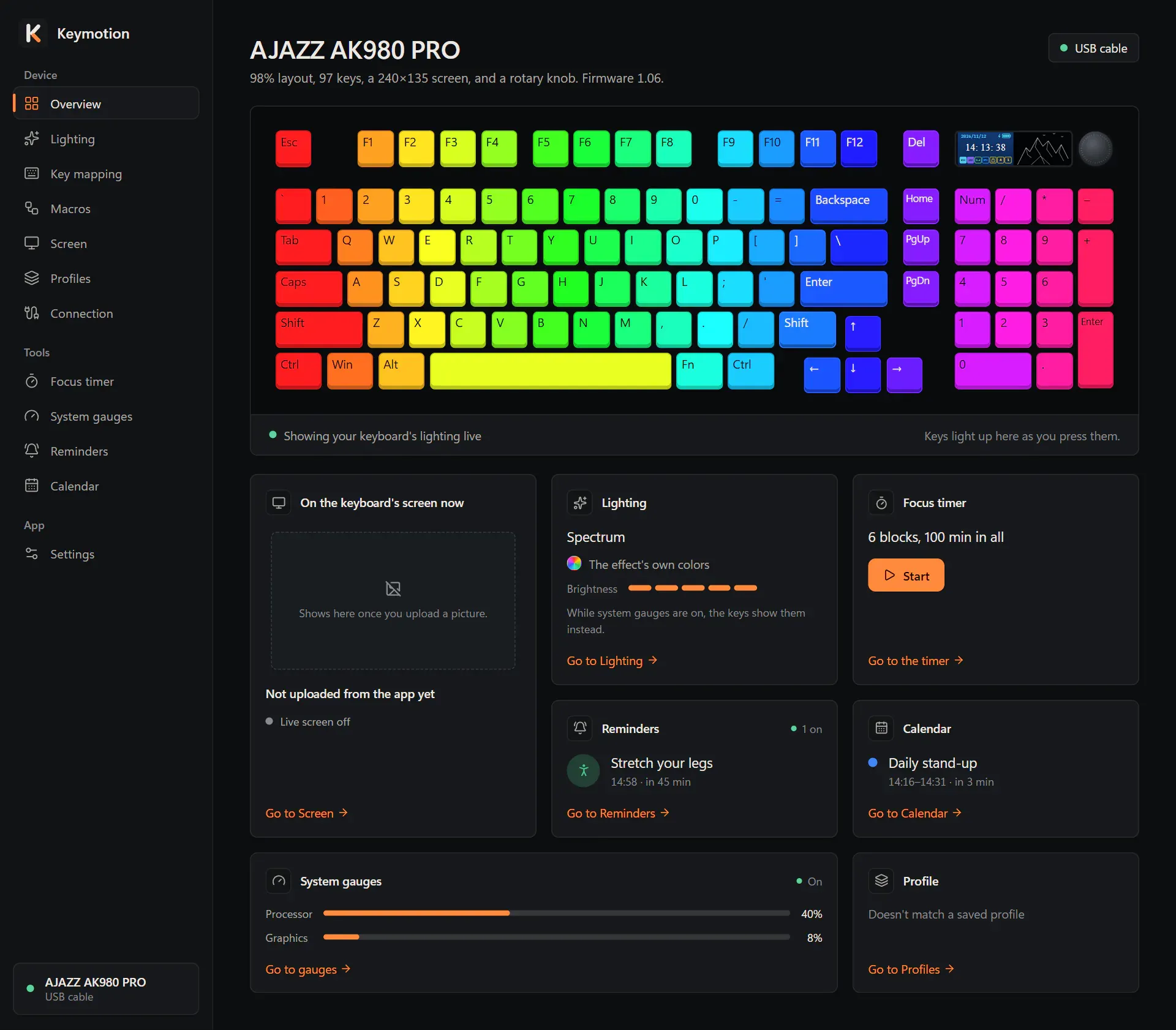
Section titled “The top of the page”The title is the keyboard’s model. Under it is a short description, for example 98% layout, 97 keys, a 240×135 screen, and a rotary knob., followed by the firmware version when the keyboard reports it.
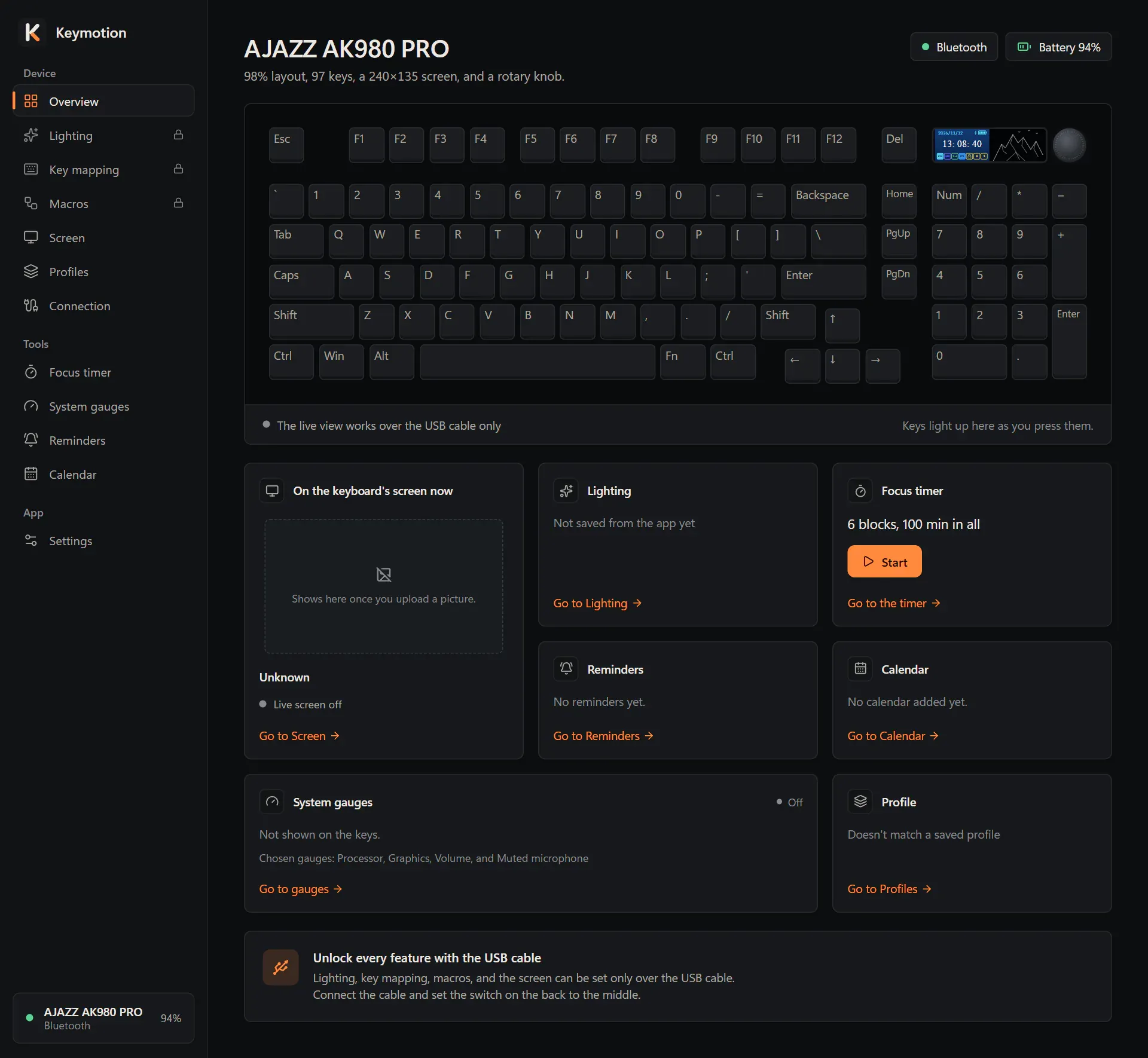
On the right are the connection, such as USB cable, and the battery:
- Over the USB cable, the keyboard doesn’t report its battery level. Keymotion shows instead whether it is charging: Charging or Fully charged. The keyboard lights its Fn key red while it charges, and Keymotion reads that light; the state appears once the light has stayed the same for about two seconds. Point at it to see the last Bluetooth reading, if there is one.
- Over Bluetooth, you see the battery level, such as Battery 94%. Point at it to see when it was read.
The keyboard drawing
Section titled “The keyboard drawing”Over the USB cable, the drawing shows your keyboard’s real light, live: Keymotion reads it about four times a second. Under the drawing it says Showing your keyboard’s lighting live or Keyboard lighting is off.
While Keymotion’s window is in front, the keys you press light up in the drawing too (Keys light up here as you press them.). Fn and a few keys Windows keeps for itself, such as the Windows key and Print Screen, don’t light up. The letters on the keys follow your Windows keyboard layout.
Over the 2.4 GHz receiver or Bluetooth, the drawing isn’t live, and it says The live view works over the USB cable only.
The tiles
Section titled “The tiles”Each tile under the drawing says what its tool is doing now and links to its page. Apart from the focus timer’s Start button, nothing is changed from here.
- On the keyboard’s screen now shows the picture on the keyboard’s GIF page and its name. With the live screen on, it says Live screen on and how many uploads are left; otherwise Live screen off. A card waiting for the daily upload limit is named after Waiting:. Go to Screen opens the Screen page.
- Lighting shows the effect Keymotion last saved to the keyboard, or Per-key color, with its colors and its brightness out of five. If Keymotion hasn’t saved any lighting yet, it says Not saved from the app yet. While the system gauges are on, the keys show the gauges instead, and the tile says so. You change the lighting and save it on the Lighting page; Go to Lighting takes you there.
- Focus timer, when it isn’t running, sums up your sequence (how many blocks, how many minutes in all) and has a Start button. While it runs, you see focus or break, which block you are on, the time left and a bar. Go to the timer opens the Focus timer page.
- Reminders shows in its corner how many reminders are on, or Off, and below that the next reminder with its time and how long until it. With nothing coming up, it says so, for example No upcoming reminders., Reminders are off. or No reminders yet. Go to Reminders opens the Reminders page.
- Calendar shows the next meeting, its time and how long until it starts, or Happening now. Without a calendar it says No calendar added yet.; with no meeting ahead, No meetings in the next 24 hours. Go to Calendar opens the Calendar page.
- System gauges shows On or Off in its corner. While on, live bars show the Processor, Memory and Graphics loads that the keys display. While off, it says Not shown on the keys. and lists the gauges you chose. Go to gauges opens the System gauges page.
- Profile names the saved profile that matches what is on the keyboard, or says Doesn’t match a saved profile. Go to Profiles opens the Profiles page.
Over the receiver or Bluetooth
Section titled “Over the receiver or Bluetooth”When the keyboard is connected through the 2.4 GHz receiver or Bluetooth, a card at the bottom says Unlock every feature with the USB cable: lighting, key mapping, macros and the screen can be set only over the USB cable. Plug in the cable and set the switch on the back to the middle; the page updates by itself.