
Focus timer
The focus timer counts down focus and break blocks. The whole keyboard lights up in the block’s color and the light recedes as the time runs out, so you can see how much is left without looking at the computer. If you like, the keyboard’s screen shows a card for each block too.
Open Focus timer under Tools in the sidebar.
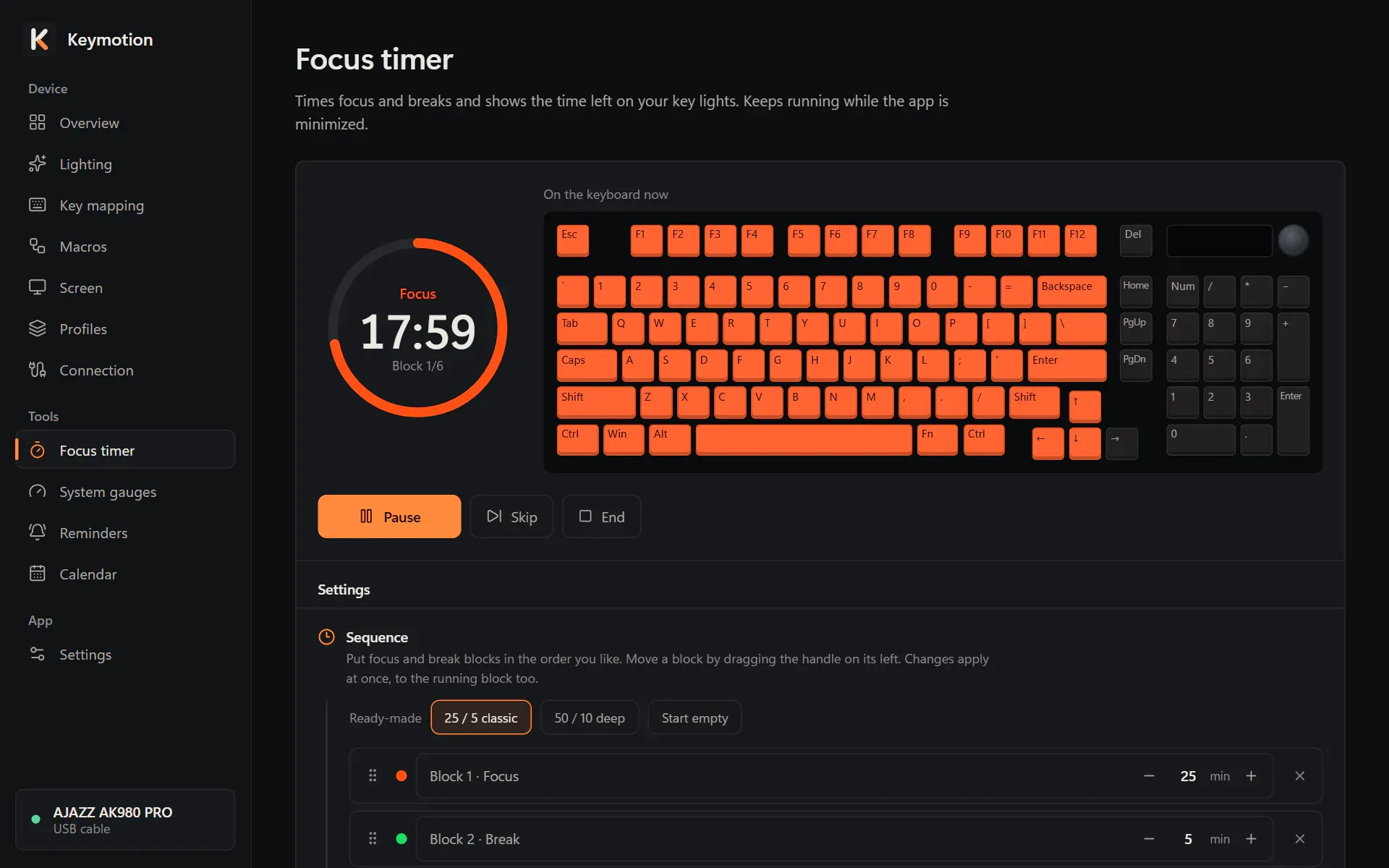
Start, pause and end
Section titled “Start, pause and end”- Open Focus timer.
- Click Start. The ring shows the time left, the phase (Focus or Break) and which block of the sequence is running.
- Click Pause to stop the clock for a moment, and Resume to go on.
- Click Skip to go to the next block, or End to end the series. Your saved lighting comes back on the keys.
You can also start the timer from the Overview page. When Keymotion keeps running after you close its window (see Settings), the menu of its icon next to the clock shows the time left and can start, pause, skip and stop the timer.
After a series, Last series shows your focus blocks and minutes.
Build your sequence
Section titled “Build your sequence”Under Settings, the Sequence row lists the blocks in the order they run.
- Ready-made gives you a start:
- 25 / 5 classic (the default): three 25-minute focus blocks with 5-minute breaks between them, then a 15-minute break.
- 50 / 10 deep: two 50-minute focus blocks, followed by a 10-minute and a 20-minute break.
- Start empty: one 25-minute focus block.
- Change any block’s length, from 1 to 180 minutes.
- Add focus and Add break add a block at the end. A sequence can have up to 16 blocks.
- Drag a block by the handle on its left to move it. Remove block (the cross) takes it out.
- When the sequence ends sets what happens after the last block: Stop, 2 times, 3 times or Until I stop it.
Changes apply at once, also to the block that is running.
Key lights
Section titled “Key lights”The Key lights row is on by default. The keyboard lights up in each phase’s color, and the light recedes as time runs out. Nothing is saved to the keyboard; your lighting comes back at the end.
- Motion sets how the light recedes: Empties right to left, Empties left to right, Empties top to bottom, Empties toward the center or Fades slowly.
- Colors has a color for Focus and one for Break. Click one to change it.
- Brightness goes from 1 to 5.
- At phase start plays a Double blink or a Wave when a new block begins.
- Last-minute pulse makes the keyboard breathe slowly in the last minute, so you notice without looking.
The drawing next to the ring shows how it looks. Try on keyboard plays focus, break and the end on your keyboard in 12 seconds.
While the timer runs, the load bars of the system gauges wait. Volume and microphone still show on their own keys.
Cards on the screen
Section titled “Cards on the screen”The Keyboard screen row sends a card to the keyboard’s screen when each block starts. The card shows the phase, its length and what comes next. Cards go through the live screen and count toward its daily upload limit.
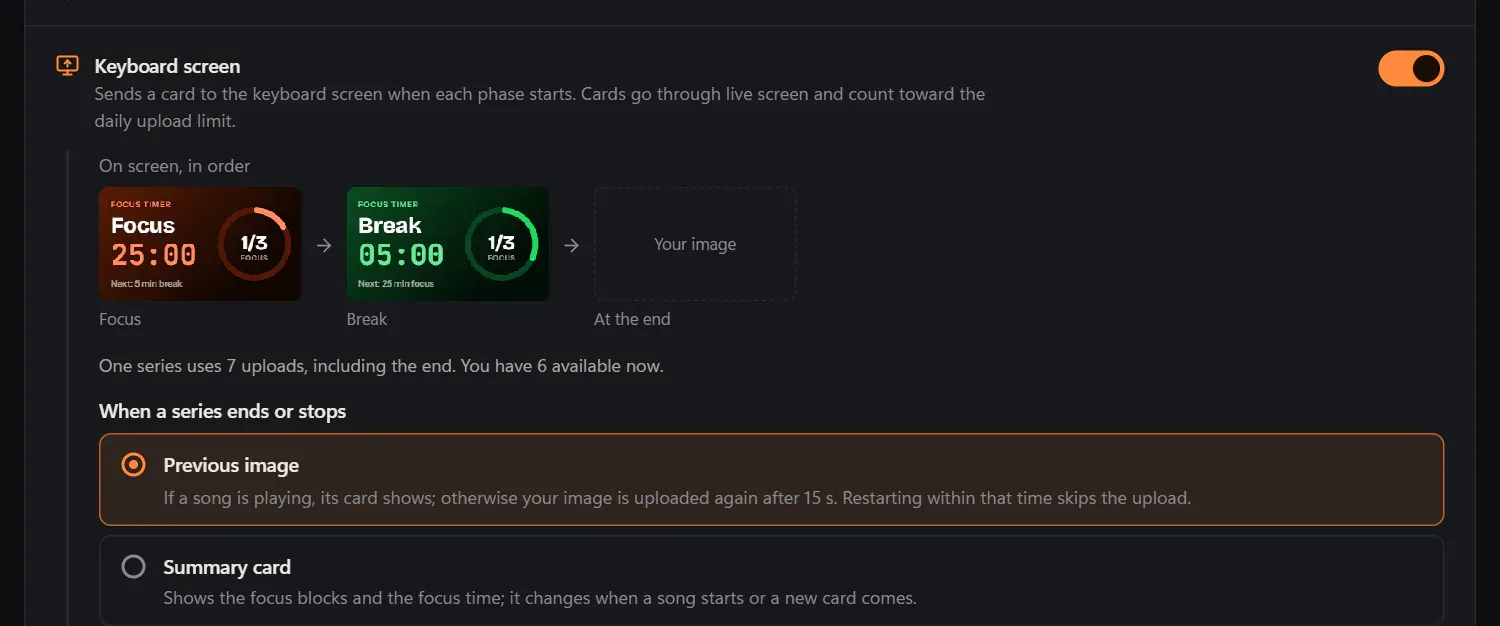
- If the live screen is off, click Turn on live screen. Until then, the time shows only on the keys.
- On screen, in order shows the cards one series puts on the screen.
- A line says how many uploads one series uses and how many are available now. If they don’t cover a full series, some cards may come late or be skipped; the keys still show the progress.
When a series ends or stops, choose what the screen shows:
- Previous image: if a song is playing, its card shows. Otherwise your own picture is uploaded again after 15 seconds. If you start again within that time, nothing is uploaded.
- Summary card: a card with your focus blocks and focus time. It changes when a song starts or another card comes.
If a card has to wait for the daily limit or the cable, the page says so and offers Send now and Don’t send. Meeting and reminder cards come before the timer’s cards.
End-of-phase sound
Section titled “End-of-phase sound”Turn on End-of-phase sound to hear the Windows notification sound when a block ends. It plays only when the time runs out on its own, not when you skip or end. It is off by default.