
Reminders
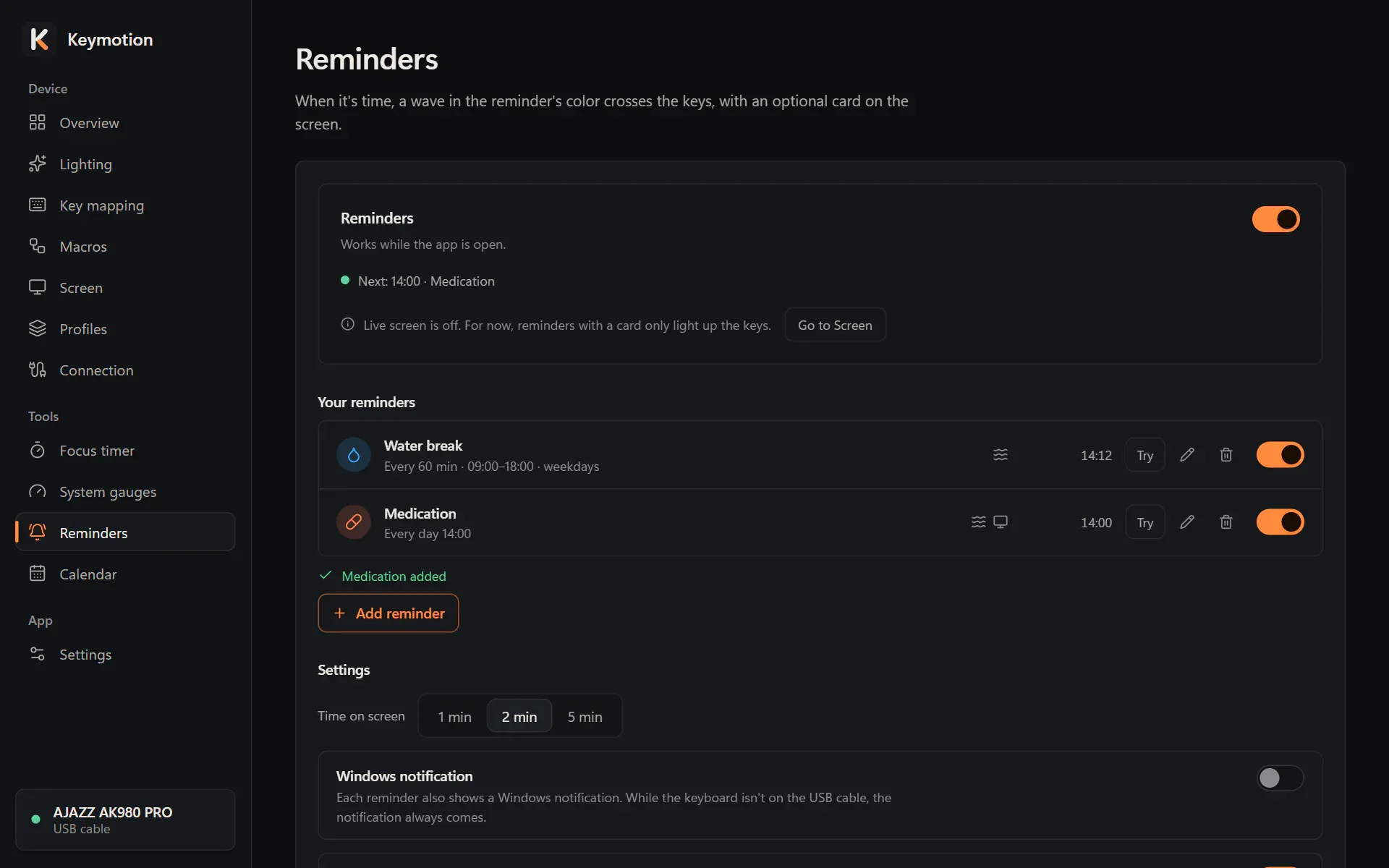
When a reminder is due, a wave in its color crosses the keys. If you like, a card shows on the keyboard’s screen too, a sound plays and Windows shows a notification. Reminders can come once, at a set time on chosen days, or every few minutes during working hours.
Open Reminders under Tools in the sidebar.
Add a reminder
Section titled “Add a reminder”Adding a reminder takes three steps: Template, What and when and Alert style. Cancel leaves at any step without saving.
- Click Add reminder.
- Pick a template. You can change everything in the next steps.
- Water break, Move break and Eye break repeat every 60, 45 and 20 minutes on weekdays from 09:00 to 18:00, with the light only.
- Medication comes every day at 14:00, with the light and a card.
- Custom reminder comes once, at the next full hour, with the light and a card.
- Under What and when, type a Title and, if you like, a Note (optional). Then choose When:
- Once: a Date and a Time.
- At a set time: a Time and the Days.
- Repeating: Repeat every 20, 30, 45, 60 or 90 minutes, between a Start and an End time, on the Days you choose. The first reminder comes one interval after the start time.
- Click Next.
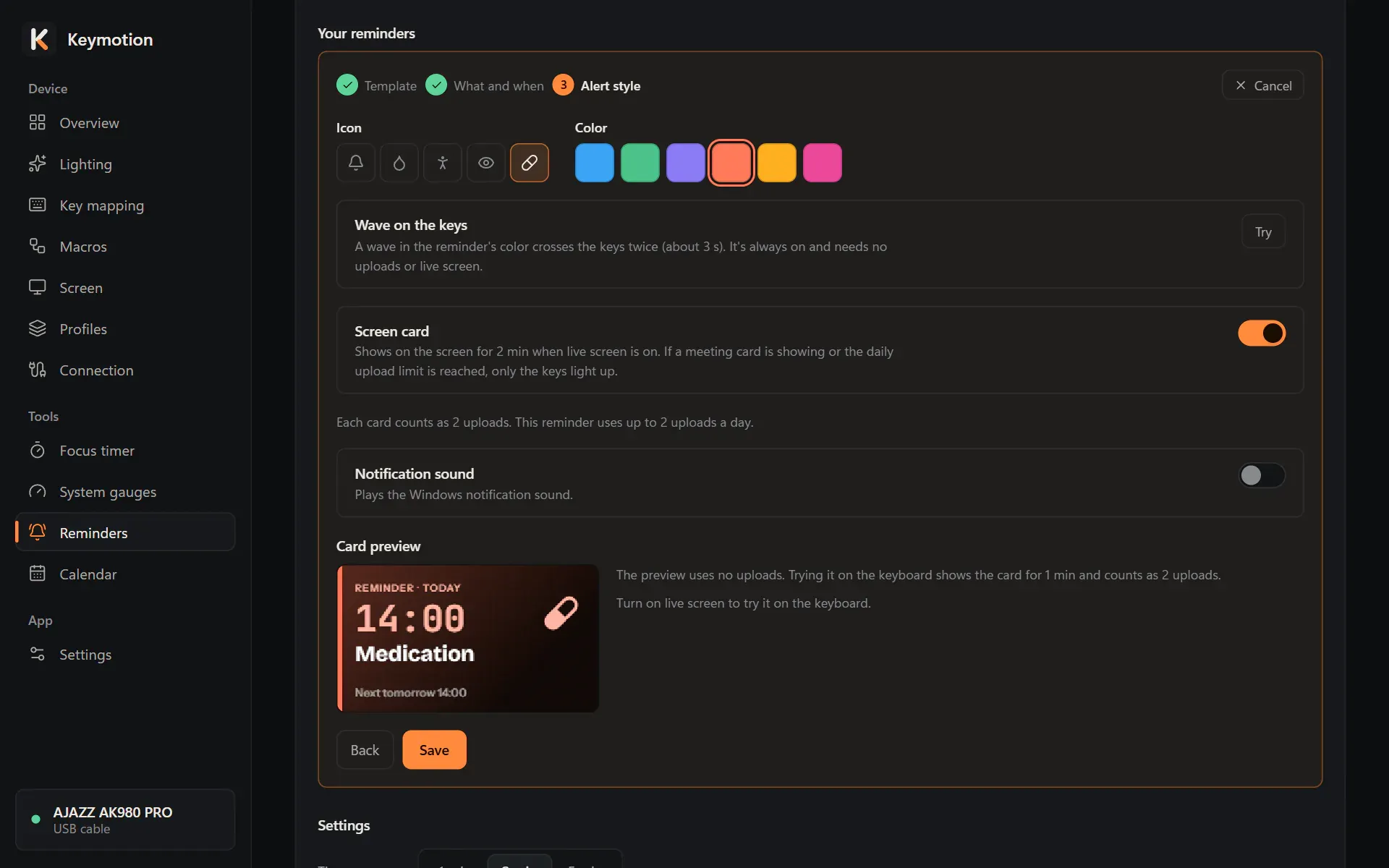
- Under Alert style, choose an Icon and a Color, and how the reminder alerts you (see below).
- Click Save. The reminder appears in the list.
You can have up to 20 reminders.
How a reminder alerts you
Section titled “How a reminder alerts you”Wave on the keys
Section titled “Wave on the keys”A wave in the reminder’s color crosses the keys twice, which takes about 3 seconds. It is always on and needs no uploads and no live screen. Click Try to see it on the keyboard.
Screen card
Section titled “Screen card”Turn on Screen card to show a card on the keyboard’s screen as well. The card shows the time, the title, the note and when the reminder comes next. It stays for the time you set under Time on screen, then the picture that was there before comes back.
- The card needs the live screen to be on.
- Each card counts as 2 uploads toward the daily upload limit. The page tells you how many uploads the reminder uses a day at most. For frequent reminders, it suggests the light only.
- Card preview shows the card on the page without any upload. Try on keyboard sends it to the keyboard for 1 minute; that counts as 2 uploads.
Sometimes only the keys light up, even with the card on: when a meeting’s card is on the screen, the daily upload limit is reached, the live screen is off, the USB cable isn’t connected, or Show cards on the screen is off. The reminder’s row then says why the card wasn’t shown.
Sound and Windows notification
Section titled “Sound and Windows notification”Notification sound plays the Windows notification sound. Under Settings, Windows notification also shows a Windows notification with the reminder’s title and note. While the keyboard isn’t connected with the USB cable, the keys can’t light up, so the notification always comes.
Your reminders
Section titled “Your reminders”Your reminders lists every reminder with its icon, title and schedule, small icons for the wave, the card and the sound, and when it comes next. A one-time reminder that has gone off shows Passed. Each row has:
- Try, which plays the light and the sound now. With the screen card on, the card goes to the keyboard too, stays 1 minute and counts toward the daily upload limit.
- Edit (the pencil), which opens the steps again.
- Delete (the bin). Confirm with Delete, or click Cancel.
- A switch to turn the reminder on or off.
The line at the top of the page shows the next reminder and when it comes.
Settings
Section titled “Settings”- Reminders turns all reminders on or off.
- Time on screen: how long a card stays, 1, 2 or 5 minutes. The default is 2.
- Windows notification: a Windows notification for each reminder, as described above.
- Show cards on the screen: when off, reminders only light up the keys.
- Pause while you’re away: after 5 minutes without keyboard or mouse input, and also while the screen is locked, repeating reminders pause. When you are back, they start counting again. Reminders at a set time still go off.