
If something goes wrong
Almost everything Keymotion changes on the keyboard can be put back from inside the app. This page goes through the common cases, then says where to ask when it doesn’t help.
Put the factory screen animation back
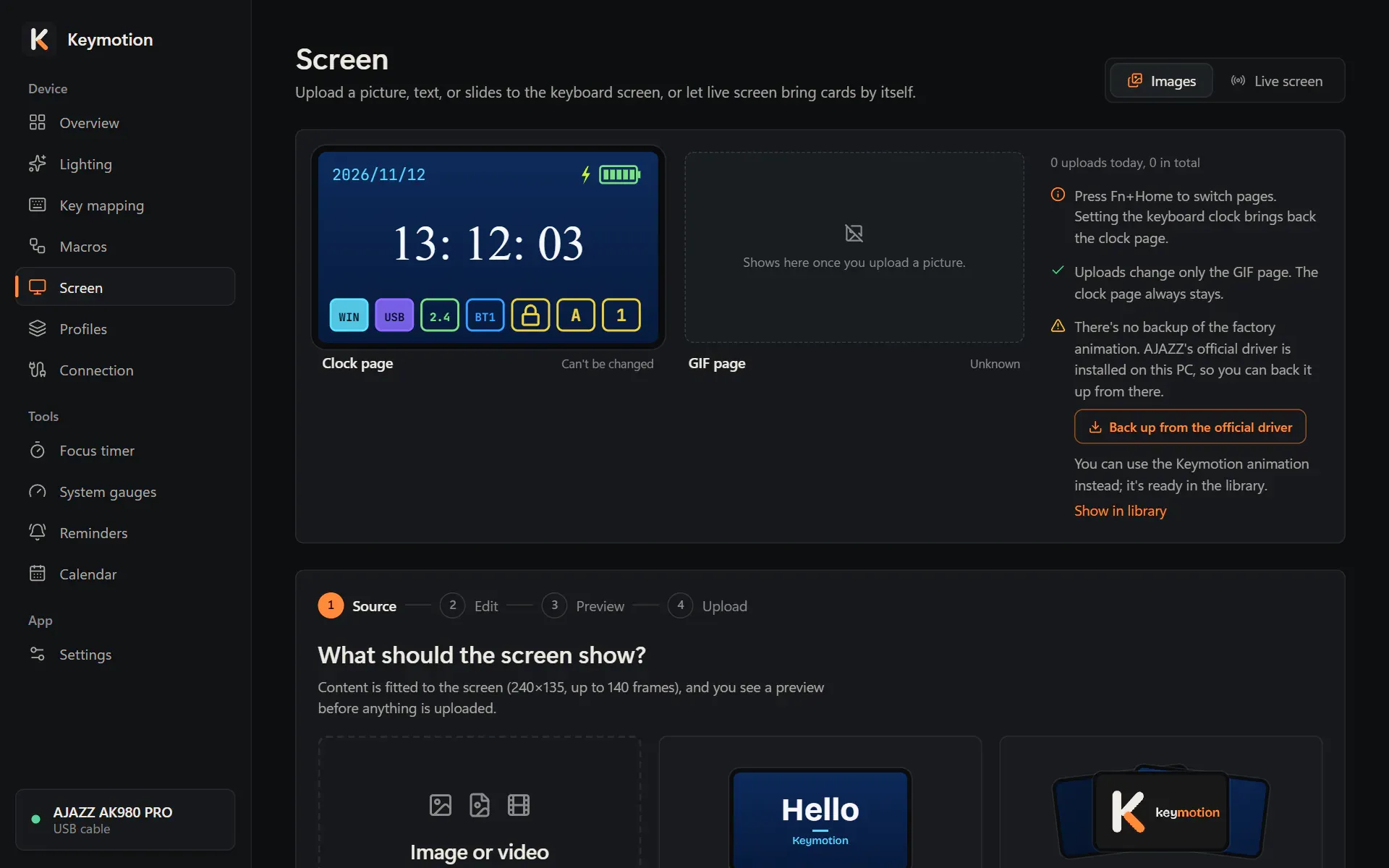
Section titled “Put the factory screen animation back”The keyboard’s screen has two pages. The Clock page never changes. The GIF page shows the animation the keyboard came with, until you upload something else: every upload replaces it. Press Fn+Home on the keyboard to switch between the two.
Keymotion doesn’t come with AJAZZ’s animation, but it can keep a copy of it in your library. With that copy, you can put the animation back at any time.
If your library has a copy
Section titled “If your library has a copy”- Open Screen in the sidebar and stay on the Images tab.
- In the Library, find AJAZZ factory animation. It’s marked Factory.
- Click Restore, then Upload in the window that opens.
- Keep the cable plugged in until it finishes. It takes about 5 minutes, and the keyboard’s screen shows LOADING % meanwhile.
If there’s no copy yet
Section titled “If there’s no copy yet”When there’s no copy, the Screen page says “There’s no backup of the factory animation.”
- AJAZZ’s official driver is installed on this computer. The page says so and shows Back up from the official driver. Click it. Keymotion copies the animation from the driver’s files into your library as AJAZZ factory animation, and nothing is sent to the keyboard. Then put it back as described above.
- The driver isn’t installed. The page says that AJAZZ’s official driver can restore it. Install the driver, restart Keymotion, and the backup button appears. You can also put the animation back with AJAZZ’s driver itself.
If Keymotion says “The official driver’s file wasn’t found”, install the driver, then restart Keymotion.
Use the Keymotion animation instead
Section titled “Use the Keymotion animation instead”Keymotion comes with an animation of its own: the “K” of its logo drawn stroke by stroke, then its name. It’s always in the library as Keymotion animation, marked Comes with the app, and can’t be deleted.
- Open Screen, on the Images tab.
- In the Library, find Keymotion animation and click Upload.
- Click Upload again in the window that opens. It takes about a minute and a half.
When there’s no copy of the factory animation, the Screen page also offers it: click Show in library to go to it.
Reset key assignments to the factory layout
Section titled “Reset key assignments to the factory layout”The keyboard can’t report its key mapping, so the Key mapping page shows what you last saved from Keymotion.
- Open Key mapping.
- Choose Base layer or Fn layer.
- Click Reset layer. If you can’t click it, that layer already has the factory layout as far as Keymotion knows.
- Do the same on the other layer if you changed it too.
- Click Save to keyboard.
To put back a single key, select it on the keyboard drawing and click Restore default. On the Fn layer, this also brings back the key’s built-in shortcut.
Macros stay on the keyboard until you delete them: open Macros, select one, click Delete macro, then Save to keyboard. Keys assigned to a deleted macro go back to their default.
Turn the lighting back to an effect
Section titled “Turn the lighting back to an effect”Use this after a per-key color design, or when the lights are off.
- Open Lighting and choose the Effects tab.
- Choose an effect. The one the keyboard came with is marked Default, and Restore default effect sets it with its original settings.
- Click Save to keyboard.
Saving an effect replaces the per-key color design on the keyboard.
If the keys show bars instead of your lighting, system gauges are on. The Lighting page says so. Click Go to gauges and turn off Show on keys.
An upload was cut short
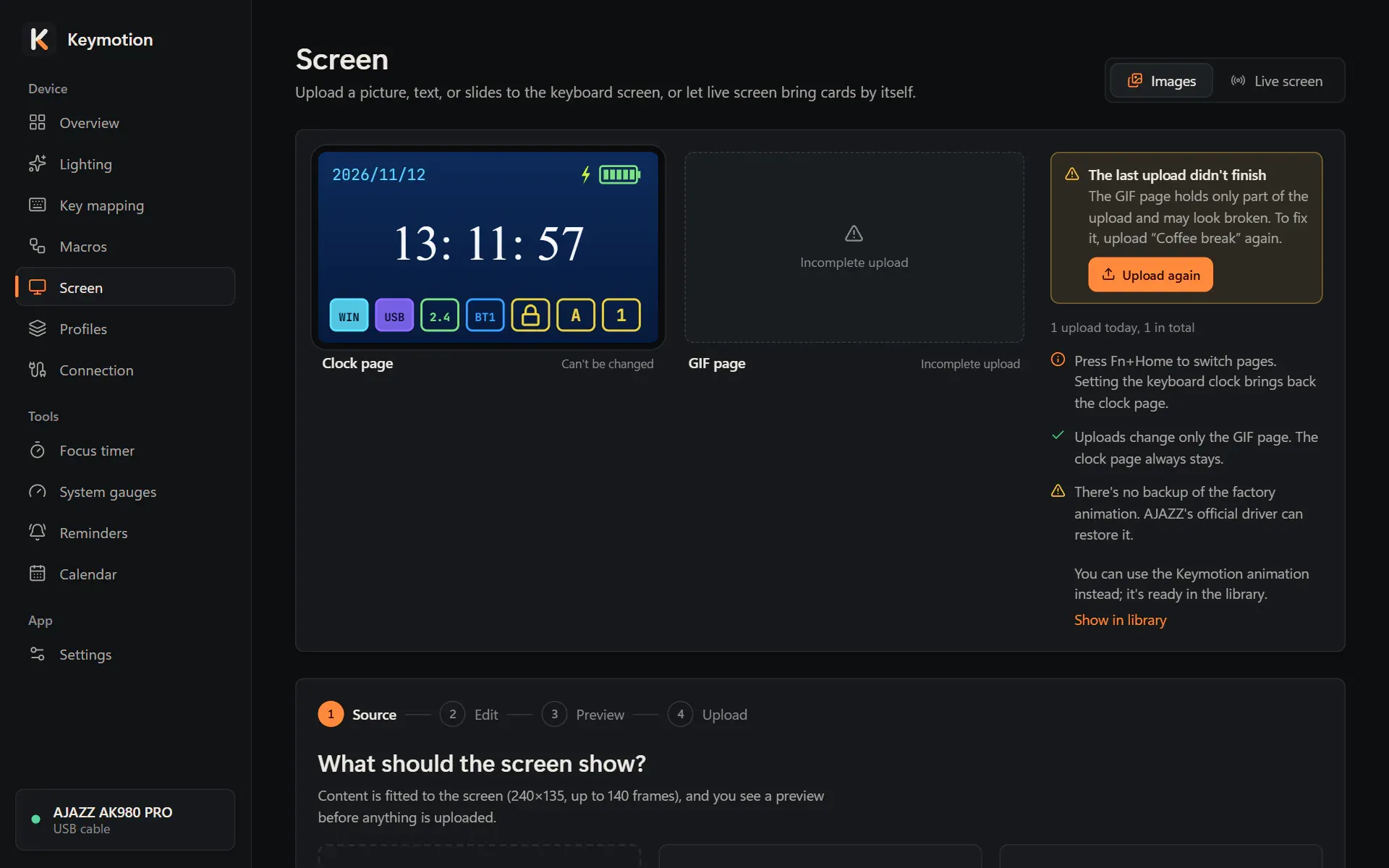
Section titled “An upload was cut short”During an upload to the screen, keep the cable plugged in. If the cable comes out, or Keymotion closes before the upload finishes, the GIF page holds only part of the picture and may look broken. The Clock page isn’t affected.
Keymotion says “The upload stopped before it finished” and remembers it:
- The Screen page says “The last upload didn’t finish”, and the picture is marked Incomplete in the library.
- The next time you start Keymotion, a notice with the same title appears at the bottom right of the window.
- Plug the cable back in and set the switch on the back to the middle.
- Click Upload again, on the Screen page or in the notice.
- Click Upload in the window that opens.
The picture is uploaded again from the beginning. If it’s no longer in your library, upload any other picture from the library instead.
If you quit Keymotion during an upload, it shows “Saving to the keyboard” and closes by itself when the upload finishes. Quit now leaves the GIF page incomplete.
Another program is using the keyboard
Section titled “Another program is using the keyboard”The keyboard follows one program’s commands at a time. When two programs send commands together, they can mix up, so Keymotion doesn’t save anything to the keyboard while one of these is running:
- AJAZZ’s official driver: “The AJAZZ driver is running. Close it before saving to the keyboard.”
- SignalRGB or OpenRGB, with the same kind of message.
Close that program completely, then click Save to keyboard again. Nothing was written, and your edits are still in Keymotion.
When more than one keyboard is connected by USB, Keymotion doesn’t save either: “More than one keyboard is connected by USB. Leave only one connected to save.”
Keymotion doesn’t find the keyboard
Section titled “Keymotion doesn’t find the keyboard”While there’s no keyboard, Keymotion shows Connect your keyboard and “Looking for the keyboard…”.
- Plug the USB-C cable into the keyboard and into your computer.
- Set the switch on the back of the keyboard to the middle, the USB position.
- Keymotion finds the keyboard by itself within a few seconds.
If it still doesn’t appear:
- Try another cable or another USB port.
- Check the switch. With the switch on 2.4G or BT, the keyboard works wirelessly and Keymotion can’t change its settings. Pages that need the cable say “Your keyboard isn’t connected”. See Connection.
- If Keymotion shows “This keyboard isn’t supported yet”, it found a keyboard it doesn’t know. Nothing is sent to it. See Supported keyboards.
- If Keymotion says “This keyboard’s firmware wasn’t recognized, so no commands were sent to it”, please report it.
More about the first connection is in Connecting the keyboard.
Uninstall Keymotion
Section titled “Uninstall Keymotion”- In Windows Settings, open Apps, then Installed apps.
- Find Keymotion, click the … button next to it, and choose Uninstall.
- If Keymotion is open, the uninstaller offers to close it. Click OK.
- To remove your settings and saved data too, tick Also delete my settings and saved data. Leave it unticked to keep them for a later install.
Uninstalling also removes Keymotion from the programs that start with Windows, and its name from Windows notifications.
The keyboard keeps its key mapping and macros, lighting, screen picture and clock after you uninstall Keymotion. To clear them before you give the keyboard away, follow the steps above while Keymotion is still installed: reset the key mapping, delete the macros and save, then upload a neutral picture, such as the Keymotion animation.
What Keymotion stores, and where, is in the privacy policy.
Where to ask for help
Section titled “Where to ask for help”- Report a problem. Open Settings. Under About, next to Feedback, click Report a problem. A window shows the details that will be included first. Report on GitHub copies them and opens the project’s form on GitHub in your browser. Paste them into the form (Ctrl+V) and send it. You need a GitHub account.
- After an error or a crash. When something unexpected goes wrong, or Keymotion closed unexpectedly the last time, it offers the same report window.
- If the window shows “Something went wrong”. Click Reload. If it keeps happening, report it.
- Ask a question. Use Questions and help on GitHub.
- A security problem. Please report it privately with the private report form, not in a public report.
Keymotion sends nothing by itself. You see the text first and decide whether to send it. More answers are in the FAQ.