
Record macros for the AK980 PRO
A macro plays a sequence of key presses and mouse clicks with a single key of the AJAZZ AK980 PRO. You record and edit macros on the Macros page, then give one to a key on the Key mapping page.
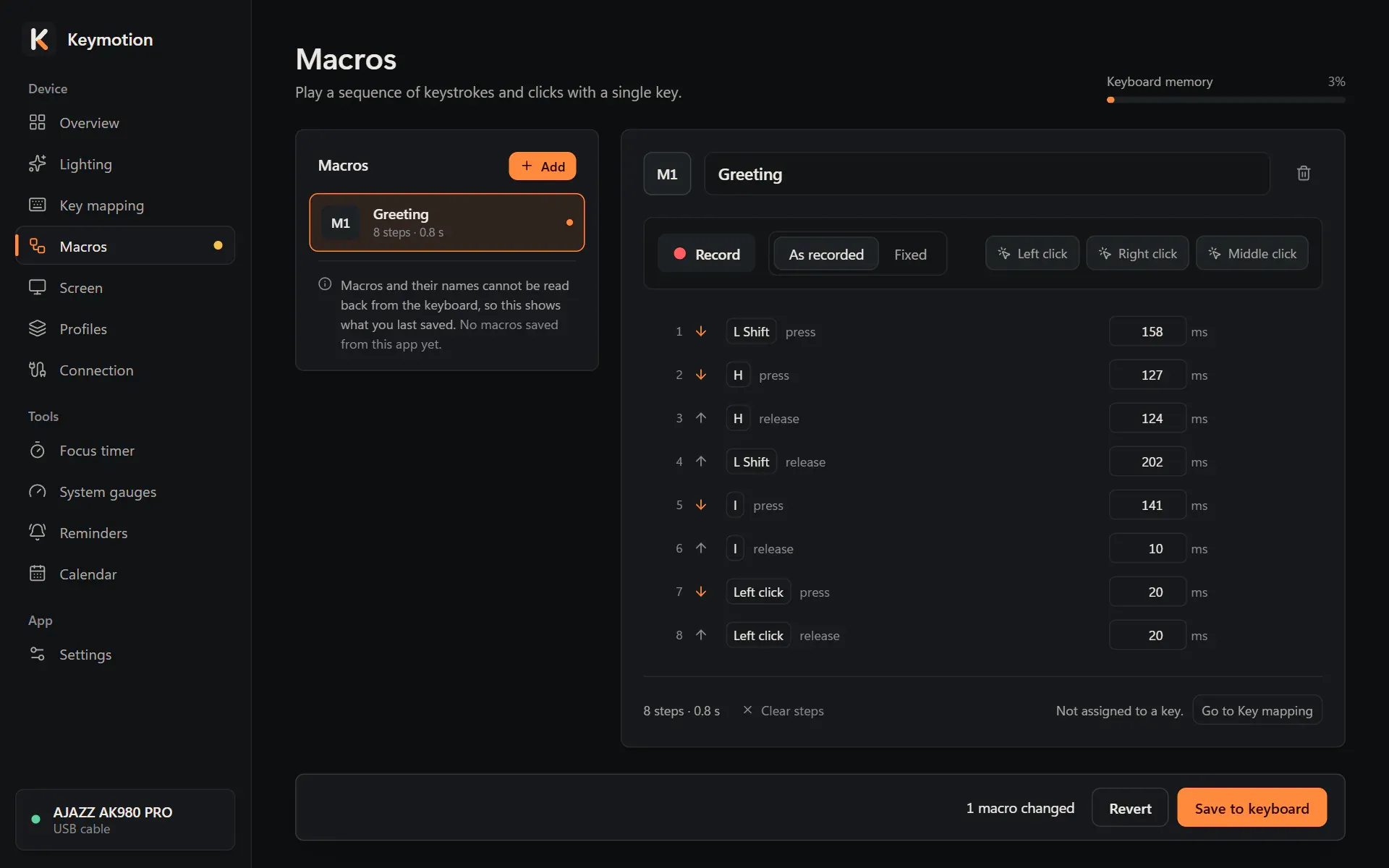
Record a macro
Section titled “Record a macro”- Open Macros in the sidebar and click Add. A new macro opens with a name such as “Macro 1”.
- Type a name in the box at the top if you like, up to 40 characters.
- Under Delay, choose As recorded to keep the real time between your presses, or Fixed to give every step the same delay, in milliseconds.
- Click Record and press the keys while the Keymotion window is in front. Each press and each release becomes a step.
- Click Stop recording.
System shortcuts such as the Windows key and Alt+Tab cannot be recorded. Holding a key down records one press, not repeats. Keys still held when you stop get a release step of their own, so the macro never leaves a key down. Mouse clicks are not recorded; you add them with buttons, as below.
Edit the steps
Section titled “Edit the steps”Each line is one step: a key that is pressed (down arrow) or released (up arrow), and the delay before the next step, in milliseconds.
- To change a delay, type a new value in its box. It can be from 10 to 65535 ms.
- Point at a step to show Move up, Move down and Delete step.
- Left click, Right click and Middle click add a press and a release of that mouse button at the end of the list. Move them where you need them.
- Clear steps deletes every step.
Under the list you see the number of steps and how long the macro takes to play. If the message “A key is never released, so it may stay held when the macro plays.” appears, a release step is missing.
Save the macros
Section titled “Save the macros”The bottom bar counts your changes, for example 1 macro changed, and a dot in the list marks each changed macro. Save to keyboard writes all your macros to the keyboard at once. Revert drops every change that is not saved yet.
Give a macro to a key
Section titled “Give a macro to a key”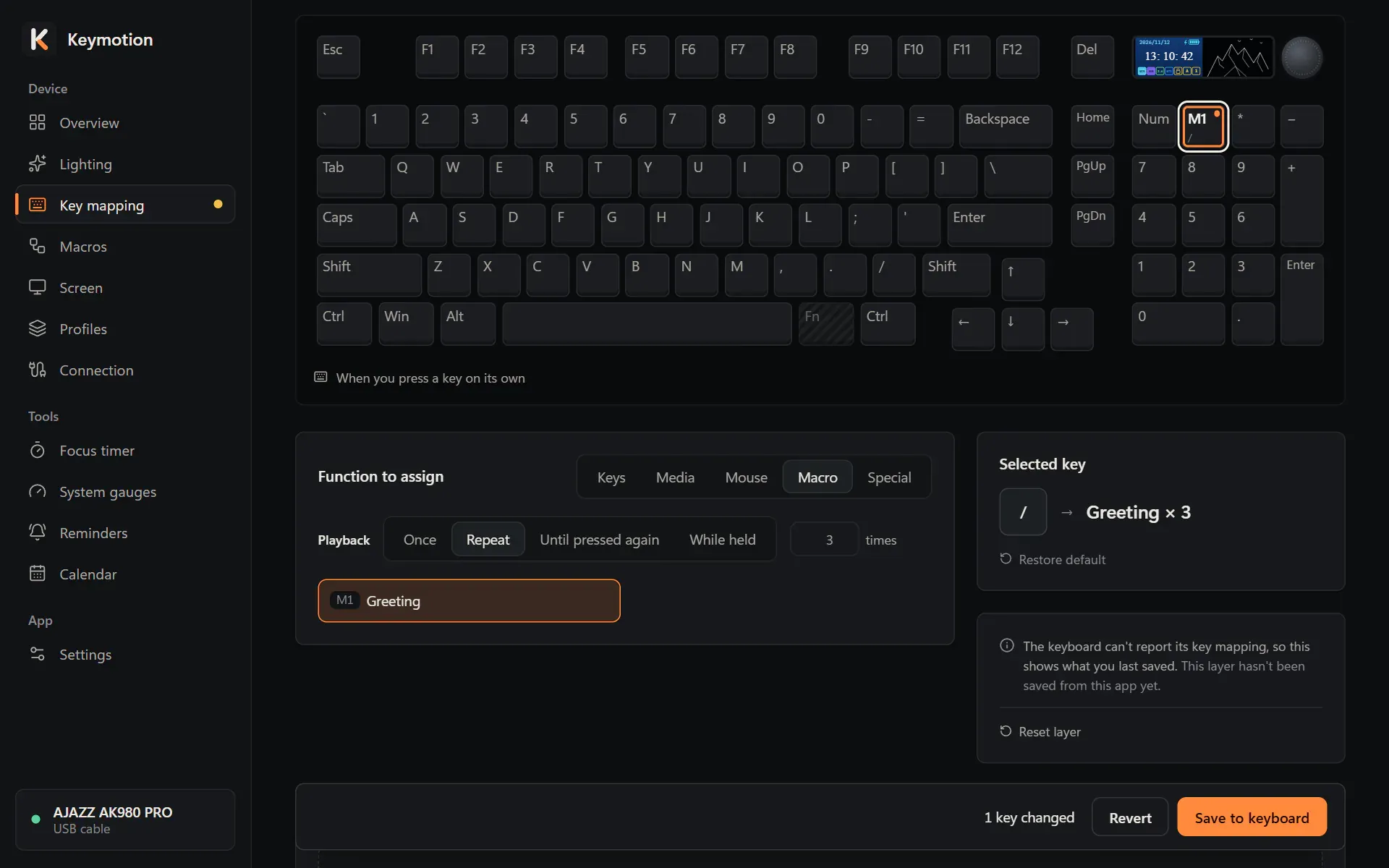
- Save the macro, then click Go to Key mapping under its steps.
- Click a key on the keyboard picture and choose Macro under Function to assign.
- Under Playback, choose how the key plays the macro.
- Click the macro. Each one is listed with its number, such as M1, and its name.
- Click Save to keyboard on the Key mapping page too.
The playback modes:
- Once: plays the macro once each time you press the key.
- Repeat: plays it as many times as you type in the box beside it, from 1 to 255.
- Until pressed again: keeps playing it until you press the key again.
- While held: plays it while you hold the key down.
A macro you haven’t saved yet shows Not saved in this list. Back on the Macros page, Assigned to lists the keys that play the selected macro; keys on the Fn layer appear as “Fn + key”.
Keyboard memory
Section titled “Keyboard memory”Keyboard memory, at the top right of the page, shows how much of the keyboard’s macro memory your macros use. Each step and each macro takes the same share, and there is room for 337 in total: one macro can have 336 steps, and ten macros can share 327. You can have up to 100 macros, M1 to M100.
When the macros don’t fit, the bar turns red, Save to keyboard is off and the bottom bar says “The macros do not fit in keyboard memory. Delete some steps.”
Delete a macro
Section titled “Delete a macro”- Select the macro and click the bin icon next to its name.
- Click Delete macro to confirm, or Cancel.
- Click Save to keyboard.
The other macros keep their numbers. Keys that played the deleted macro go back to their default, and the confirmation lists them. That change waits on the Key mapping page, so save there as well.